Last Updated: September 08, 2025
Document Template
With Document Template automation, you can generate a pre-configured document from the index data of other documents.
To create a new Document Template automation you must configure:
- General Settings
- Build Document Template automation
- A document template to use for the automation. For configuring a document template, see Document Templates.
General Settings
- In the Automation app select Document Template in the side navigation.
- Select the New Document Template button.
- In the General tab, enter the name for the new document template automation in the Document Template Name field.
-
If you have an on-premises instance of Vasion, enter a value on the Run On Machine field. Otherwise leave this blank.
- Use the Perform drop-down to select the frequency you want the automation to run. The next fields that display depend on what you select here.
- Once — select this option to only run the automation once. The next field display updates to Start Date. Enter the date in the format shown or select the Calendar icon
 to pick the date.
 - Daily — select this option to run the automation every day. The only remaining option is the Start Time.
- Weekly — select this option to run the automation once a week. The next field updates to Weekdays. Use the drop-down to select one or more days of the week by selecting the appropriate box.
- Monthly — select this option to run the automation once a month. The next field updates to Months. Use the drop-down to select one or more months by selecting the appropriate box.
- Frequency — select this option to run the automation at a specified time interval in minutes.
- In the next field, enter the number of minutes for the time interval.
- Once — select this option to only run the automation once. The next field display updates to Start Date. Enter the date in the format shown or select the Calendar icon
- In the Start Time, enter the time of day to run the automation in the format shown or select the Clock icon
 to pick the time.
 - If the Monthly option is selected, a Day of Month field is shown. Enter the day of the selected month(s) when you would like to run the automation.
The value in this field determines the server used to run the automation and is only required where there are multiple Vasion clients and/or client services running for the environment.
Build Document Template Automation
- Select the type of processing from the Processing Type drop-down.
- Select the Browse button next to the Folder to Process field, then select the Vasion Folder that contains the documents to process.
- Select the document template to use for the automation from the Document Template drop-down. For information on how to configure a document template for use with this automation, see Document Templates.
- Select the desired order of the completed document from the Merge Option drop-down.
- None — the original document will not be included in the output. The document template will be created only.
- Insert Before — the document template will be filled and inserted before the original document.
- Insert After — the document template will be filled and inserted after the original document.
- Select Move File After Processing to move the completed documents after the automation finishes.
- Select the Browse button next to the Success Folder field then select a Vasion folder to designate when successfully created document templates will go.
- Select the Browse button next to the Failed Folder field then select a Vasion Folder to designate where failed document templates will go.Failure for a document template is determined by whether all of the configured document template fields are filled. For configuring document templates and their fields, see Document Templates.
- Alternatively, select Delete File After Processing to delete the original document and only keep the template document.
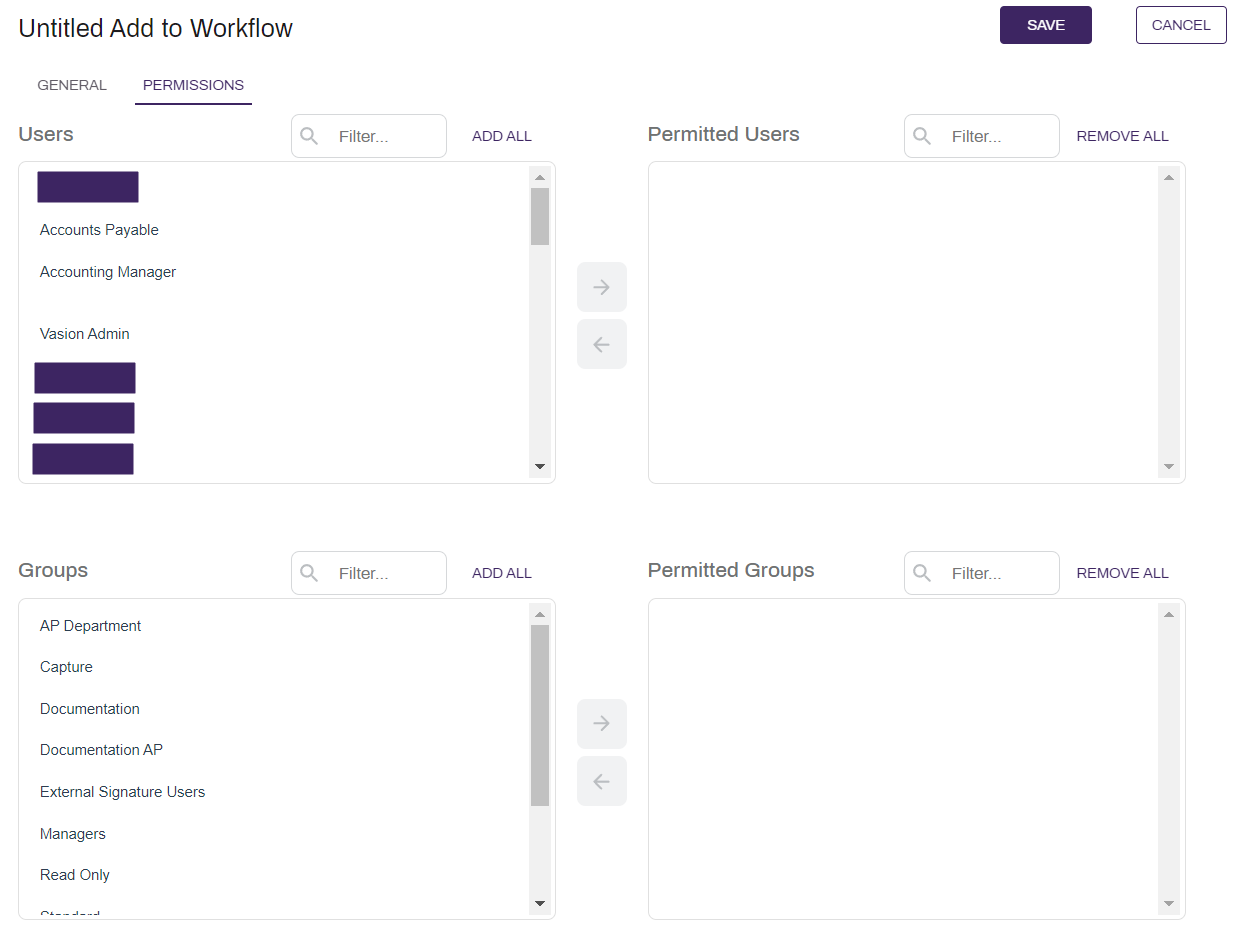
Permissions
You can change who can see or edit the
- Select the Permissions tab at the top of the screen.
- Select the users and / or groups you would like to have permission to access the
 .
. - Add or remove all users or groups by selecting on the Add All or Remove All buttons above each column.
- Select Save.
The roles that a user has can also limit which users can see and run this job. See Roles for more information on what roles do and how they may affect what you are trying to do.
When the configuration is complete, select Save at the top of the page to save your automation and run automatically based on the specified settings.