Last Updated: October 20, 2025
Create New Objects
To create objects the following is required:
- Object name
- Create object fields
You can additionally configure the following options:
- Define a file name format
- Object permissions
Below is a basic overview of how to create a new object.
Object Name
- From the Vasion Home page select the Forms app or the select the App button
 in the header and select the Forms app.
 - You have two options to create a new object:
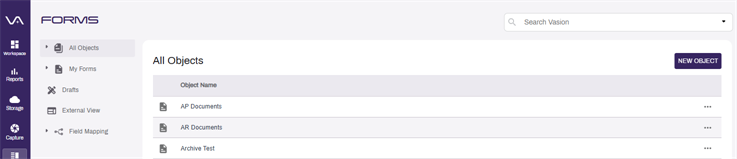
- Select the + Create Object button at the top of the left navigation, or
Select the New Object button on the right side of the page.
-
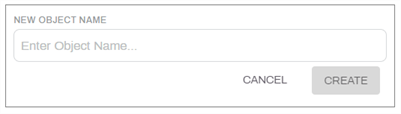
In the new object page enter a name in the New Object Name field and select Create.
Once you have the object name, you can create any object fields you need.
Object Fields
The fields configured for an object are used to store data about the documents of that object. From text, to numbers, to currency, to addresses a variety of data can be stored about the object.
Add Existing Object Fields
Because you cannot have two fields with the same name, even across objects, you can add a field that already exists in your Vasion Automate Pro instance to a new object.
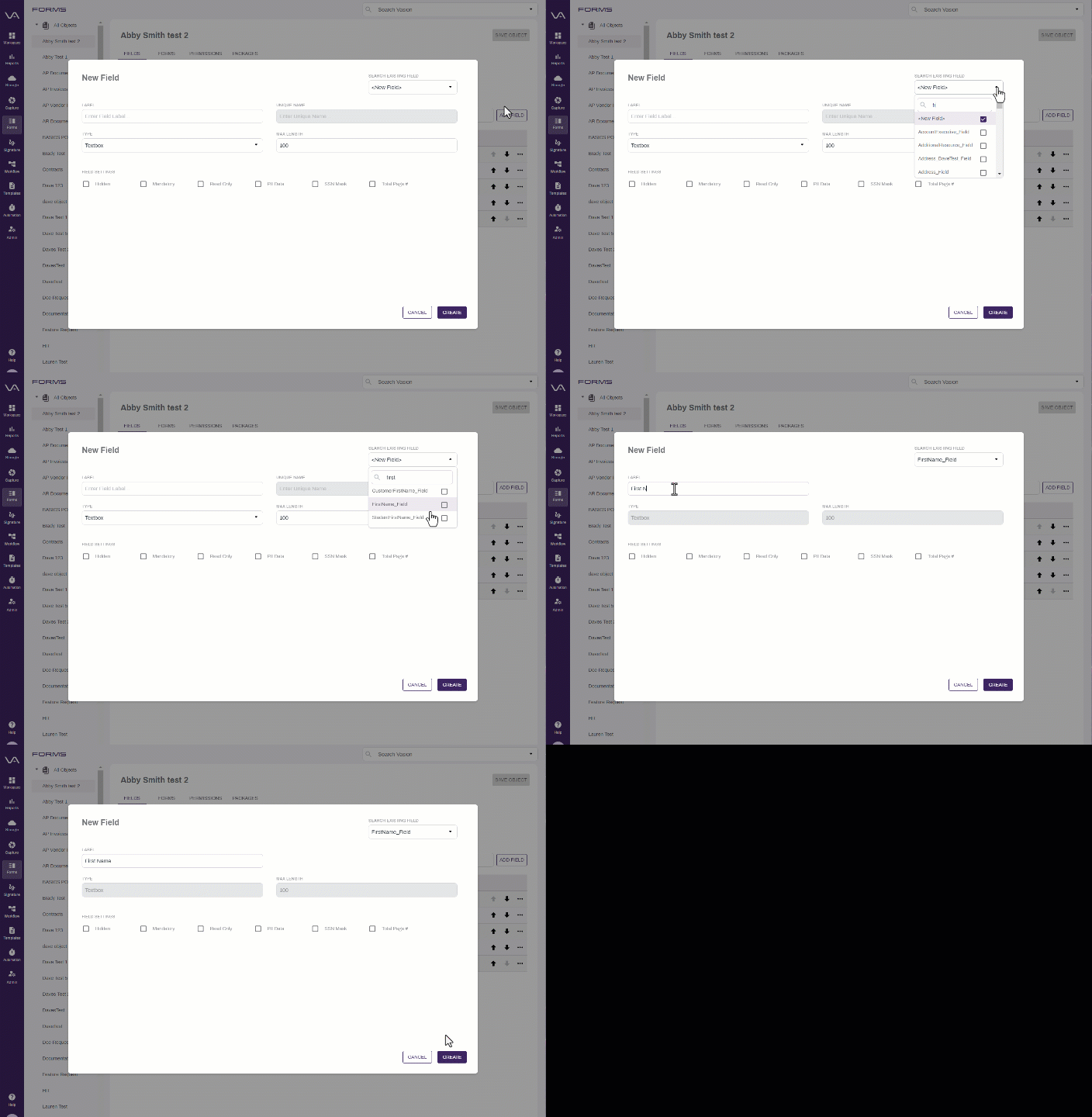
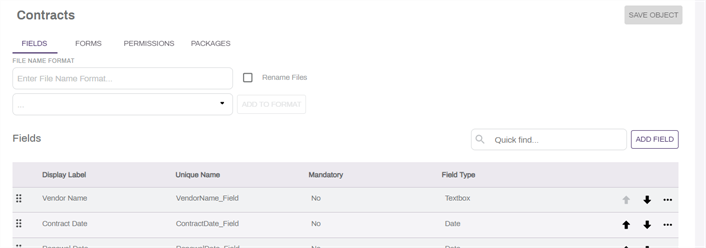
- Select the Add Field button.
- In the New Field modal use the Search Existing Field drop-down to select a field.
- Scroll down to find the field you want, or
- Use the Quick Find to search for the field.
- Select the field.
- Enter a label for the field to display in your object.
- Adjust any field settings for the field in this object.
Create New Object Fields
-
Select the Add Field button.
.
-
Complete the following:
-
Label — enter the label for the new field. The label is the field name that displays to users when they use the current object for a workflow, form or document. If you are creating a new field, Vasion uses the text entered in the table to create a new unique name and it is displayed in the Unique Name field.
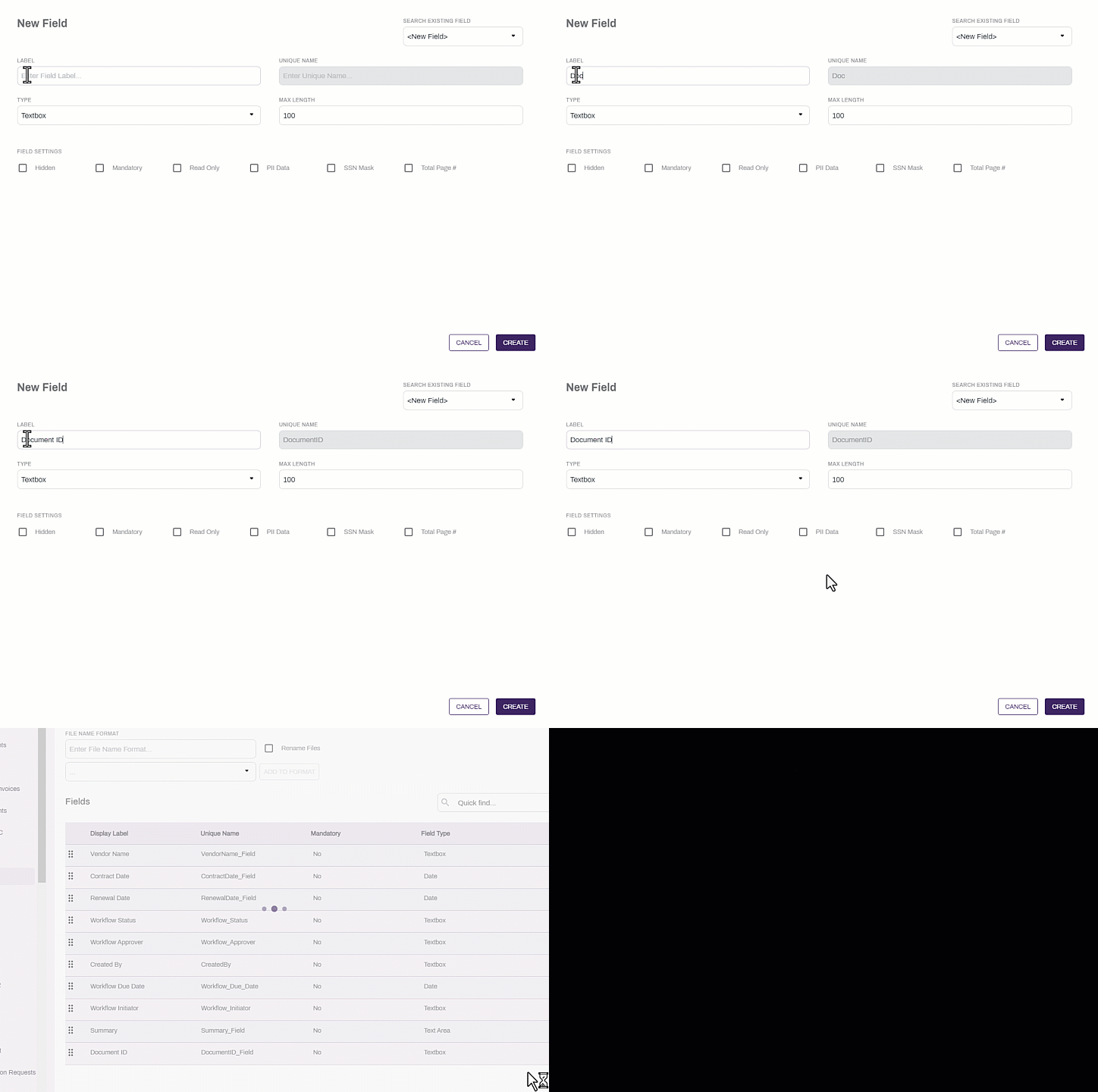
- Type — use the drop-down to select the type of field. For more information on field types and what they are used for, see Objects.
-
- Select the Create button.
Reorder Object Fields
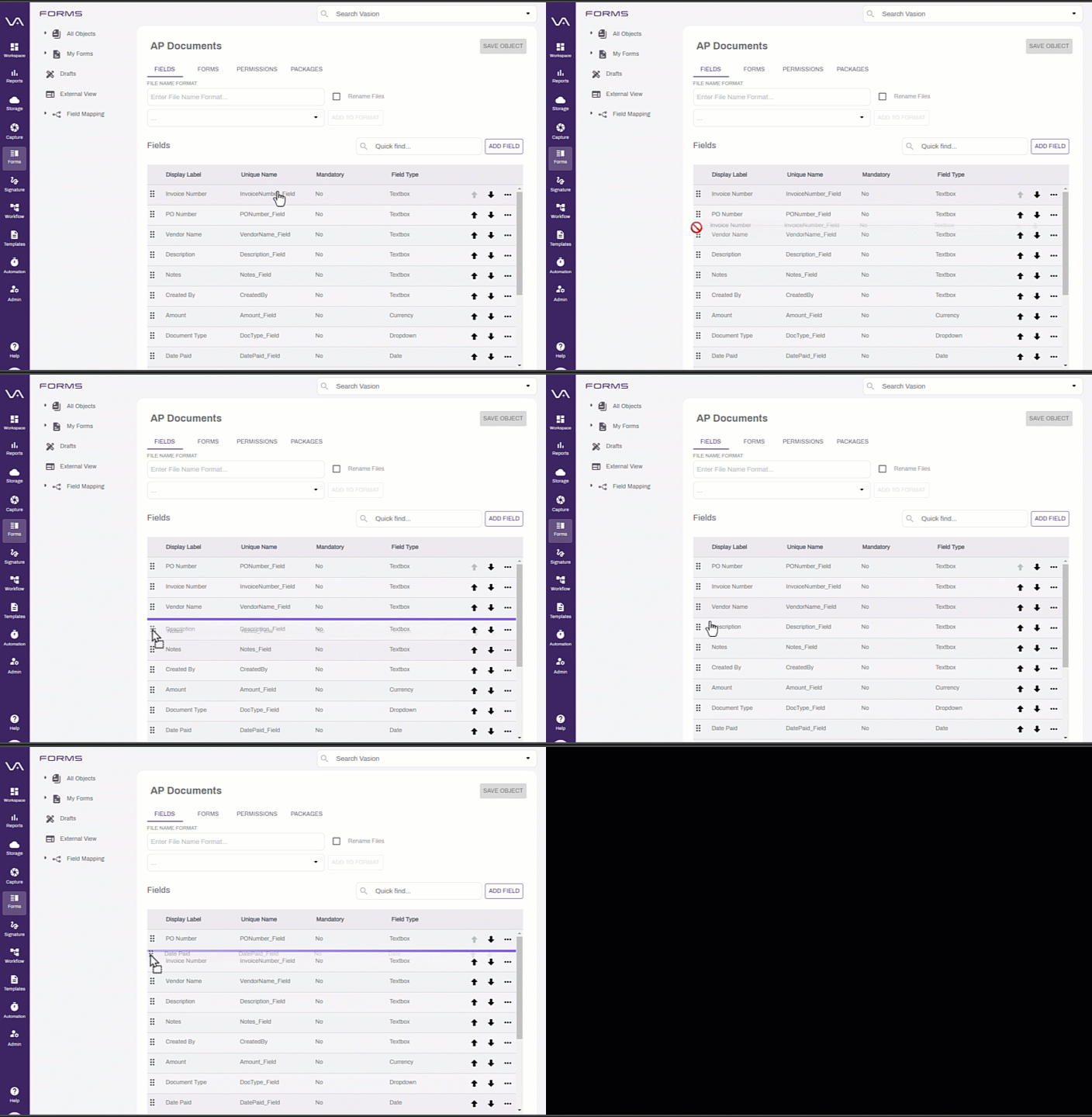
To reorder the object fields:
- In the object field list, find the field you want to move.
- Select the drag indicator, hold and drag the field to the new location, or:
- Select the Down arrow for the field to move it down one row at a time.
- Select the Up arrow for the field to move it up one row at a time.
Find Existing Object Fields
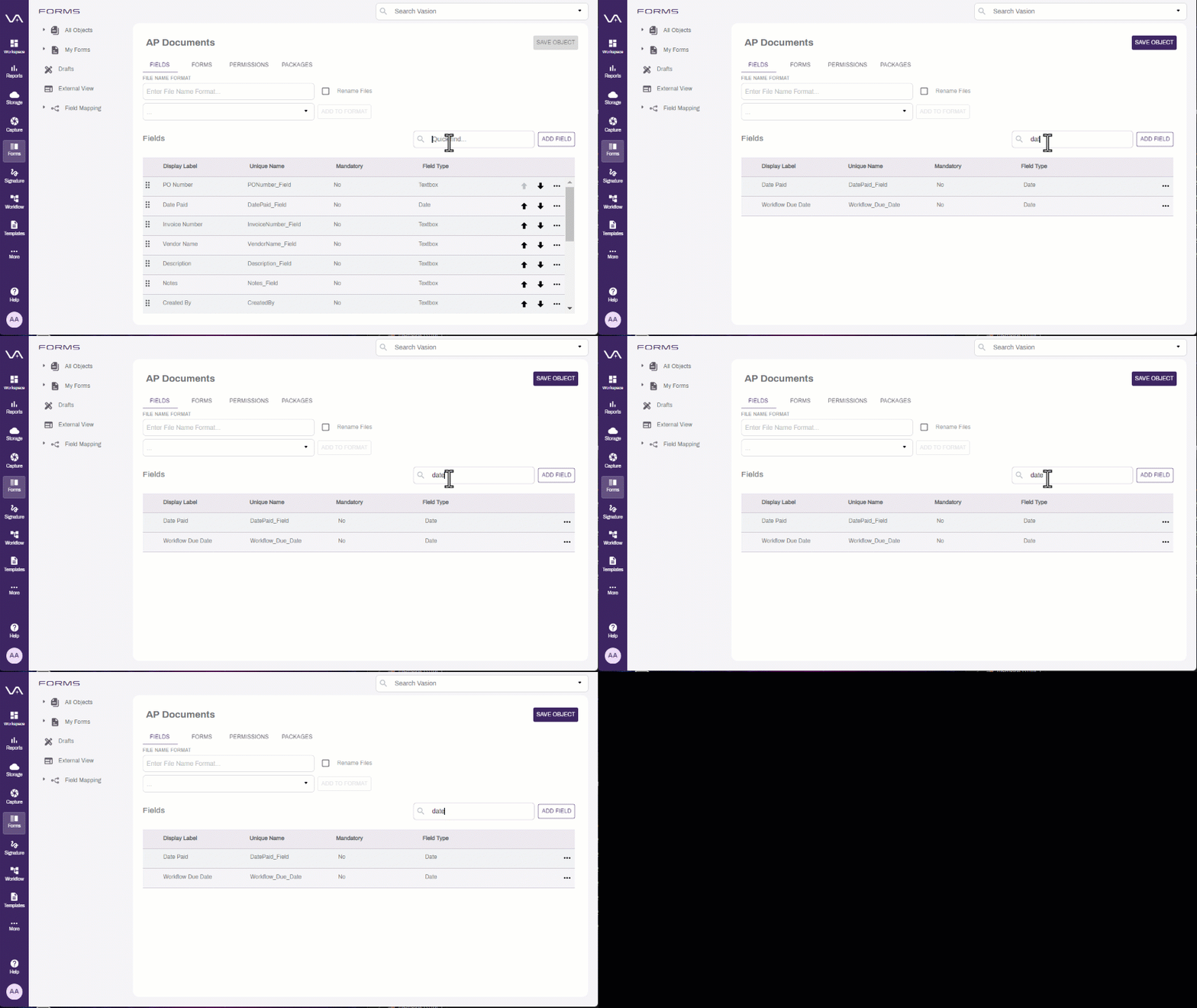
Use the Quick Find filter to easily locate an object field.
Create a Drop-Down Filter
You can configure a dropdown field to act as a filter for another dropdown to help users by narrowing a list of values to relevant options. To get started do the following:
-
Create a dropdown field with all the values from which a user can choose.
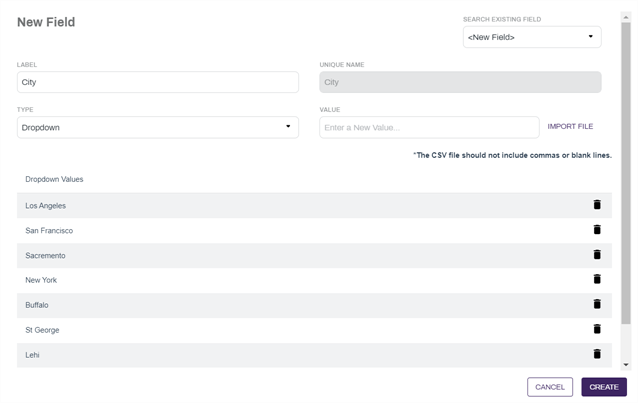
- Create a Create with values the user can use as a filter.
- Enter the values you want as filter.
- In Field Settings Select the Filter Values option and configure the following:
- Use the Field to Filter drop-down to select the dropdown field. If you only have one dropdown field in your object, it's selected by default.
- In Values for {Field Name} select a value.
- In Filter List, select the box next to each value you want to display when the value is selected.
- Repeat the above steps for each value in the current dropdown.
Select Create.
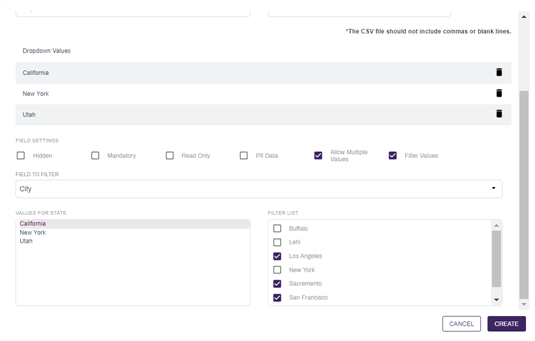
To see how the drop-down filter works on a form see Dropdown Filters.
Edit an Object Field
To edit an object field:
- In the object field list, select the More button
 for the field you want to edit.
 -
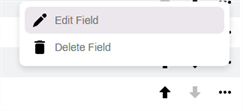
From the drop-down menu, Select Edit Field.
-
Edit the fields as needed.
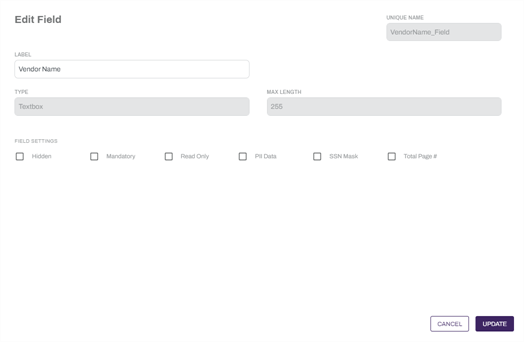
- Select the Update button.
Edit an Existing Object
- Select the More button for the object you want to edit.
- From the drop-down menu, select Edit Object.
- Make the necessary updates.
When editing an existing object, any changes you make to object fields, like adding a new field, reordering fields or editing an object field, take immediate effect. Select an item in the side navigation to exit the Edit Object page.
File Name Formatting
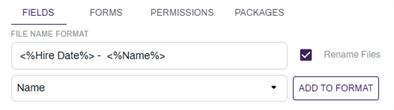
Utilize Vasion Automate Pro to name all the files for an object with a default naming convention based on object fields. To define the naming convention:
- Select the Fields tab of the edit Object view.
- Select an object field from the File Name Format drop down.
- Select the Add to Format button to add that value to the File Name Format field.
- Add any characters into the File Name Format field that should be repeated for every document.
- Repeat steps 2-4 as needed.
-
Select the Rename Files option to trigger this file name formatting whenever a document of this object is saved.
- Select Save Object.
Object Permissions
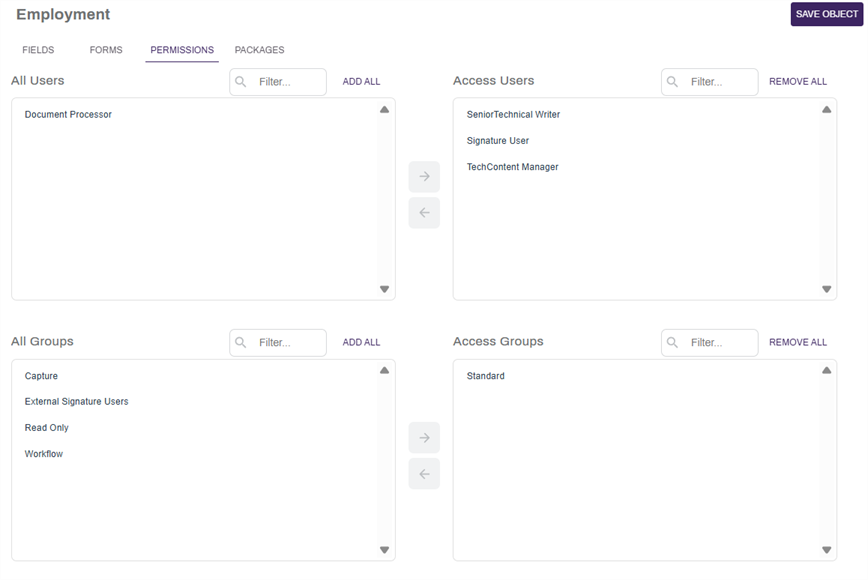
Permissions can be given for objects so that only the desired users can edit the fields for a document assigned to the object. This can be done at a individual user or group level.
You can change who can see or edit the
- Select the Permissions tab at the top of the screen.
- Select the users and / or groups you would like to have permission to access the
 .
. - Add or remove all users or groups by selecting on the Add All or Remove All buttons above each column.
- Select Save Object.