Last Updated: February 03, 2026
Field Mapping
Field Mapping uses the value(s) in an object field to search for additional information associated with that object field and automatically populate other fields within the object. By taking advantage of this functionality, manual and repetitive data entry is reduced, thus reducing the possibility of errors due to typos or inconsistent entries, while making capturing of data more efficient.
XML Configuration
Vasion Automate Pro can utilize XML schemata to import documents with index data. Configure the mapping using this page, then use the XML Import automation to schedule the automated document import.
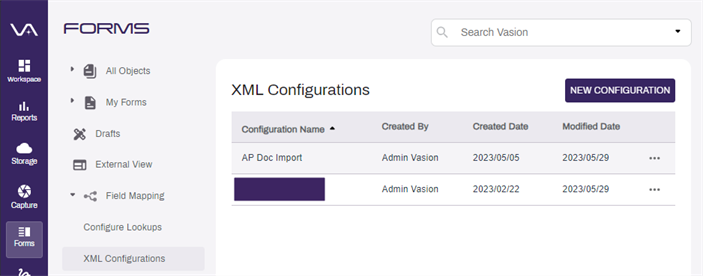
- From the Forms App, select the arrow next to Field Mapping, then select XML Configurations.
- Select the New Configurations button to initiate the configuration itself.
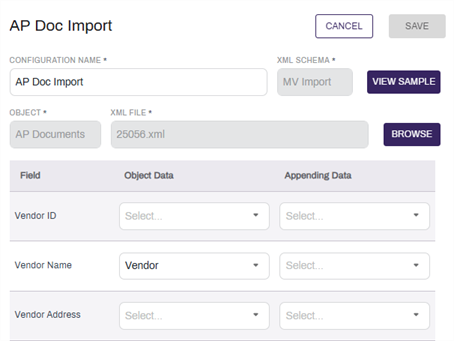
- Enter the configuration name in the Configuration Name field.
- Select the XML schema type from the XML Schema drop-down.
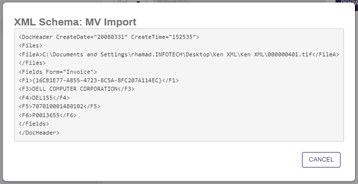
- To view an example of the selected schema, select the View Sample button.
- Select the Cancel button to close the XML example modal.
- Select the object from the Object drop-down. For configuring an object, see Objects.
- Select the Browse button next to the XML File field to open the upload modal.
- Select the Click to Upload your XML File to open your native file browser, or drag and drop a file on the Drag XML File Here area.
- Once the XML file is uploaded, select the XML attributes using the Object Data column drop-downs that correspond to the relevant index fields in the Field column.
- If there is a second attribute in the XML data that should be appended to index data, select the attribute from the relevant Appending Data drop-down.
- Select the Save button.