Last Updated: October 20, 2025
Integrations
Integrations use the value(s) in an object field to search for additional information associated with that object field and automatically populate other fields within the object. By taking advantage of this functionality, manual and repetitive data entry is reduced, thus limiting the possibility of errors due to typos or inconsistent entries, while making capturing of data more efficient.
Vasion Automate Pro offers three ways to integrate with external data sources: SQL database connection, Salesforce connection, and API integration.
Database Lookups
To create database lookups you should be familiar with SQL language syntax and have access to a database connection. For assistance with Database Lookups contact Product Support at support@vasion.com.
Requirements
To create a database lookup you need the following:
- A database connection
- An existing Vasion object
- Know the database fields you want to reference
- Knowledge of SQL language is helpful
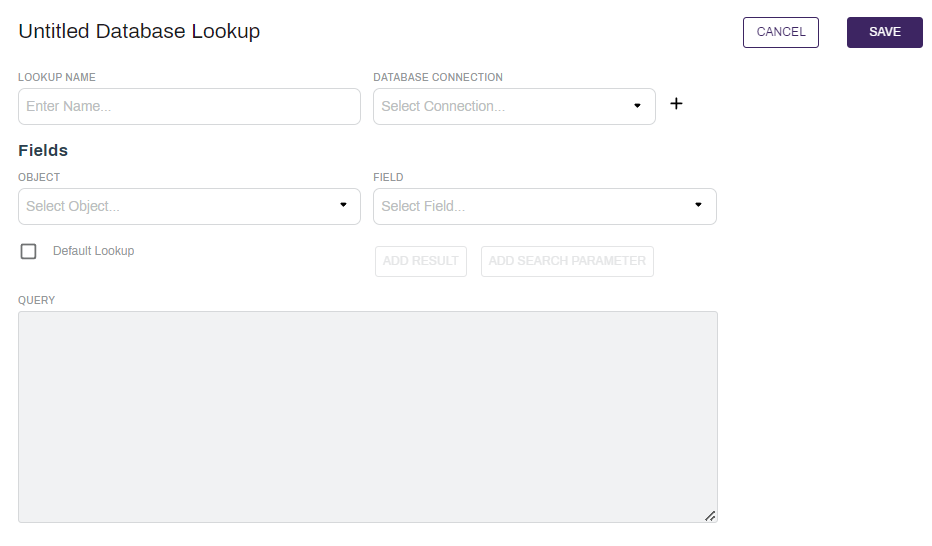
Configure a Database Connection
A database connection is required for a database lookup. To configure a database connection:
- On the New Database Lookup page, select the add icon
 next to the Database Connection drop down.
 - Enter a name for this connection in the Connection Name field.
- Enter the server name in the Server field.
- Select the authentication type from the Authentication drop down:
- SQL Server User — a defined SQL user on the SQL Server
- Enter the SQL User's user name in the User Name field.
- Enter the password in the Password field.
- Integrated User — will use the Windows account that handles the actions of the Vasion web platform.
- SQL Server User — a defined SQL user on the SQL Server
- Enter the name of the database in the Database field.
- Change the seconds of the connection timeout (default 30) in the Connection Timeout field, if desired.
- Select the Test button.
- Select the Save button.
Create a Database Lookup
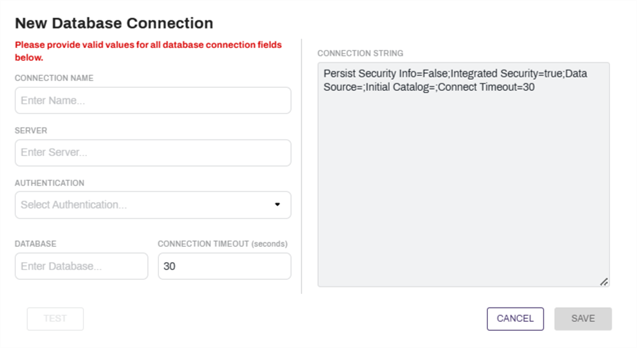
- From an object's Integrations tab select the New button.
-
Select Database Lookup.
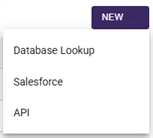
- Complete the following:
- Lookup Name — enter the name you want to use to identify this lookup.
- Database Connection — use the drop-down to select the database you want to use for your lookup. For configuring a database connection, see Configuring a Database Connection.
- Object — select the Vasion object. For information about configuring a Vasion Automate Pro object, see Objects.
- Field — use this drop down to select an object field to inject into the query as a Result or Search Parameter.
- Select the field you would like to add from the Field drop down.
- Place the input cursor where the field should be inserted in the Query text area.
- Select the relevant button to inject the correct syntax into the query:
- Add Result — the value that will be saved into the object field after the lookup.
- Add Search Parameter — the value of the object field before the lookup is run.

- Default Lookup — check the box if you want to make this lookup the default for the object.
- Query — enter the syntax for the query using SQL language.
- Select Save.
Default Fields
There are 8 default fields that will be available in the Field drop-down regardless of the fields that have been added to the object.
- Workflow Status — returns the current workflow status of the document.
- Workflow Approver — returns last name, first name of the approver of the current workflow step.
- Workflow Due Date — returns the due date that was set for this document in workflow.
- Workflow Initiator — returns the username of the user that initiated the workflow.
- Created By — returns the username of the user that created the document.
-
DocumentID — the database ID number for the document.DocumentID can only be used as a search parameter for queries. It cannot be added to the query as a result.
- User Username — returns the username of the currently active user.
- User Email — returns the email of the currently active user.
Salesforce Lookups
Requirements
To create a Salesforce lookup you need the following:
- An existing Salesforce connection. For details on how to setup a connection see Salesforce Configuration.
- The name of the Salesforce object you want to connect. For details about Salesforce data see Salesforce help.
- Know which object fields you want to connect.
- An existing Vasion object.
Create a Salesforce Lookup
- From an object's Integrations tab, select the New button
-
Select Salesforce
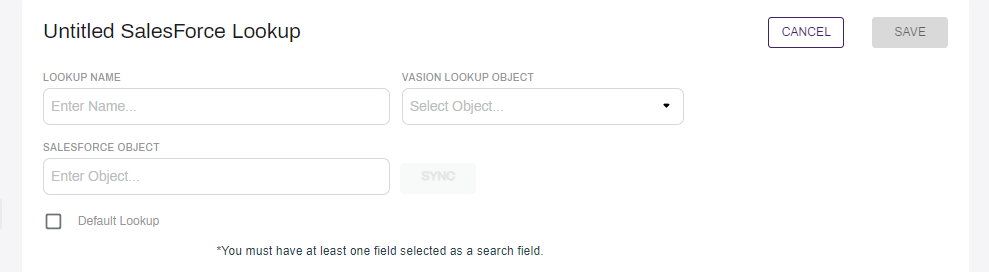
- Complete the following:
- Lookup Name — enter the name you want to use to identify this lookup
- Object — select the Vasion object.
- Salesforce Object — enter the name of the Salesforce object you want to use for the lookup.
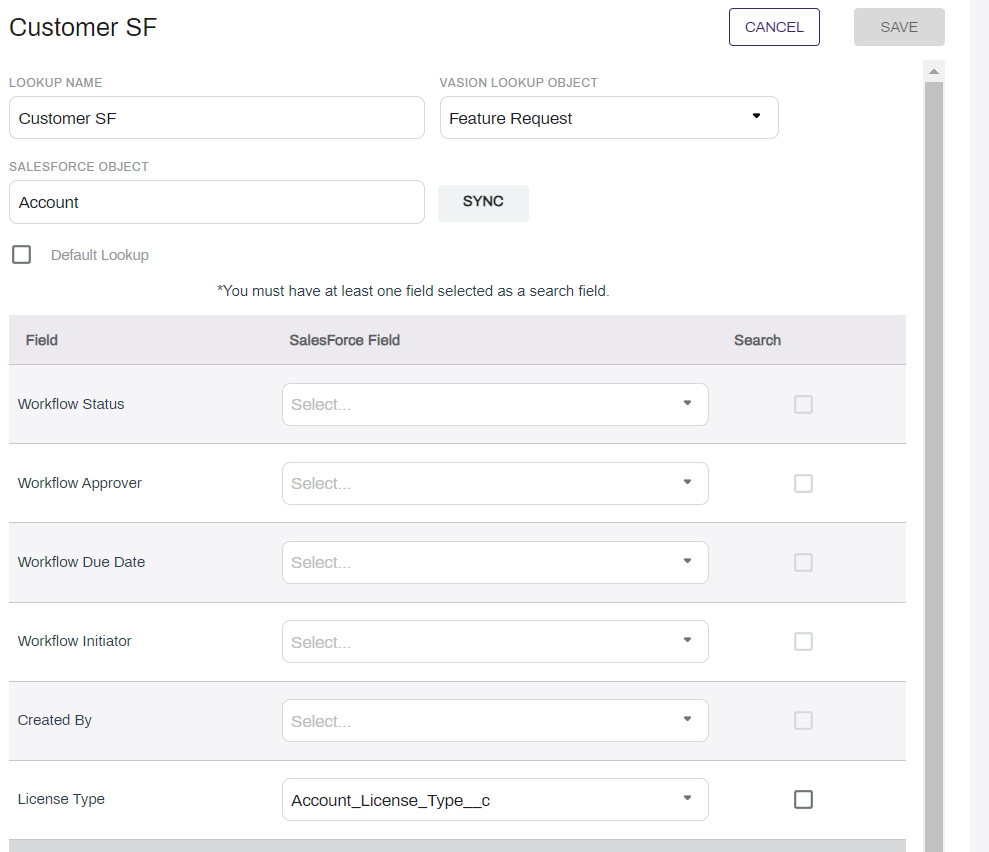
- Select the Sync button to load the fields in a table format. See below for details about mapping the fields.
- Default Lookup — check the box if you want to make this lookup the default for the object.
- Select Save.
Mapping the Fields
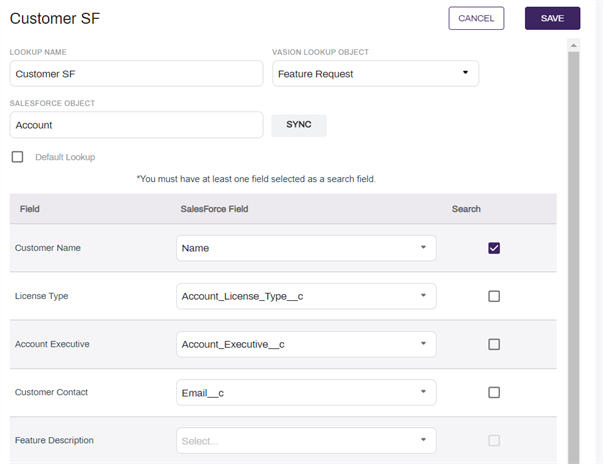
The fields table displays the following information:
- Field — the Vasion object field name
- Salesforce field — use the drop-down to select the Salesforce field you want to map to the Vasion object field
- Search — check this box if you want to use the selected mapped field to search Salesforce as the key field for the lookup
To map the fields use the drop-down next to the Vasion object field you want to map and select the Salesforce field.
Check the box next to the field you want to use as the key field to search for data. When a user enters data into that object field and selects the Lookup button the rest of the mapped fields populate with the corresponding Salesforce data.
Create an API Integration
Requirements
- To configure an API integration, an API account will need to be configured. To do so, see API Accounts.
- An understanding of API development HTTP methods.
- The API endpoint that is being called.
Basic Setup
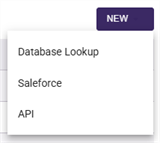
- From the Integrations tab of an object, select the New drop-down then API.
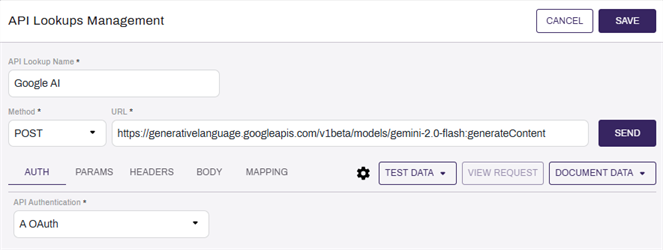
- Enter a name in the API Lookup Name field.
- Select an HTTP method from the Method drop-down.
- Enter the endpoint URL in the URL field.
- Select the API Account to use for authorization from the API Authentication drop-down. For configuring API Accounts, see API Accounts.
Adding API Parameters
If you are passing parameters to the API endpoint:
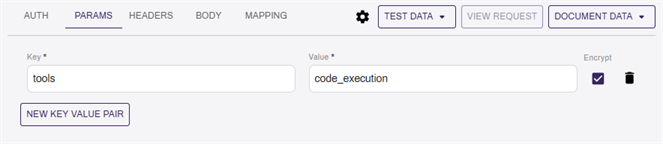
- Select the Params tab.
- Select the New Key Value Pair button.
- Enter the key in the Key field.
- Enter the value in the Value field.
- Select the Encrypt checkbox to encrypt the key value pair.
- Repeat steps 2-5 for each key value pair to send.
- Select the Delete icon
 to remove a key value pair.
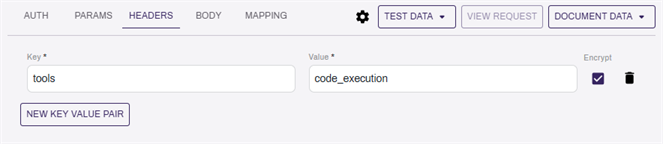
Adding Header Values
If you are passing header values to the API endpoint:
- Select the Headers tab.
- Select the New Key Value Pair button.
- Enter the key in the Key field.
- Enter the value in the Value field.
- Select the Encrypt checkbox to encrypt the key value pair.
- Repeat steps 2-5 for each key value pair to send.
- Select the Delete icon to remove a key value pair.
Defining a Request Body
To define a request body:
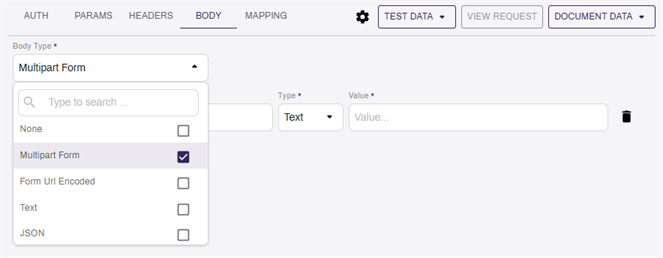
- Select the Body tab.
- Select the type of request body from the Body Type drop-down.
Vasion Automate Pro supports the following types of request bodies:
- Multipart Form with either a Text or File key
- Form URL Encoded
- Text
- JSON
- HTML
- XML
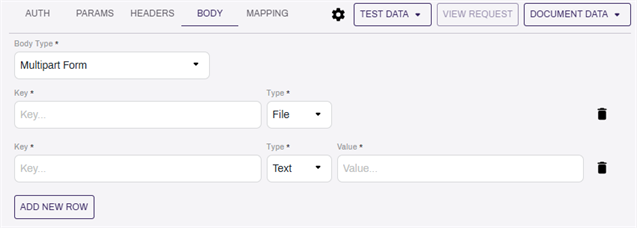
Multipart Form
If you have chosen a Multipart Form request body:
- Select the Add New Row button.
- Enter a key in the Key field.
- Select Text or File from the Type drop-down.
- If using the File type, select the Test Data drop down, then Document to select a file to test the API Lookup configuration.
- Repeat steps 1-3 to add more rows as needed.
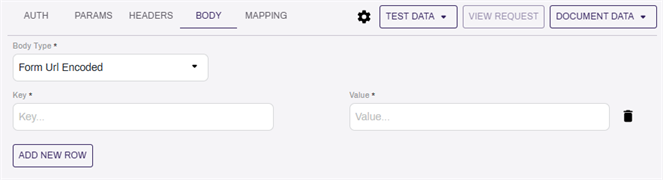
Form URL Encoded
If you have chosen a Form URL Encoded request body:
- Select the Add New Row button.
- Enter a key in the Key field.
- Enter a value in the Value field.
- Repeat steps 1-3 to add more rows as needed.
- Select the Delete icon to remove a row.
Text, JSON, HTML, or XML
If you have selected a Text, JSON, HTML, or XML request body:
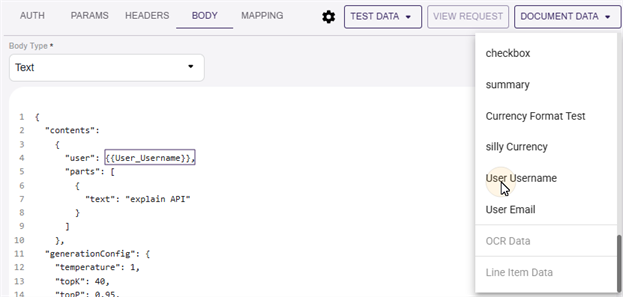
- Edit the request body in the text editor.
- Select the maximize icon
 to make the text editor the full window.
- Select the minimize icon
 to make the text editor shrink back to it's original size.
- Select the minimize icon
- To inject data from the Vasion object:
- Place the cursor where the field should be placed in the editor.
- Select the object field from the Document Data drop-down.
Send Test Data to API
Once the authorization and request data have been configured, ensure the configuration is working correctly.
Select the Send button to send the request with the configured authorization. If it is successful, you will see a confirmation toast pop up at the bottom of the screen.
Mapping
To define how the data is received from the API return and mapped to the Vasion object data you must first successfully receive data in a response from the connected API.
- Send the API call using the Send button and receive a valid response first.
- Select the Mapping tab.
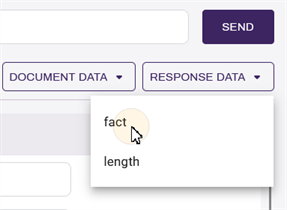
- Select the text field for the object field that you would like to populate.
- Select the Response Data drop down, then the response key that should populate in the chosen object field. The response key will be input with syntax into the selected text field.
- Repeat steps 2-4 for as many response values as necessary.
Edit a Lookup
To make any changes to an existing Lookup do the following:
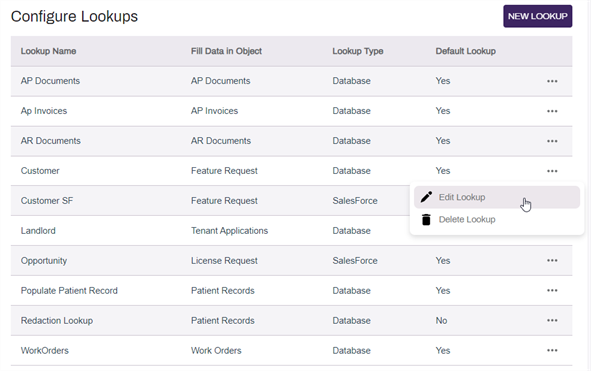
- In the Configure Lookups page select the More button of the lookup you want to edit.
-
Select Edit Lookup.
-
In the Lookup page make any necessary changes and select Save.
Delete a Lookup
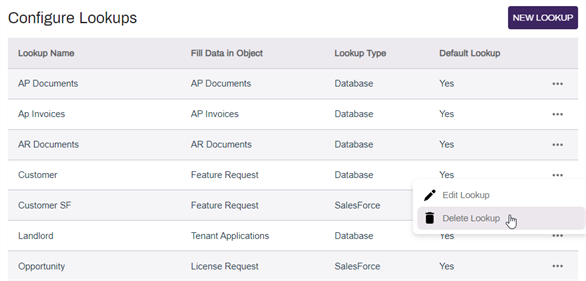
- In the Configure Lookups page select the More button of the lookup you want to edit.
-
Select Delete Lookup.
-
Select Yes in the confirmation modal.