Last Updated: February 03, 2026
API Accounts
Vasion Automate Pro allows for integration with other applications to enhance the abilities of it's Automation Platform and analysis capabilities. An API account will need to be created within Vasion Automate Pro to allow for these integrations.
Creating a new API Account
To create an API account:
- Navigate to the Admin application.
- Select Integrations.
- Select the Add Account button.
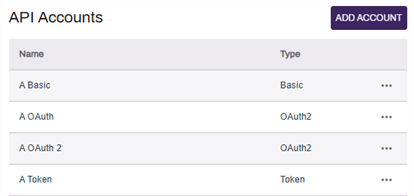
- Enter an identifiable name in the Configuration Name textbox.
- Select the kind of authentication from the Authentication Type drop-down.
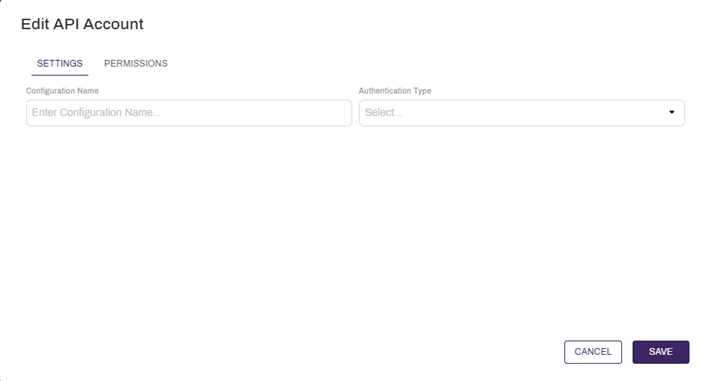
- Refer to the Basic, Token, and OAuth configurations below to set up the various supported authentication types.
Basic Authentication
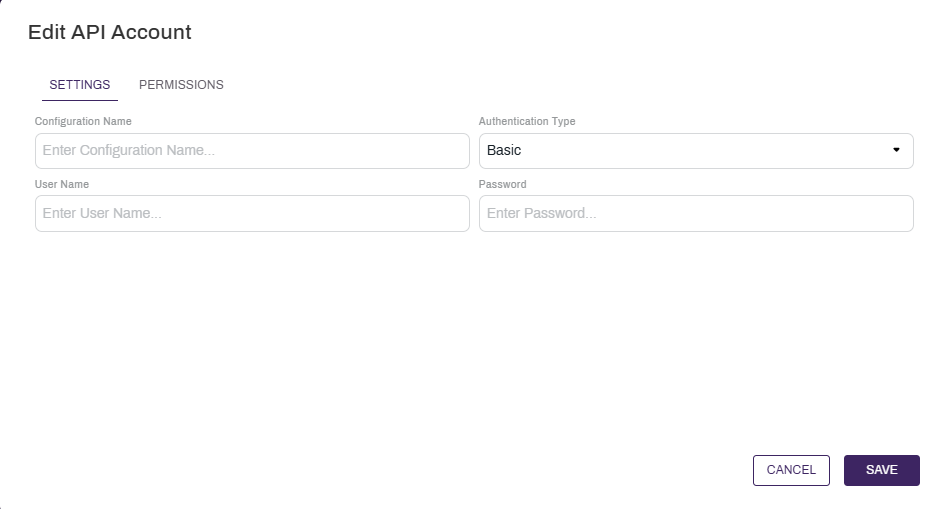
- Enter the user name for the service being connected in the Username field.
- Enter the password for the service being connected in the Password field.
- Select Save.
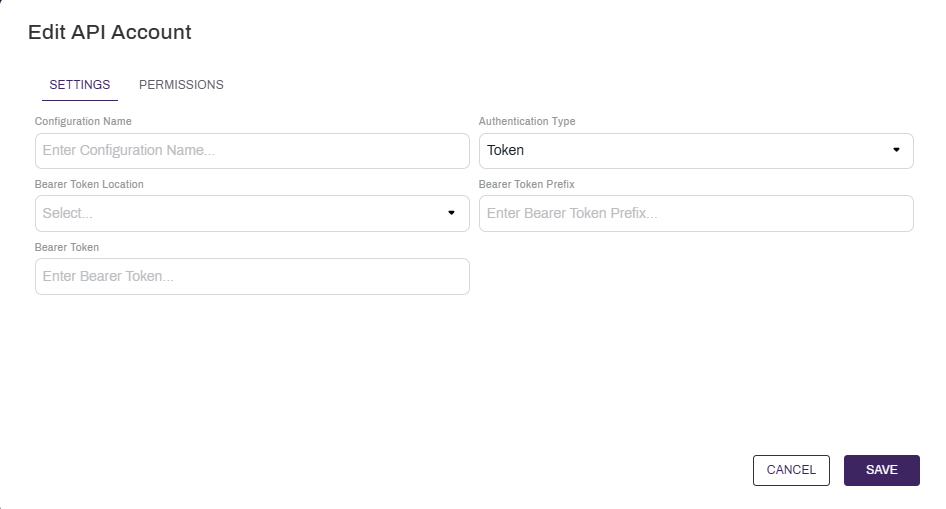
Token Authentication
- Select the location for the token from the Token Location drop-down.
- Select Authorization Header to send the token in the header of the request.
- Select Query to send the token as part of the query.
- Enter the token prefix in the Key field.
- Enter the token value in the Value field.
OAuth Authentication
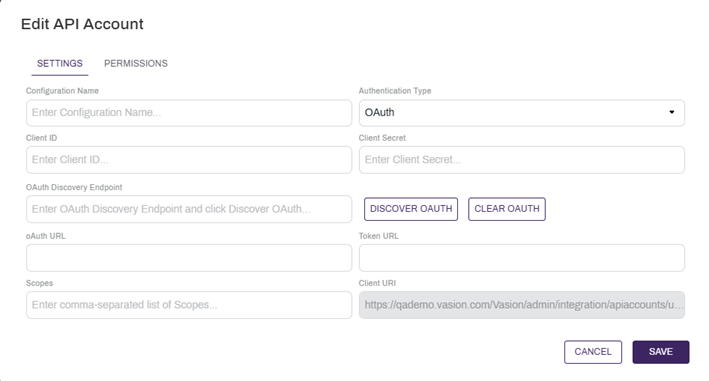
- Enter the client ID in the Client ID field.
- Enter the secret in the Client Secret field.
- If the OAuth provider has a discovery endpoint:
- Enter the OAuth discovery endpoint in the OAuth Discovery Endpoint field.
- Select the Discover OAuth button.
- Enter the OAuth URL in the OAuth URL field.
- Enter the token URL in the Token URL field.
- Enter the relevant scopes in the Scopes field.
- Select Authorize to complete the authorization process.
Permissions
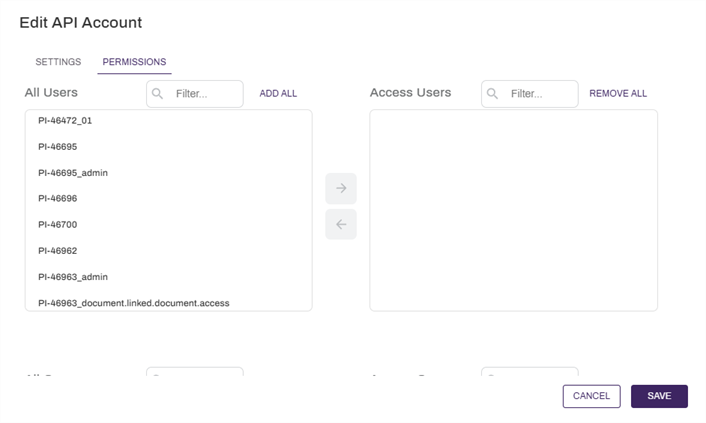
You can change who can view, edit, and use the API account by assigning user or group permissions. If you leave all users and groups in the left column, then the API account can be seen by all users and groups that have access to the Admin app by default.
You can change who can see or edit the
- Select the Permissions tab at the top of the screen.
- Select the users and / or groups you would like to have permission to access the
 .
. - Add or remove all users or groups by selecting on the Add All or Remove All buttons above each column.
- Select Save.