Last Updated: September 02, 2026
Workflow Step Configuration
Workflow Steps
- In the Workflow Steps section, select the + button to add the workflow steps.
- Step Name — enter name for this step.
- Step Type — use the dropdown to select whether the step applies to a user, group, or auto.
- Recipient — use the dropdown to select the user or group to whom the workflow is routed.
- Description — enter a description for the step.
- Add Parallel Step — select this button if you would like a step that runs concurrently with the new step, and complete the fields.
- Select the + button to add the next step in the workflow.
- Configure the step to behave as intended. For information about what each step can do, visit Workflow Steps.
- Continue adding steps as needed.
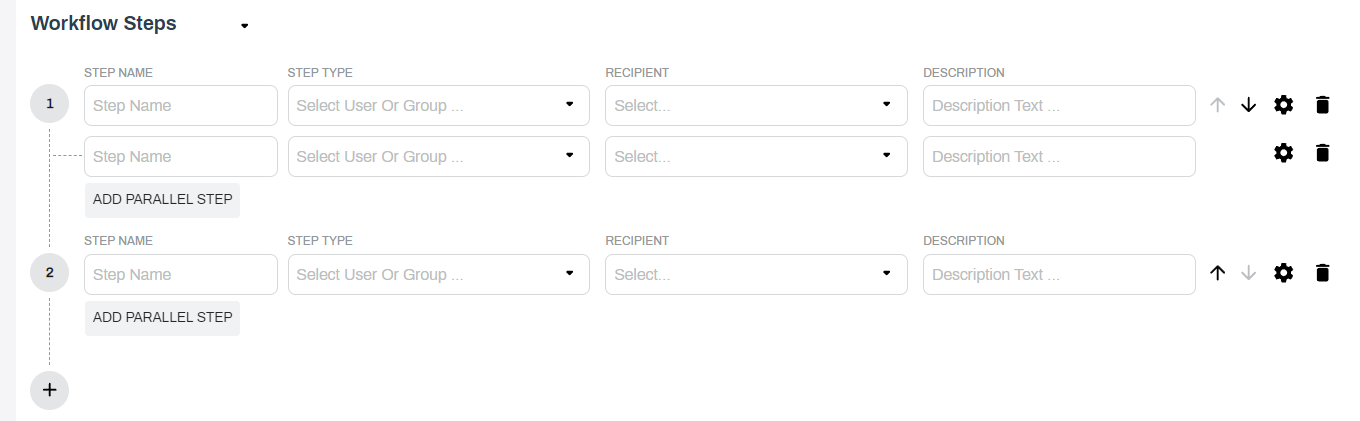
Use the up / down arrows  to reorder the steps. To delete a step, select the Delete icon
  .
.
Step Settings
Once all the steps are added, select the Settings icon  to configure each step.
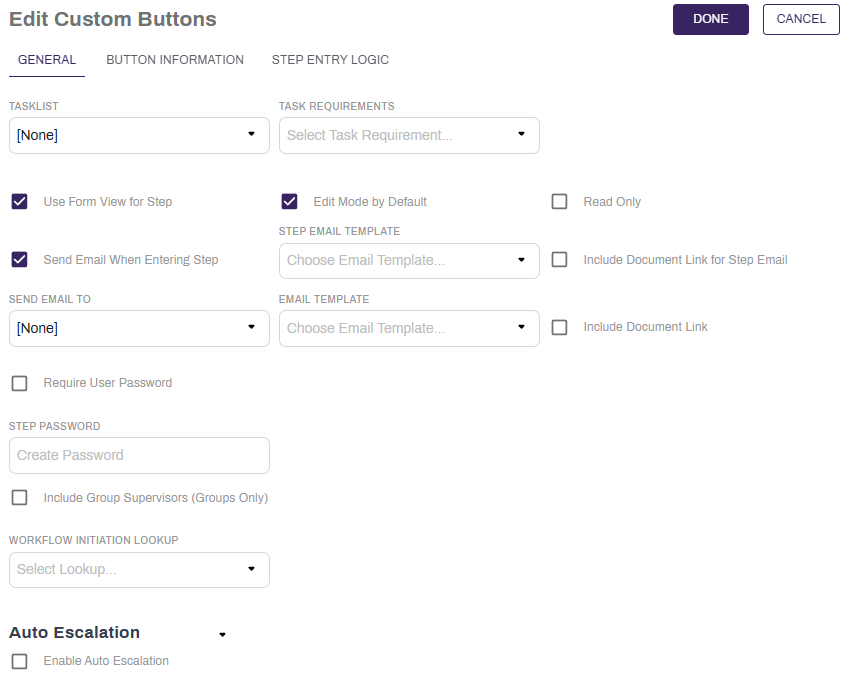
- In the step General Settings page complete the following:
- Task List: use the dropdown to associate a task list to the workflow step.
- Task Requirements: use the dropdown to select whether the task requirements are None, No Tasks Required, Workflow Note Required or All Tasks Complete. For more information on Tasks, see Task Lists and Manage Tasks.
- Use Form View for Step: select this option to set the user view for this step to Form View. For information on this view, see Form View.
- Edit Mode by Default: Select this to enable index data editing for the assigned user as the default.
Read Only: Select this setting to disable edit mode for the workflow user.
Selecting Read Only will disable Edit Mode by Default, as it disables edit mode entirely.
- Send Email When Entering Step: select this option to send an email notification when the step is initiated. If this box if checked, complete the following:
- Send Email To: use the dropdown to select the email recipient.
- Email Template: use this dropdown to select the email template to use for the step. For details about email templates, see Templates.
- Include Document Link: select this option to include a link to the document instead of an attachment.
- Require User Password: select this option if you would like the user to enter a password. If this box is checked, enter the password for the recipient to use in the Step Password field.
- Select the right arrow to expand the Auto Escalation section and complete the following:
- Enable Auto Escalation: select this option to let Vasion Automate Pro automatically escalate the workflow.
Button Information Settings
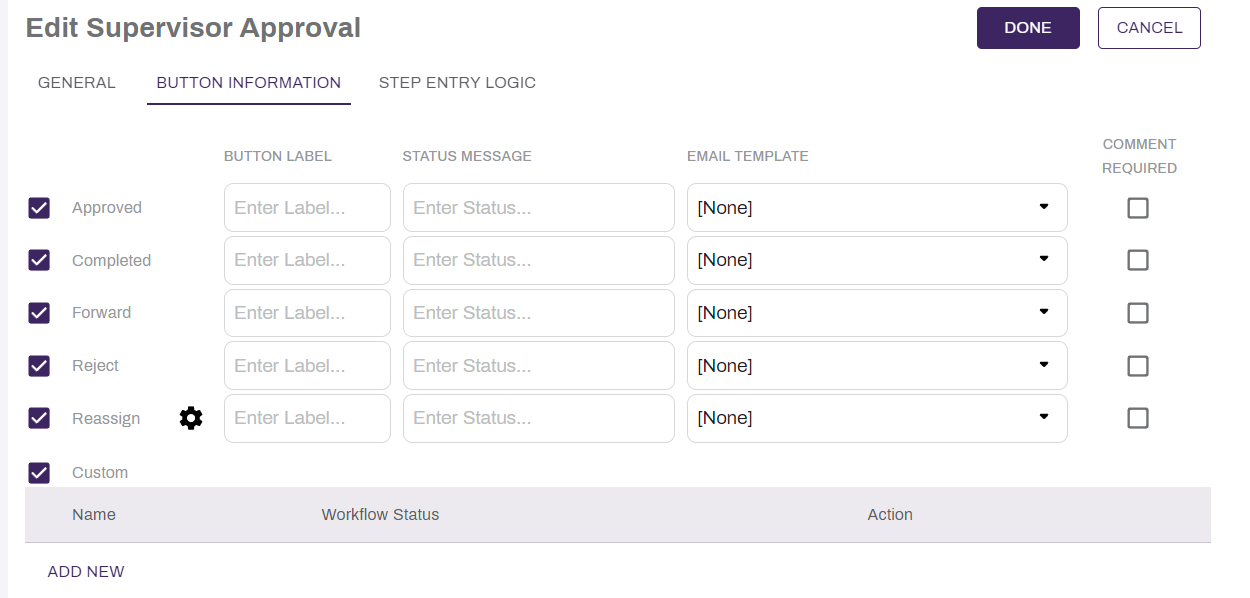
Vasion Automate Pro offers many distinct actions through Workflow buttons. There are five basic actions: Approve, Complete, Forward, Reject, & Reassign. There are further Custom Actions you can configure through the Custom check-box.
In the Button Information tab you can set buttons to display when the step your are configured start. To set the button settings:
- Select the Button Information tab.
-
Select the button you want to include in this workflow step and complete the following:
-
Button Label: enter the a label to display on the button.
-
Status message: enter the message associated with the button you want the end user to see. This message displays in the workflow status field after the user selects the button.
-
Email Template: use the dropdown to associate a template for the email sent with this step. If you don't associate a template, the system uses the default template.
-
Comment Required: select this option to require the user to enter a comment on this step.
-
-
After the button(s) configuration is complete, select Done.
Basic Actions
- Approved :
- Sends the document to the next step.
- A comment is added to the document detailing which user approved the document for this step.
- If this is the last step in the Workflow, it triggers the Completed behaviors.
- Completed :
- Ends the Workflow.
- Sends the document to the Completed Destination chosen in the initial Workflow configuration.
- Sends or completed email or email template. For more information about the Send Email When Complete option, see Email Settings.
- Forward :
- Prompts the user to assign the document by choosing a User or Group.
- Approves the document, and sends the document to the next step.
- If this button is added to the last step of a Workflow, the Forward button acts as an Approve button.
- Reject :
- Sends the document back a step.
- If a Reject button is configured on the first step, the document will refer to the Initial Reject Step configuration. For more information see Initial Workflow Settings.
- If configured to Exit Workflow on Reject in the Advanced Settings for the workflow, the Workflow will end. For More information, see Advanced Options.
- Reassign :
- The user can change the assignment of the workflow step to another user by selecting the Settings icon , Choosing a group, and choosing a user from the group.
- The user can change the assignment of the workflow step to another user by selecting the Settings icon
Custom Actions
You can utilize the custom actions as buttons on a workflow to increase the capability of Workflows.
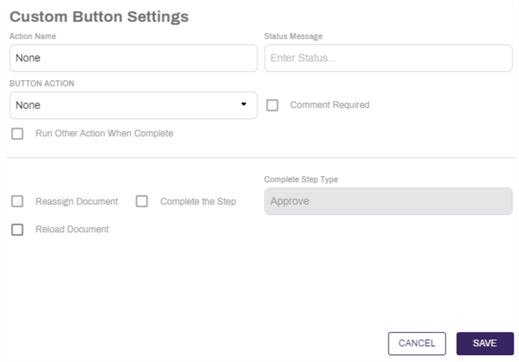
Settings Available Across All Custom Buttons
Configure any of the below settings on any workflow custom button:
- Status Message: use this setting to change the workflow status of the document.
- Comment Required: select this option to require the workflow user to enter a comment.
- Run Other Action When Completed: select this option to trigger another button from this step.
- Select another button on this step from the Action dropdown to trigger the actions of that button.
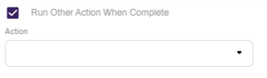
- Select another button on this step from the Action dropdown to trigger the actions of that button.
- Reassign Document: select only this option to prompt the user to reassign the document on button selection.
- Assign Document: select this option, then select the Select a User or Group button to designate the assignment of this document.
- Email Template: select an email template to send to the recipient of the reassignment.
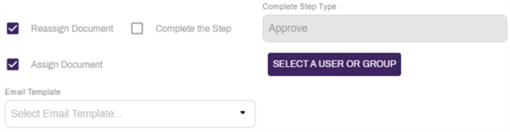
- Complete the Step: select this option to complete the step upon button selection. Choose the Complete Step Type from the dropdown:
- Approve, Reject, Forward, & Complete are described above in Basic Button Actions.

- Approve, Reject, Forward, & Complete are described above in Basic Button Actions.
The AutoStep Complete Step Type option is included for legacy customers to ensure their Workflow configurations still function. If selected during configuration, it will behave identically to the Approve option, and is thus not recommended. -
Reload Document: select this option to reload the document upon button selection. Use this for buttons like Set Fields to reflect index data changes on documents.
The Reload Document check box is unavailable when selecting Reassign Document or Complete the Step check boxes.
None
Use the None button to trigger one or more of the other settings in the Settings Available Across All Custom Buttons section above.
- Enter a name for the button in the Action Name field. The name here will display on the button for the user.
- Select the None option from the Button Action dropdown.
- Configure any desired options from the custom button configuration settings.
- Select Save.
Auto Signature
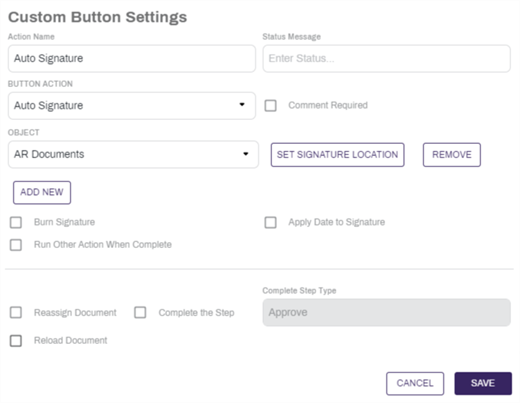
Use the Auto Signature button to sign the Workflow Document.
- Enter a name for the button in the Action Name field. The name here will display on the button for the user.
- Select the Auto Signature option from the Button Action dropdown.
- Use the dropdown to select an Object to be signed.
- Select Set Signature Location.
- Drag & Drop a file or select Browse to upload one.
- Select Continue.
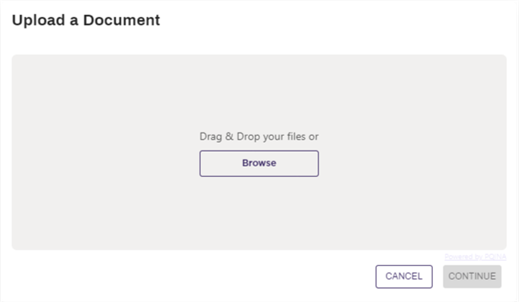
- Select the Signature
 icon.
icon. - Select and drag a box where the signature is needed on the document.
- Select the Save
 icon.
icon.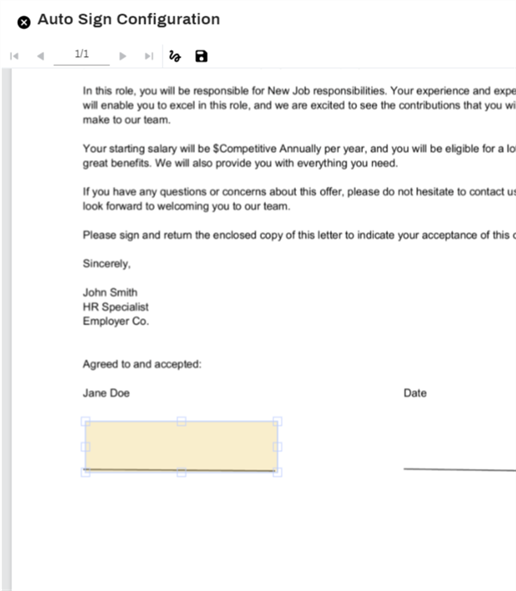
- Repeat steps 2-8 for each Object type to sign with this workflow button.
- Select the Burn Signature check box to generate the document with the signature directly on it. Without selecting the Burn Signature option, the user can move and edit the signature.
- Select Apply Date to Signature to add the date and time to the bottom of the signature.
- Configure any desired options from the custom button configuration settings.
- Select Save.
Create Portal User
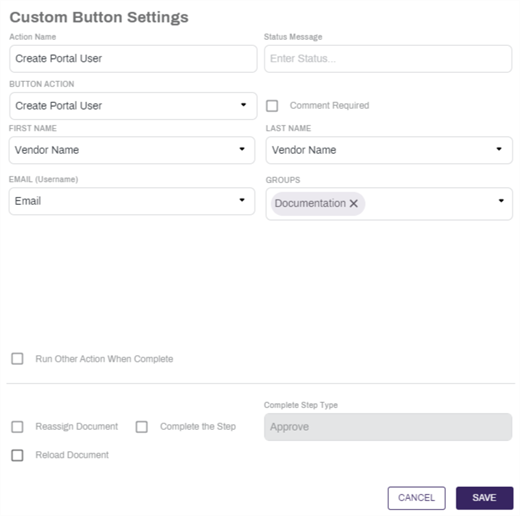
Use the Create Portal User button to generate a user account for the configured value or field.
- Enter a name for the button in the Action Name field. The name here will display on the button for the user.
- Select the Create Portal User option from the Button Action dropdown.
- Select the Object field that should be used for the user's first name in the First Name dropdown.
- Select the Object field that should be used for the user's last name in the Last Name dropdown.
- Select the Object field that should be used for the user's email address in the Email Address dropdown.
- Select the group or groups to add the created users to from the Groups dropdown.
- Configure any desired options from the custom button configuration settings.
- Select Save.
Create User Folder
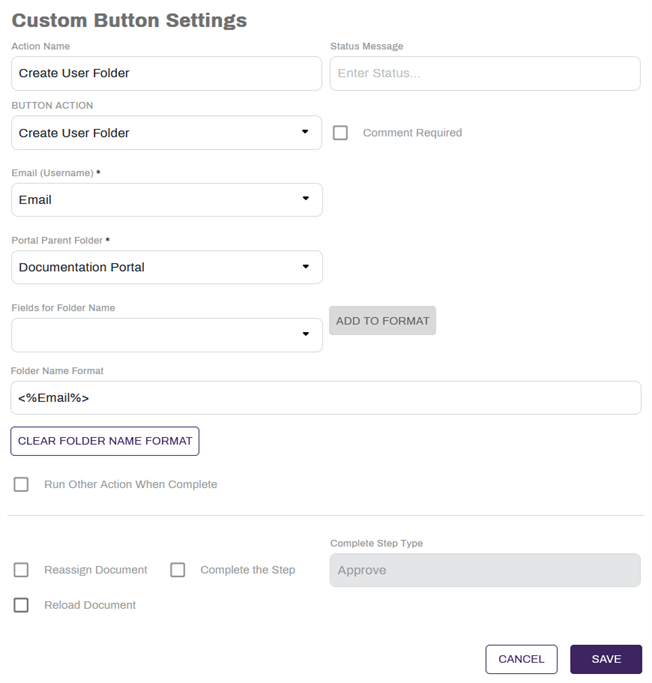
Use the Create User Folder button to generate a folder for the selected email in the Email (Username) field.
Before configuring this custom button, portal parent folders will need to be configured. For more information on configuring portal parent folders, see Portal Parent Folders.
- Enter a name for the button in the Action Name field. The name here will display on the button for the user.
- Select the Create User Folder option from the Button Action dropdown.
- Select the object field that contains the desired user's email for assigning access from the Email (Username) dropdown.
- Select the location of the folders to be created from the Portal Parent Folder dropdown.
- Select an object field that should be used in the generated folder names from the Fields for Folder Name dropdown.
- Select Add to Format to add the field to the Folder Name Format field.
- Repeat steps 4-5 for each index field that should be added to the folder name.
- If you need to edit or adjust the folder name configuration, select Clear Folder Name Format.
- Configure any desired options from the custom button configuration settings.
- Select Save.
Lookup
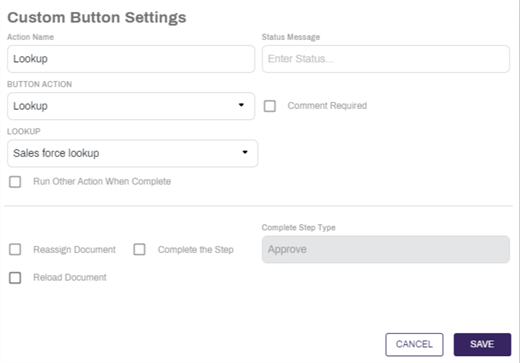
Use the Lookup workflow button to trigger an existing lookup. For more information on lookups, see Field Mapping.
- Enter a name for the button in the Action Name field. The name here displays on the button for the user.
- Select the Lookup option from the Button Action dropdown.
- Select the desired Lookup from the Lookup dropdown. For more information configuring lookups, see Field Mapping.
- Configure any desired options from the custom button configuration settings.
- Select Save.
Open URL
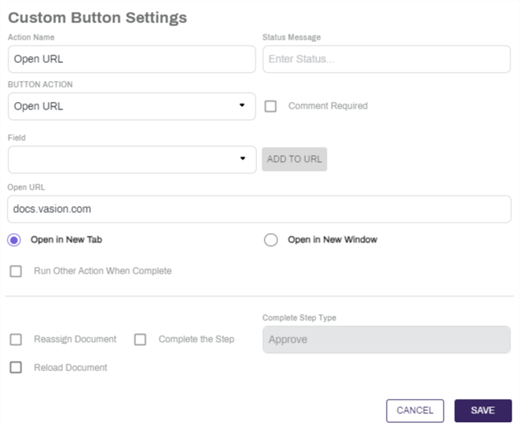
Use the Open URL button to send the user to a specific web page.
- Enter a name for the button in the Action Name field. The name here displays on the button for the user.
- Select the Open URL option from the Button Action dropdown.
- Enter the desired URL destination in the Open URL text box.
- To pass parameters into the URL from Vasion Automate Pro Object index data:
- Select the object field to pass into the URL from the Field dropdown.
- Locate the input cursor at the correct location for the parameter in the URL within the Open URL text box.
- Select the Add to URL button to add the index field to the URL.
- Select either the Open in New Tab or the Open in New Window option.
- Configure any desired options from the custom button configuration settings.
- Select Save.
Send Email
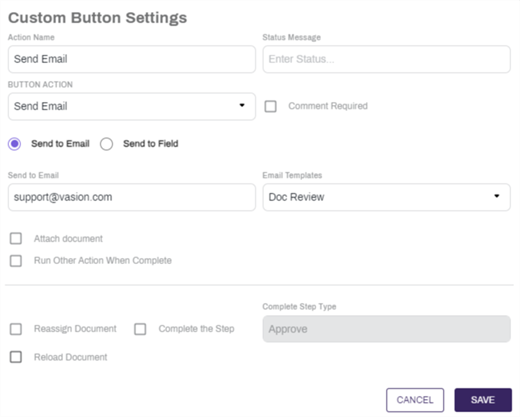
Use the Send Email button to trigger sending an email.
- Enter a name for the button in the Action Name field. The name here displays on the button for the user.
- Select the Send Email option from the Button Action dropdown.
- Select either Send to Email or Send to Field option.
- Send to Email: Select this option to always send the triggered email to the same email address.
- Enter the desired email address in the Send to Email text box.
- Send to Field: Select this option to send an email based on the data in an index field.
- Select the object field that contains the recipient email address from the Send to Field dropdown.

- Send to Email: Select this option to always send the triggered email to the same email address.
- Select the email template to send from the Email Template dropdown. For more information about email templates, see Email Templates.
- Select the Attach Document option to include the document in workflow in the email.
- Configure any desired options from the custom button configuration settings.
- Select Save.
Set Fields
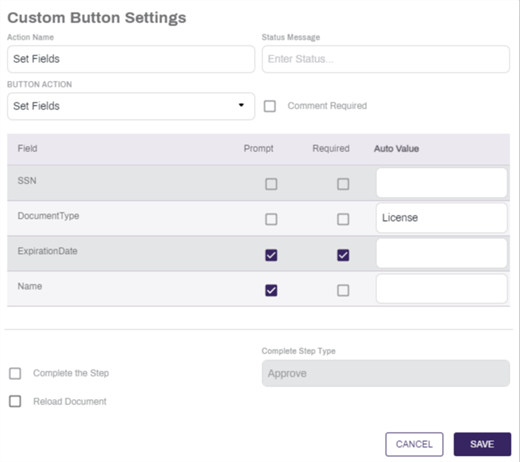
Use the Set Fields button to prompt the workflow user to enter data for one or more Object index fields.
- Enter a name for the button in the Action Name field. The name here will display on the button for the user.
- Select the Set Fields option from the Button Action dropdown.
- For each field that should be set with this button:
- Select the Prompt option to trigger a modal for the user to input data for that field upon button selection.
- Select the Required option to prevent the user from continuing without inputting a value for that field. Required fields automatically selects the Prompt option.
- Enter a value in the Auto Value text box to set that index field to the entered value upon button selection. If the Auto Value column is filled and neither Prompt nor Required is selected, the Auto Value is set.
- Configure any desired options from the custom button configuration settings.
- Select Save.
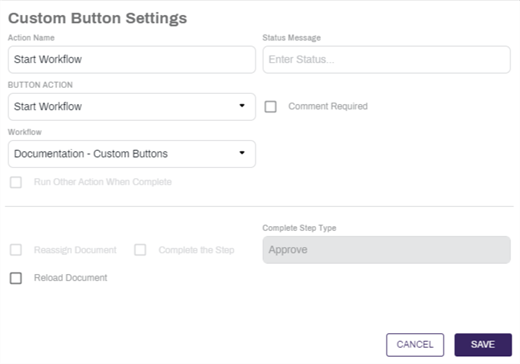
Start Workflow
Use the Start Workflow button to initiate another workflow.
- Enter a name for the button in the Action Name field. The name here will display on the button for the user.
- Select the Start Workflow option from the Button Action dropdown.
- Select the workflow to initiate from the Workflow dropdown.
- Configure any desired options from the custom button configuration settings.
- Select Save.
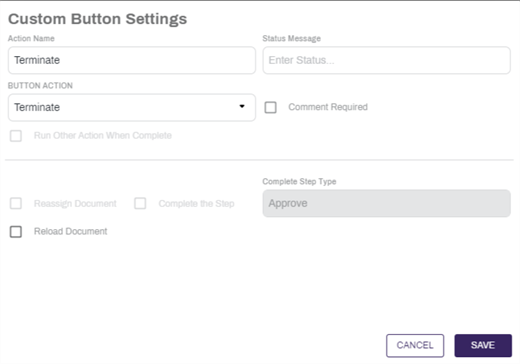
Terminate
Use the Terminate button to end the workflow process for the current workflow item.
- Enter a name for the button in the Action Name field. The name here displays on the button for the user.
- Select the Terminate option from the Button Action dropdown.
- Configure any desired options from the custom button configuration settings.
- Select Save.
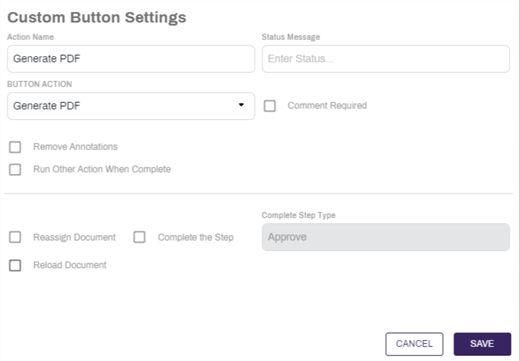
Generate PDF
Use the Generate PDF button to generate a new version of the document using the object's default document template. Find the versions of this document in the Versions icon  .
.
To configure the Generate PDF workflow button:
- Enter a name for the button in the Action Name field. The name here displays on the button for the user.
- Select the Generate PDF option from the Button Action dropdown.
- Configure any desired options from the custom button configuration settings.
- Select Save.
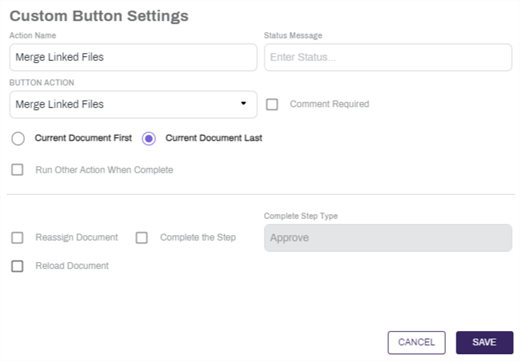
Merge Linked Files
Use the Merge Linked Files button to combine all of the currently linked documents into the current document.
To configure the Merge Linked Files workflow button:
- Enter a name for the button in the Action Name field. The name here displays on the button for the user.
- Select the Merge Linked Files option from the Button Action dropdown.
- Select either Current Document First or Current Document Last to default the location of the workflow document to the front or back of the document, respectively.
- Configure any desired options from the custom button configuration settings.
- Select Save.
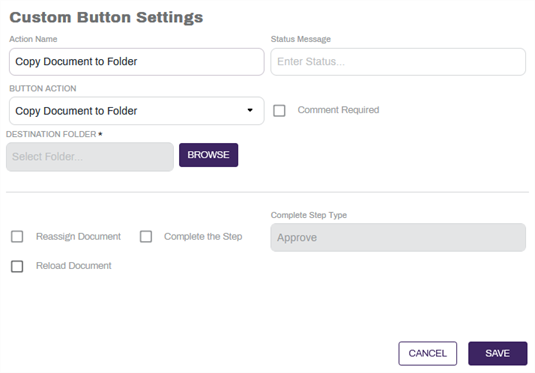
Copy Document to Folder
Use the Copy Document to Folder button to make a copy of the current workflow document and save it into a folder of your choice.
To configure the Copy Document to Folder workflow button:
- Enter a name for the button in the Action Name field. The name here displays on the button for the user.
- Select the Copy Document to Folder option from the Button Action dropdown.
- Select a destination from the Destination Folder dropdown.
- Configure any desired options from the custom button configuration settings.
- Select Save.
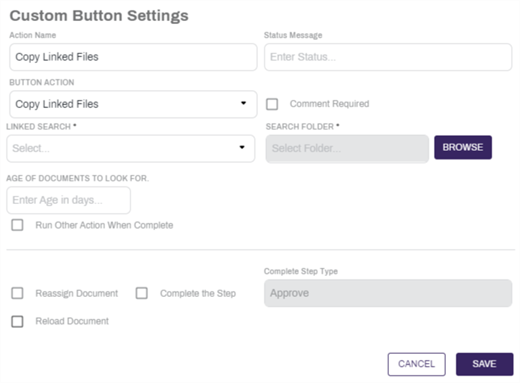
Copy Linked Files
Use the Copy Linked Files button to make a copy of any documents that are returned in the selected Linked Search and attach them to the current document. For linked search configuration, see Linked Search.
To configure the Copy Linked Files workflow button:
- Enter a name for the button in the Action Name field. The name here displays on the button for the user.
- Select the Copy Linked Files option from the Button Action dropdown.
- Configure any desired options from the custom button configuration settings.
- Select Save.
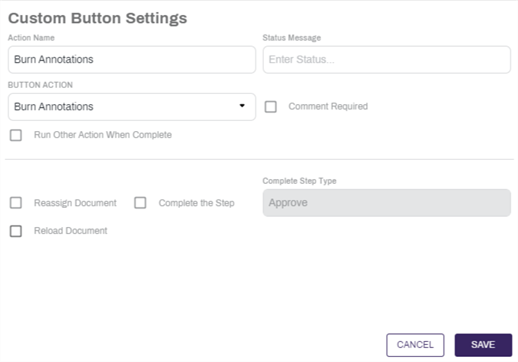
Burn Annotations
Use the Burn Annotations button to affix annotations directly to the workflow document.
- Enter a name for the button in the Action Name field. The name here displays on the button for the user.
- Select the Burn Annotations option from the Button Action dropdown.
- Configure any desired options from the custom button configuration settings.
- Select Save.
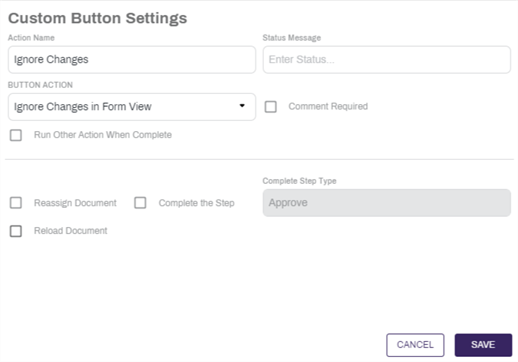
Ignore Changes in Form View
Use the Ignore Changes in Form View button to allow for the document to be approved, reassigned, forwarded, etc while leaving required fields empty.
- Enter a name for the button in the Action Name field. The name here displays on the button for the user.
- Select the Ignore Changes in Form View option from the Button Action dropdown.
- Configure any desired options from the custom button configuration settings.
- Select Save.
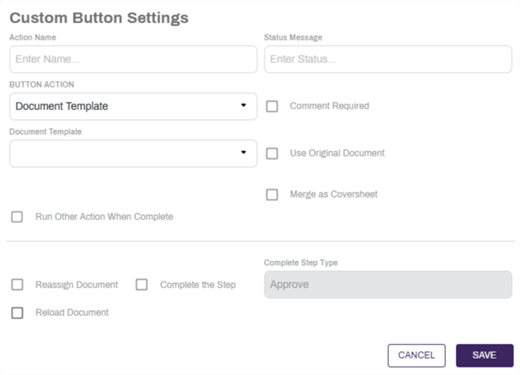
Document Template
Use the Document Template button to trigger the creation of a previously configured Document Template. For information about configuring a template, see Document Template.
- Enter a name for the button in the Action Name field. The name here displays on the button for the user.
- Select the Document Template option from the Button Action dropdown.
- Select the desired template from the Document Template dropdown.
- Select the Use Original Document option to fill the configured document template's index fields directly on the workflow document. If left unchecked, the document template is sent to whichever selection is made for the template type. For information about this configuration, see Enter Template Details.
- Select the Merge As Coversheet option to generate the document template and append it to the beginning of the document currently in workflow.
- Configure any desired options from the custom button configuration settings.
- Select Save.
Signature Template
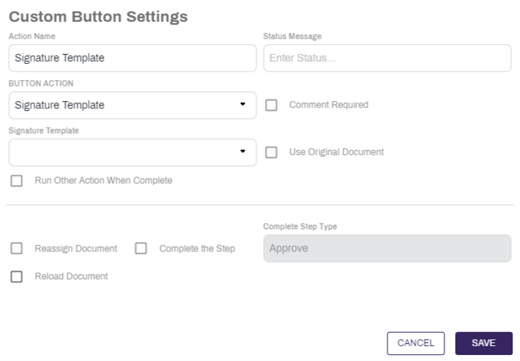
Use the Signature Template button to trigger the sending of a previously configured Signature Template. For more information about configuring a template, see Signature Templates.
- Enter a name for the button in the Action Name field. The name here displays on the button for the user.
- Select the Signature Template option from the Button Action dropdown.
- Select the desired template from the Signature Template dropdown.
- Select the Use Original Document option to send the workflow document to the selected signature template's destination email address. If left unchecked, the signature template document is sent. For information about this configuration, see Signing Options.
- Configure any desired options from the custom button configuration settings.
- Select Save.
Save Progress
This custom button action is only available if the step has the Use Form View for Step option selected in Workflow Step Settings.
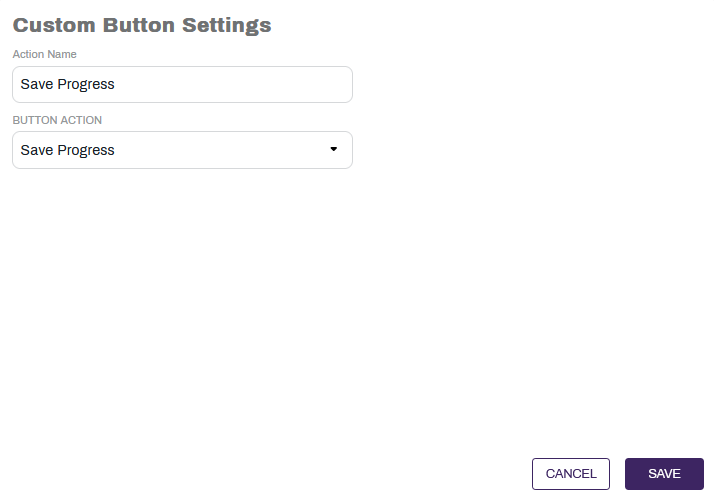
Use the Save Progress button to save form progress on the current step of the workflow. This is useful if there is a long form that needs to be completed, and may need to be returned to later.
- Enter a name for the button in the Action Name field. The name here displays on the button for the user.
- Select the Save Progress option from the Button Action dropdown.
- Select Save.
Step Entry Logic
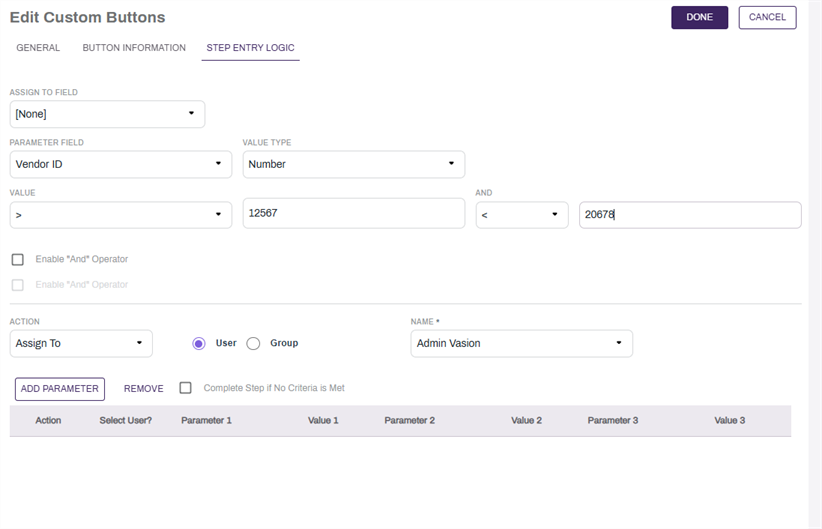
- If there are any step entry parameters matched, that logic will take precedence over the Assign to Field setting.
- If more than one configured line would be triggered, the topmost line will trigger.
You can configure logic for step entry and auto routing based on field values.
-
Select the Step Entry Logic tab and complete the following:
-
Assign to Field: use the dropdown to select one of the Object's Index Fields and use that field as the assignee.
-
Parameter: use the dropdown to select a field that contains a value you want to use for validation.
-
Value Type: use the dropdown to select the field type associated with the parameter.
-
Value: use the dropdown to select the comparison and text options for number or date type fields.
-
Enable "And" Operator: use this option to add additional parameters for more granular control Vasion Automate Pro supports up to 3 field values, and if all are configured, all must be true for the logic to apply on this step.
-
Action: use the dropdown to select one of the following actions:
-
Assign To: when selected, you can then use the radio button to assign the step to a user or group. In the Name field use the dropdown to select the user or group.
-
Skip Step: select to automatically skip this step
-
Complete Workflow:select to complete the workflow with this step.
-
-
-
Add a Parameter: use this button to add a new parameter to this workflow step.
-
Remove: select a parameter from the list and select this button to remove it from the workflow step.
-
Complete Step if No Criteria is Met: check this box to complete the workflow step if the criteria specified is not met based on the logic.