Last Updated: February 03, 2026
Status Notifications
Notifications can be configured on a per workflow basis to remind assigned users that they have documents to process in Vasion Automate Pro. Utilize this tab to configure when notifications will be sent.
Prerequisites
- Either a new workflow or a workflow being edited. For creating workflows, see Create Workflows.
- SMTP configured for sending Emails within Vasion Automate Pro. To configure SMTP, see Email Settings.
Configuring Status Notifications
Enabling status notifications for a workflow is optional and can be set limited to specific days of the week, dates, and times.
Enable Status Notifications
To enable Status Notifications:
- Select the Enable Status Notifications option.
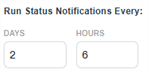
- In the Run Status Notifications Every: fields:
- In the Days field, enter the number of days Vasion Automate Pro should wait between sending a notification again.
- In the Hours field, enter the number of hours Vasion Automate Pro should wait between sending a notification again.
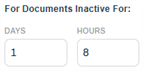
- In the For Documents Inactive For: fields:
- In the Days field, enter the number of days Vasion Automate Pro should wait before sending the first notification.
- In the Hours field, enter the number of hours Vasion Automate Pro should wait before sending the first notification.
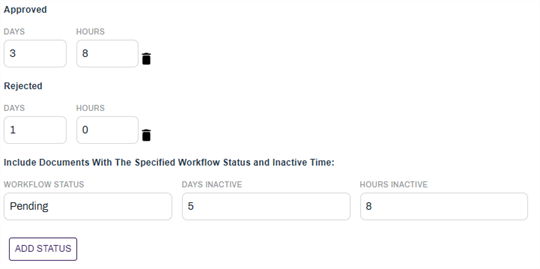
- In the Include Documents With The Specified Workflow Status and Inactive Time fields:
- Enter a status that was configured in the workflow configuration that is required to trigger the notifications in the Workflow Status field. For setting workflow statuses, see Button Information Settings.
- Enter a number of days that a document must stay inactive to trigger the notifications in the Days Inactive field.
- Enter a number of hours that a document must stay inactive to trigger the notifications in the Hours Inactive field.
- Select the Add Status button.
- Repeat steps a - d as many times as desired for various statuses.
- Select the trash icon
 to remove a status from the entered statuses.
Working Hours
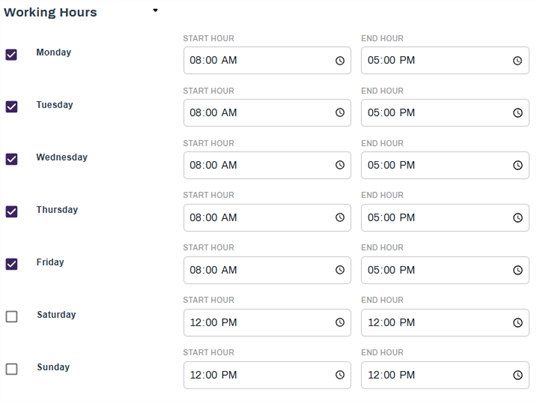
Define working hours so that notifications will only be sent during certain hours. To define working hours:
- Select the options for the desired days (Monday - Sunday).
- Enter the start hour for notifications in the Start Hour field.
- Enter the end hour for notifications in the End Hour field.
Holidays
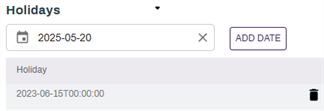
Holidays can be defined with dates so that notifications will not be sent on days that users are out of office. To define holidays:
- Select the Holidays field.
- Select a fate from the Calendar Picker.
- Select the Add Date button.
- To remove a defined holiday, select the delete icon.
Summary
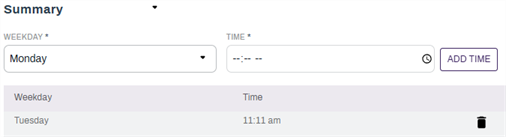
A summary of documents assigned to each user can be sent on a specific schedule to remind the user of the documents assigned to them in Workflow. To set up summary notifications:
- Select a day of the week to send out summary notifications from the Weekday drop-down.
- Select a time to send out summary notifications from the Time field.
- Select the Add Time Button.
- To remove a summary notification weekday and time, select the delete
 icon.
icon.