Last Updated: October 20, 2025
Create Workflows
Workflow helps you customize and automate business processes using code-free workflow design that creates accountability with alerts and workflow notifications. In this section you can learn how to configure an end-to-end workflow process. For configuring status notifications , see Status Notifications. For configuring permissions, see Workflow Permissions.
Preparation
Before you configure a workflow, here are some things you want to know in advance.
- What is required to initiate a workflow
- What are the tasks required to complete a workflow
- Who is responsible for each task
- How long it takes to complete each task
Requirements
If you would like to specify folder destinations where you would like store the document or form when it's completed, rejected or terminated, you must already have the appropriate folder created. For more details, see Create Folders.
To configure email options for completed and rejected workflows you must have already created the email templates. For more details, see Email Templates.
If you would like to include a tasklist in any of the steps you must already have tasks and tasklists configured. For more details, see Workspace Tasks.
Create a Workflow
- From any page in Vasion Automate Pro select Workflow.
-
In Workflow, select the New Workflow button.

Settings Tab
Initial Workflow
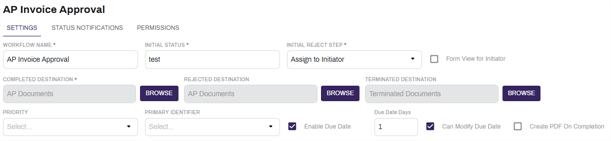
- On the Settings tab, enter information about the new workflow.
- Workflow Name — enter a name for the new workflow.
- Initial Status — the status of the workflow when it starts.
- Initial Reject Step — the action for a workflow task if it is rejected in the first step.
- Assign to Initiator — select this to send the workflow back to the initiator.
- Send to Folder — select this to send the workflow to the Rejected Destination.
- Form View for Initiator — select this to maintain form view for the user that initiated the document in workflow.
- Select the workflow task destinations:
- Completed Destination — select Browse to navigate to the folder where you want to store the completed workflow.
- Rejected Destination — select Browse to navigate to the folder where you want to store the rejected workflow if this differs than the Completed Destination.
- Terminated Destination — select Browse to navigate to the folder where you want to store the terminated, or ended, workflow if this differs than the Completed Destination.
- Set the Priority and due dates, if applicable.
- Enable Due Date — check the box if you want a due date associated with the workflow.
- Due Date Days — use the up / down arrows to set the number of days before the task is due or enter the number.
- Can Modify Due Date — check this box to let the assignee modify the due date.
Create PDF on Completion — check this box to create a pdf of the workflow to be stored upon workflow completion.
Always Allow Access for Initiator — check this box to allow the initiator of the Workflow to always have access to the workflow.
- Workflow Initiation Type — use the drop-down to set the type for the workflow initiation and workflow view.
Upload / Browse / Scan — if you select this option, you also can associate an object to the workflow and check the boxes next to additional options.

Object — use the drop-down to associate an object to the workflow.
Once you select an object, you can associate an object field as Primary Identifier. The new Primary Identifier option displays above the Workflow Initiation Type once the object is selected.
- Upload — check this box for the initiator to upload a file to start the workflow.
- Browse — check this box for the initiator to browse file storage and select a document to start a workflow.
- Scan — check this box for the initiation to scan a document into Vasion to start a workflow.
- Allow File Attachments — check this box to allow users to attach files to this workflow.
- Open Document in Data View — check this box to allow users to use Data View in this workflow.
Form — if you select this option, associate an object to the workflow.

Object — use the drop-down to associate an object to the workflow.
Once you select an object, you can associate an object field as Primary Identifier. The new Primary Identifier option displays above the Workflow Initiation Type once the object is selected.
- Full Page View — select this option to open the form modal in a full page for easier data entry.
- Open Document in Data View — check this box to allow users to use Data View in this workflow.
Workflow Steps
- In the Workflow Steps section, select the + button to add the workflow steps.
- Step Name — enter name for this step.
- Step Type — use the dropdown to select whether the step applies to a user, group, or auto.
- Recipient — use the dropdown to select the user or group to whom the workflow is routed.
- Description — enter a description for the step.
- Add Parallel Step — select this button if you would like a step that runs concurrently with the new step, and complete the fields.
- Select the + button to add the next step in the workflow.
- Configure the step to behave as intended. For information about what each step can do, visit Workflow Steps.
- Continue adding steps as needed.
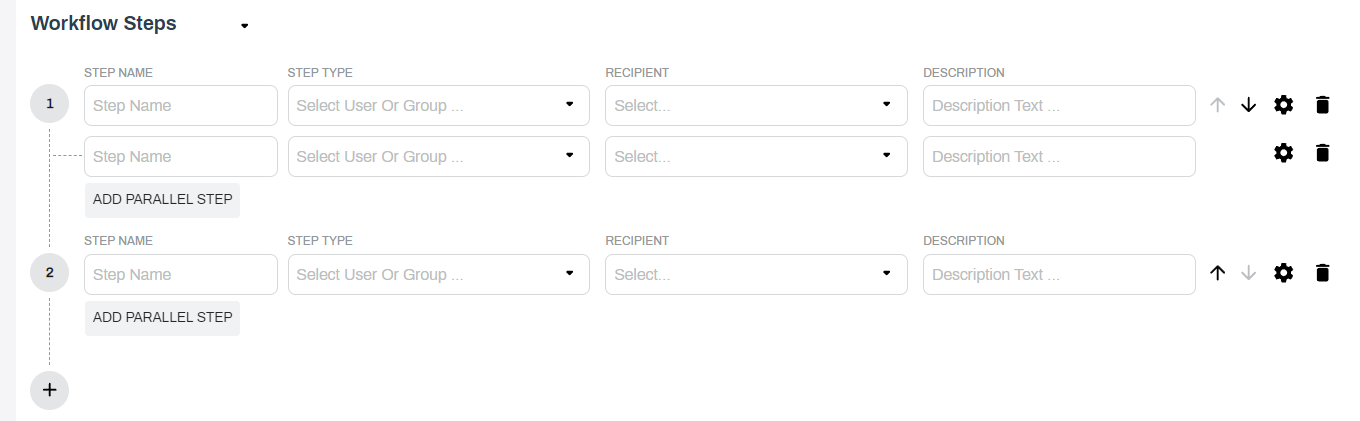
Use the up / down arrows  to reorder the steps. To delete a step, select the Delete icon
  .
.
Complete the step settings for all the steps included in the workflow.
Copy a Workflow
You can quickly create new workflows by duplicating an existing workflow and adjusting the settings as necessary, with the Copy Workflow functionality.
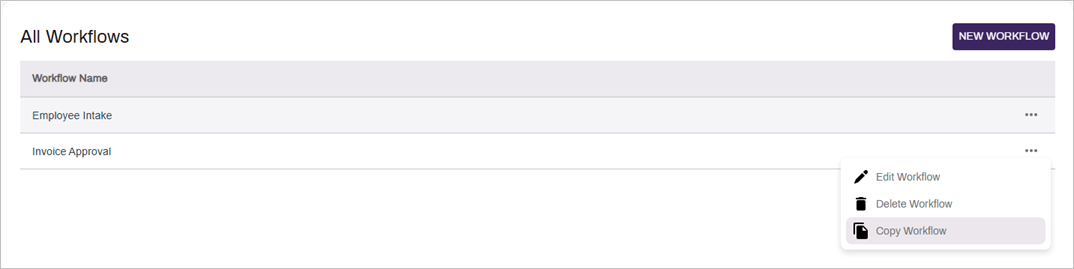
- From the All Workflows page, select the More button
 for the desired Workflow.
 - Select Copy Workflow.
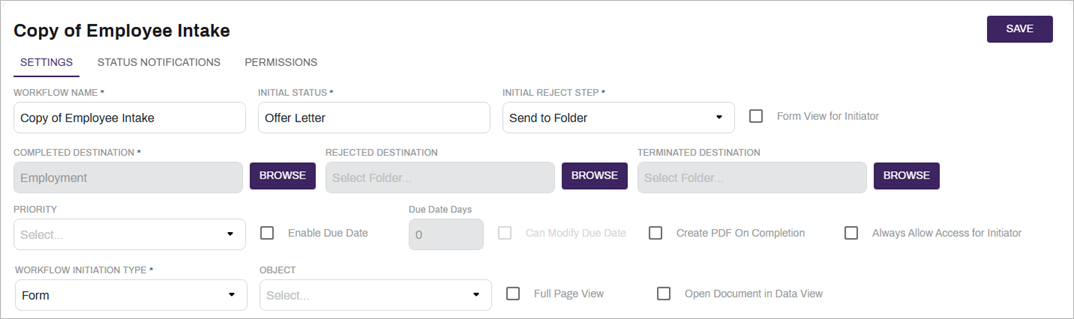
- Make the necessary changes to the copy, and select Save.
Workflows copied through this method do not copy permissions from the original Workflow. Ensure the permissions are correctly set after copying the Workflow. See Workflow Permissions for assigning permissions.
Workflow Advanced Options
- In the Advanced Options section select the following:
- Include Admin in All Steps — check this box to include Admin users in every step to oversee the workflow for management purposes.
- Auto Approve Documents — check this box to automatically approve the documents in the workflow.
- Save Workflow Comments — check this box to save the comments added during the workflow.
User in Group Can Only Approve Once — check this box to for documents assigned to a group only be approved by a user in that group once.
Exit Workflow on Reject — check this box to have a user leave the workflow when a document is rejected.
Workflow Initiator Field — use the drop-down to select a field where the username of the workflow initiator is saved.
Workflow Action Field — use the drop-down to select the date field to update when a user takes action on a workflow item. This field is updated every time a user takes any action.

Email Options
-
Select the arrow next to Email Options to expand the section.
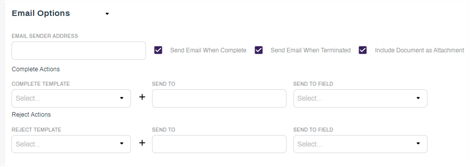
- Select the email options for this workflow:
- Email Sender Address — enter the email address that displays in the “from” field on emails sent for this workflow.
- Send Email When Complete — check the box to have an email sent each time a document in the workflow is completed. When this box is checked, complete the following:
- Complete Template — use the drop-down to select an email template to use for the completed workflow email.
- Send To — enter the email address of the user to whom the completed email should be sent.
- Send to Field — use the drop-down to select a field where the sent to email is saved.
- Send Email When Rejected — check the box to have an email sent each time a document in the workflow is rejected. When this box is checked, complete the following:
- Reject Template — use the drop-down to select an email template to use for the rejected workflow email.
- Send To — enter the email address of the user to whom the rejected email should be sent.
- Send to Field — use the drop-down to select a field where the sent to email is saved.
- Include Document as Attachment — check the box to include the document as an attachment to each email sent.
In Workflow Permissions you can learn how to restrict access to a workflow.