Last Updated: June 18, 2024
Thumbnail Manager
The Thumbnail Manager displays a small image of every page included in the selected document. Additionally, you can do the following:
- Rotate page orientation.
- Delete pages.
- Change the order of the pages.
- Split Document.
If you need to split a document and remove pages, the recommended practice is to perform two separate actions. Delete the pages you do not want first, and then split the document, or vice versa.
Rotate or Delete Pages
- Select the document.
- Select the Actions button and then select Thumbnail Manager.
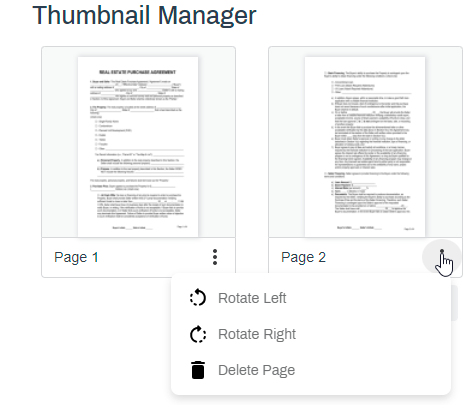
- Select the three dots of the page you want to rotate or delete and select one of the following:
- Rotate Left.
- Rotate Right.
Delete.
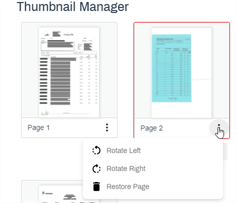
Pages marked for deletion show a red border around the image.
- Select Save.
Before you save changes, if you change your mind on a page you have marked for deletion , you can select Restore Page.
Change Page Order
- Select the document.
- Select the Actions button and then Thumbnail Manager.
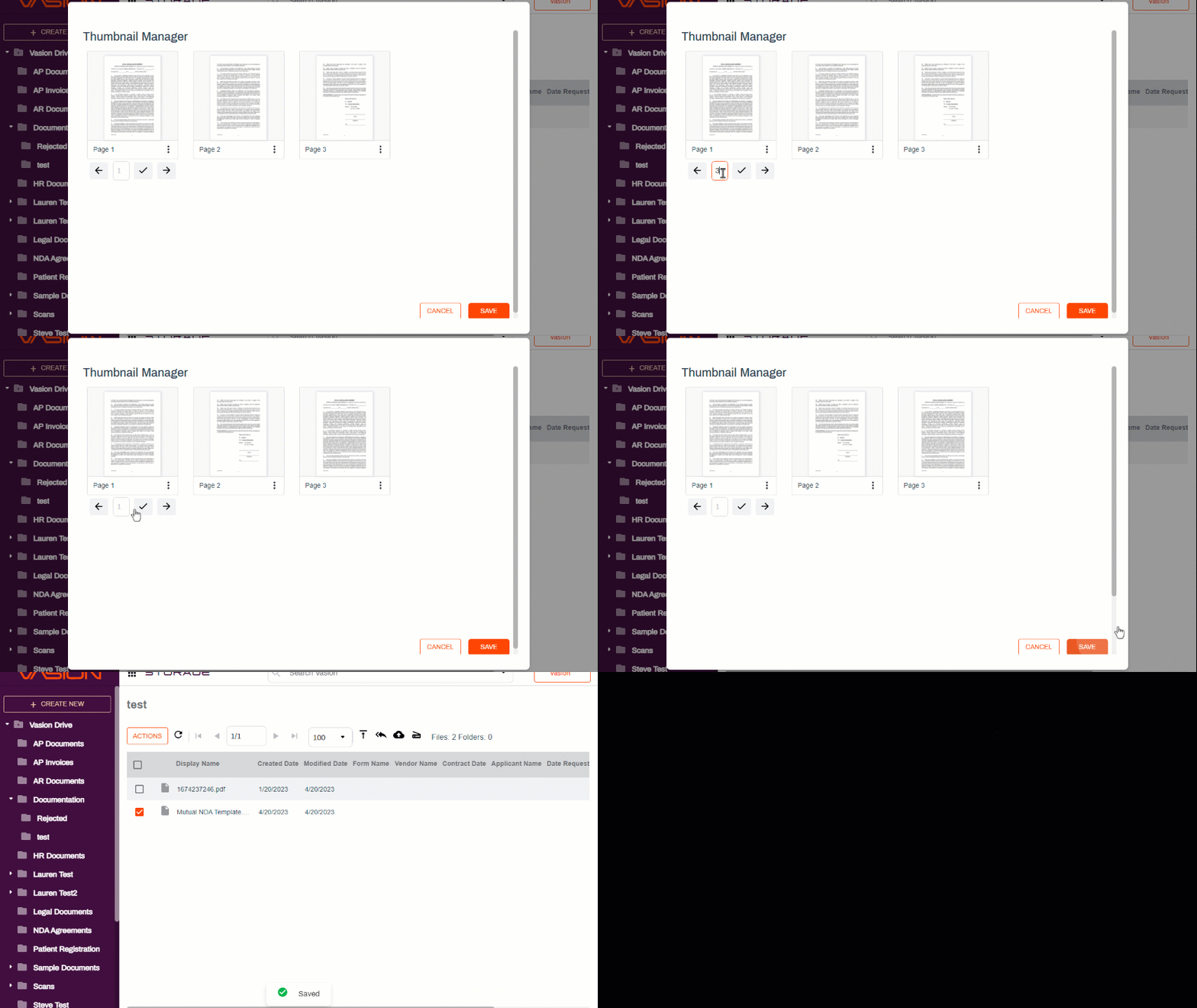
- Select the page you want to move.
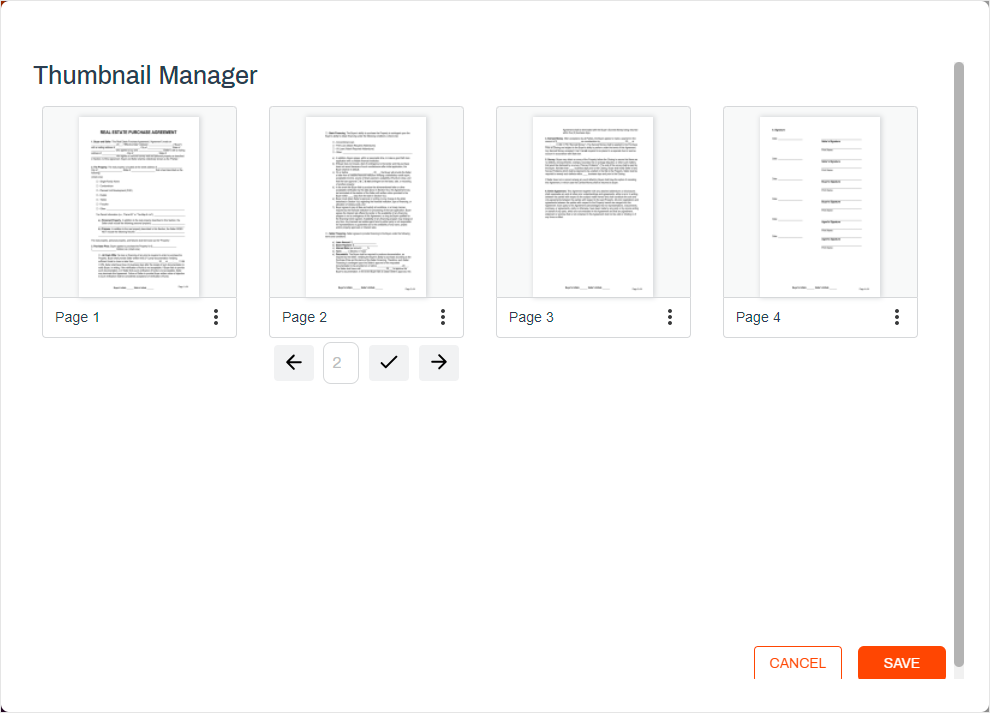
- There are two ways to move a page:
- Select the left
 or right
  arrow to move the page to the desired location.
 - In the page number field, enter the new page number where you want to page and select the check mark
 button.
- Select the left
- Select Save.
Split Document
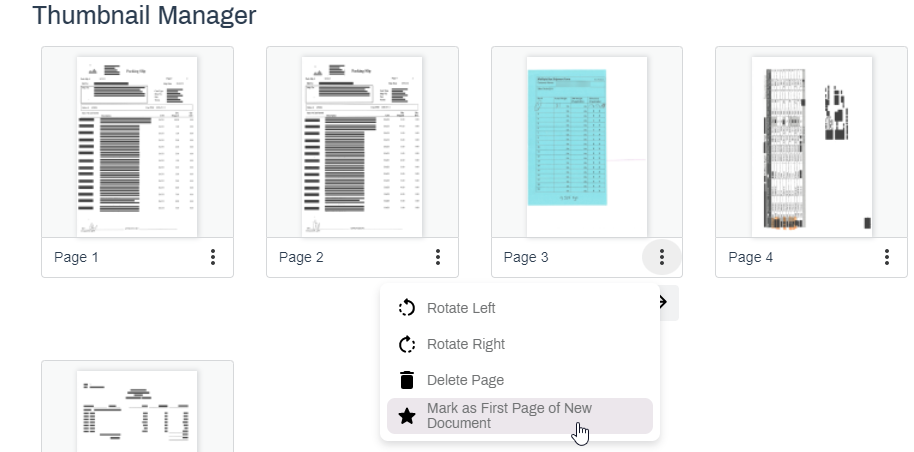
You can split the document into two or more documents by selecting a page and marking as the first page for the new document.
- Select the document.
- Select the Actions button and then select Thumbnail Manager.
- Select the three dots of the page you want to start the new document.
- Select Mark as First Page of New Document.
-
You can select additional pages to create additional documents.
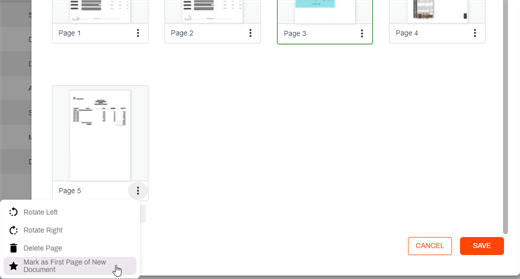
Pages marked as first page of new document show a green border around the image.
- Select Save.
When you use Thumbnail manager to split documents, the object data is not applied to the new documents.