Last Updated: June 18, 2024
AIP
Advanced Image Processing (AIP) Advanced Image Processing (AIP) is a feature that allows Administrators to set up image processing based on Zonal OCR, Barcode, and Zonal OMR. scans the document for text, barcode, and optical mark recognition (OMR) Optical Mark Recognition (OMR), also called optical mark reading, is the process of capturing human-marked data from document forms such as surveys, tests, product evaluations, time sheets, etc. They are used in the form of lines or shaded areas. data that can be applied to object fields. You can then choose what you want to do with the document after it is successfully processed:
- Send to Folder — save the document in Vasion Storage.
- Send to Workflow — use the document to start a new workflow.
To use this option, AIP processes must already be configured. See your Vasion Automate Pro administrator for assistance.
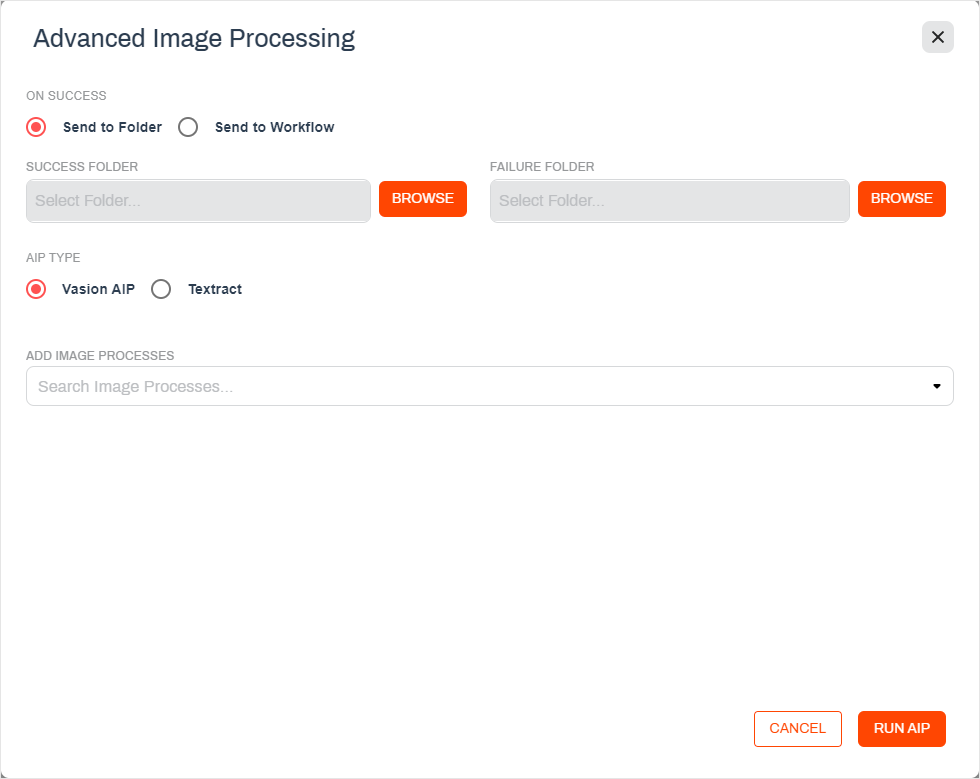
Send to Folder
- Select the document you want to scan.
- Select the Actions button and then select AIP.
- Select Send to Folder.
- Success Folder — select the Browse button to select the folder where you want to save the document when the process completes successfully.
- Failure Folder — select the Browse button to select the folder where you want to save the document if the process fails.
- In the AIP Type section, select:
- Vasion AIP — use this option to select one or more existing Vasion AIP processes.
- Textract AIP — use this option to select a Textract process configuration if you have Textract enabled.
- Use the Add Image Processes drop-down to select the process you want to use to scan the document.
- Select Run AIP.
Send to Workflow
- Select the document you want to scan.
- Select the Actions button and then select AIP.
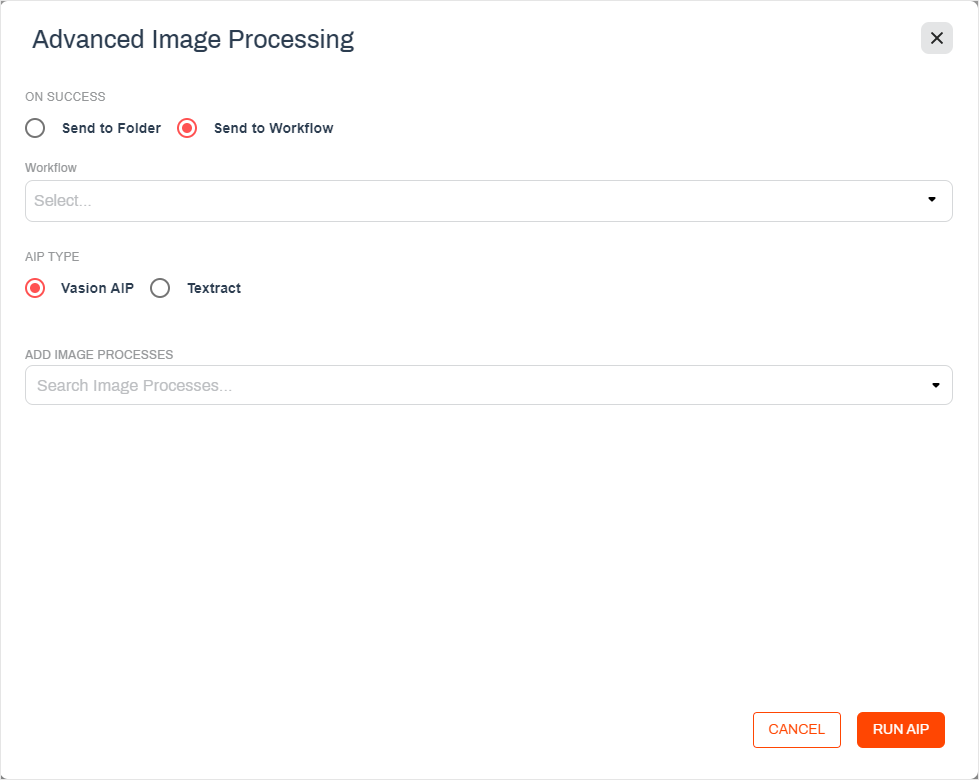
- Select Send to Workflow.
- Use the Workflow drop-down to select the new workflow you want to run.
- In the AIP Type section, select:
- Vasion AIP — use this option to select one or more existing Vasion AIP processes.
- Textract AIP — use this option to select a Textract process configuration if you have Textract enabled.
- Use the Add Image Processes drop-down to select the process you want to use to scan the document.
- Select Run AIP.
The most common use cases for Amazon Textract within Vasion include:
- Mapping Amazon Textract data to Vasion fields
- Routing documents to Vasion workflows from captured data by Amazon Textract
- Storing documents with Vasion's native third-party storage integrations like AWS Workdocs or AWS S3
Amazon Textract accurately extracts printed text, handwriting, tables, and other data from uploaded documents using machine learning.
Amazon Textract supports PNG, JPEG, TIFF, and PDF file formats.
Vasion supports four Amazon Textract endpoints: expense, lending, identity, and analyzing documents. Using these endpoints, users can initiate document processing for invoices, POs, contracts, driver's licenses, and more.