Last Updated: June 18, 2024
Add Pages
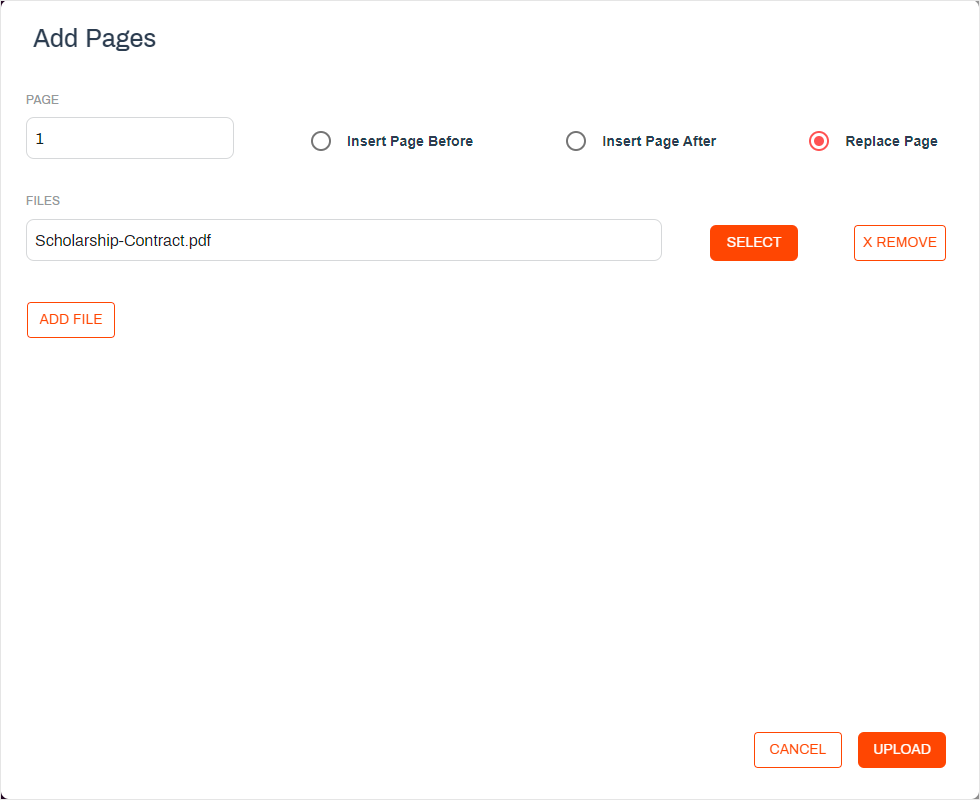
Add or replace pages on the current document at a specific point on the document by using the Add Pages button  . Options for adding pages are:
- Insert Page Before — inserts the page before the page indicated.
- Insert Page After — inserts the page after the page indicated.
- Replace Page — replaces the page indicated.
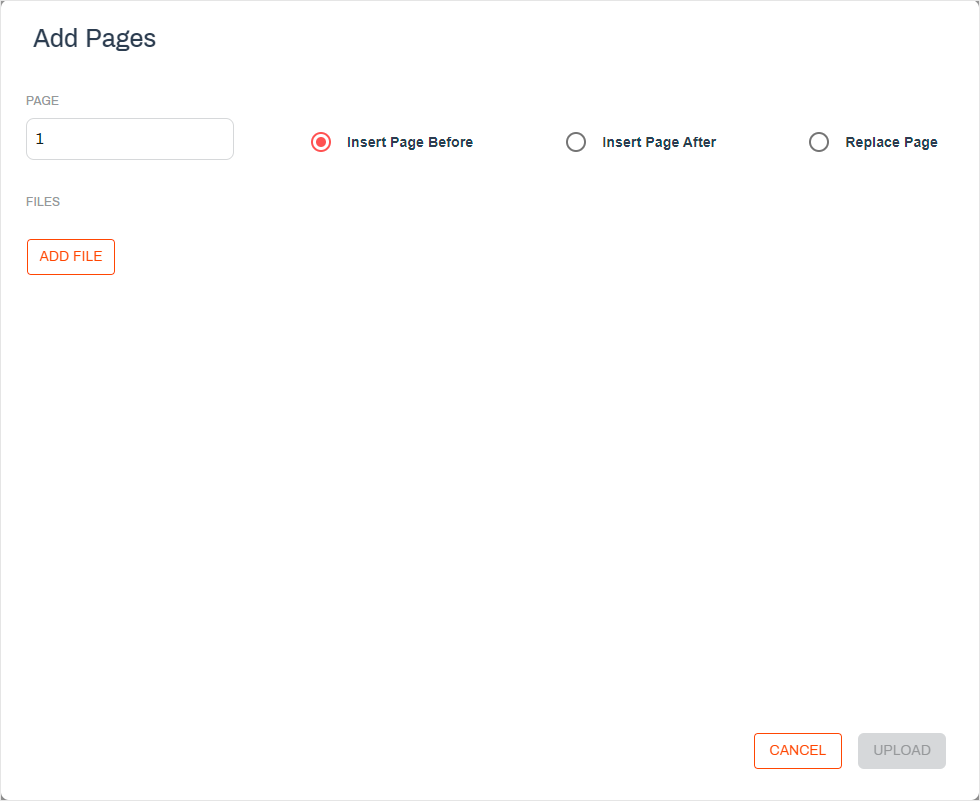
Insert Pages Before
To insert pages before the page number indicated:
- Select the Add Pages button .
- In the Add Pages modal, enter the number of the page into the Page field.
- Select the Add File button.
-
In the Upload modal drag and drop the PDF file or select Browse to use the explorer window and select the file.

- To add another file follow the two steps outlined above. You can add multiple files.
- Once you have all the files, select Upload.
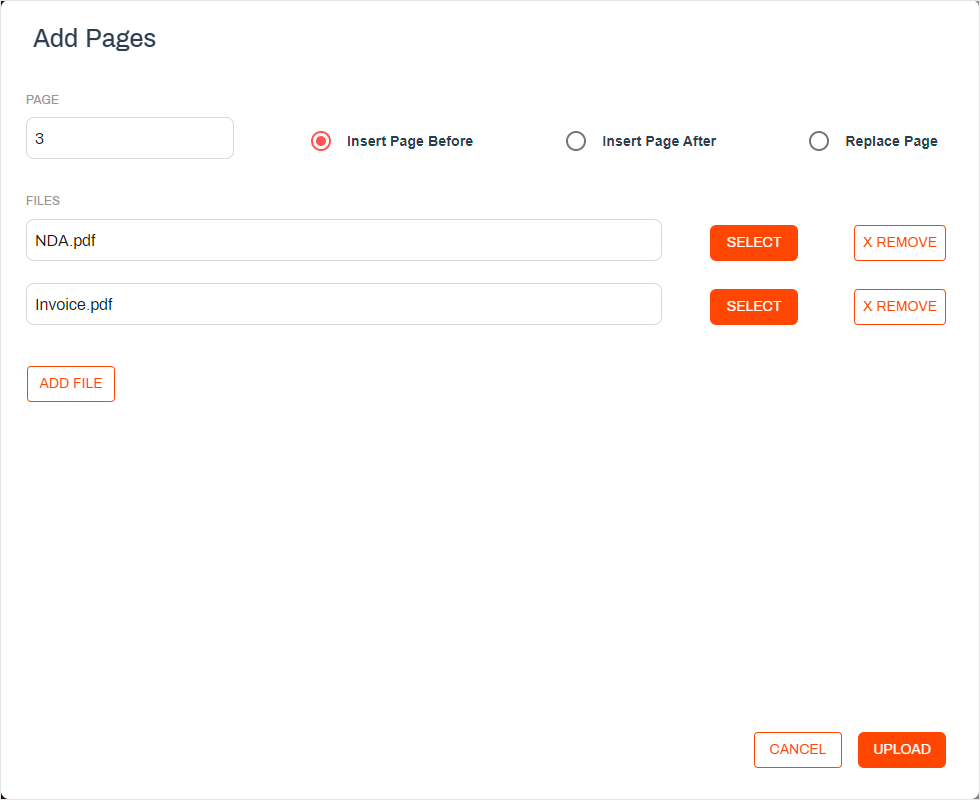
Insert Pages After
To insert pages after the page number indicated:
- Select the Add Pages button .
- In the Add Pages modal, enter the number of the page into the Page field.
- Select the Insert Page After option.
- Select the Add File button.
-
In the Upload modal drag and drop the PDF file or select Browse to use the explorer window and select the file.
- To add another file follow the two steps outlined above. You can add multiple files.
- Once you have all the files, select Upload.
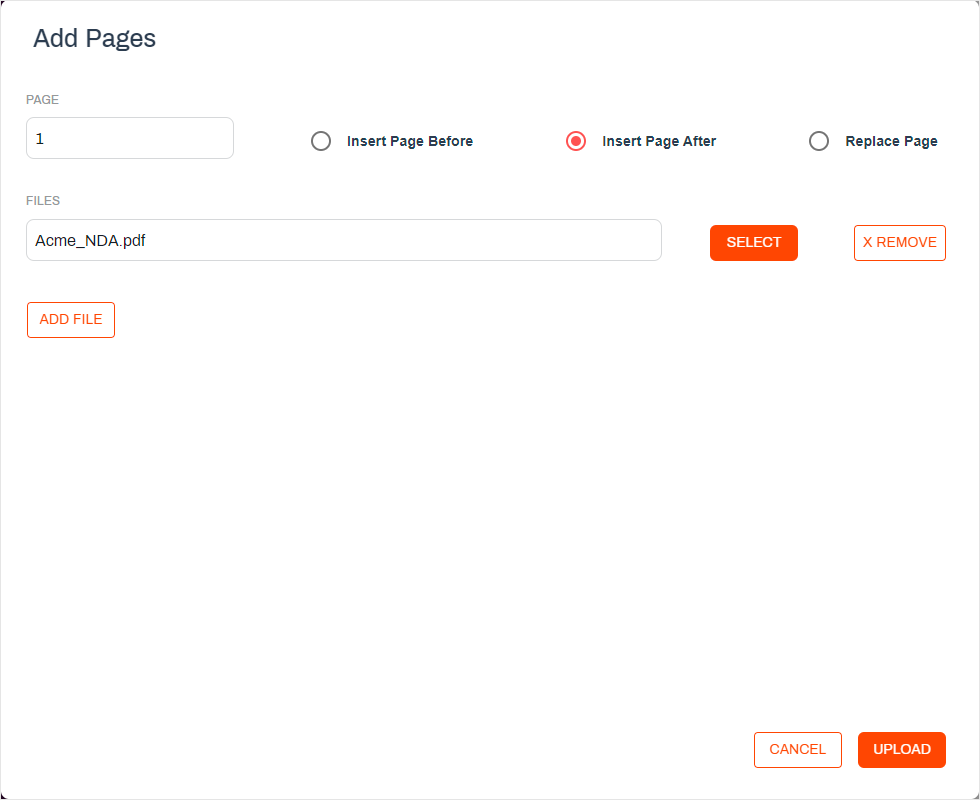
Replace Page
To replace a document page:
- Select the Add Pages button .
- In the Add Pages modal, enter the number of the page you want to replace into the Page field.
- Select the Replace Page option.
- Select the Add File button.
-
In the Upload modal drag and drop the PDF file or select Browse to use the explorer window and select the file.
- Select Upload.