Last Updated: June 18, 2024
Barcode Recognition
Barcode recognition functionality is used to capture one or more barcode values from a selected document and populates it into an existing object field. Capturing and saving the barcode data is also known as barcode indexing. You can also use barcode recognition to split documents based on barcode data.
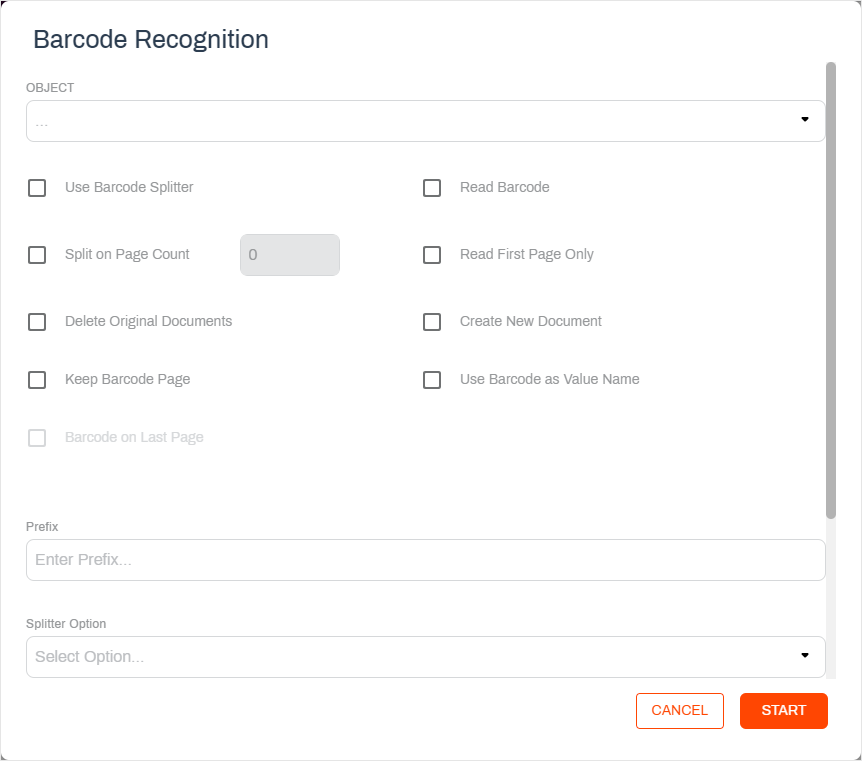
Barcode Index
To use this option, Barcode Recognition processes must already be configured. See your Vasion Automate Pro administrator for assistance.
Here are the steps to use to save barcode data to an object:
- Select the document you want to scan for barcode data.
- Select the Actions button and then select Barcode Recognition.
- Use the Object drop-down to select the object where you want to save the data.
- Select from the following options. Depending on your selection, some of the options may not be applicable and therefore become unavailable.
- Delete Original Documents — use this option if you are creating new documents. This option is only available with some selections.
- Keep Barcode Page — use this option if the barcode data is only on one page and you want to keep it within the document. This option is only available with some selections.
- Read Barcode — use this option to read the barcode data and apply it to a field or to use as value name.
- Read First Page Only — use this option if the barcode data is only on the first page of the document.
- Create New Document — use this option if you want to create a new document after running barcode recognition. This option is only available with some selections.
- Use Barcode as Value Name — use this option if you want to create a new document using the first barcode indexed as the new document name.
- Use the Barcode Index drop-down to select an existing barcode configuration.
- Prefix — enter text to use as a prefix of the new document name when using the Use Barcode as Value Name option, if necessary.
- Select Start.
Barcode Splitter
Here are the steps to use to split the current document using barcodes:
- Select the document you want to scan for barcode data.
- Select the Actions button and then select Barcode Recognition.
- Use of the Object drop-down when using the barcode splitter is optional, unless you want to also save any values to an object.
- Select from the following options. Depending on your selection, some of the options may not be applicable and therefore become unavailable.
- Use Barcode Splitter — use this option if your document contains multiple pages separated by barcodes.
- Split on Page Count — use this option to split your document after a set number of pages and enter that number into the field.
- Delete Original Documents — use this option if you are creating new documents. This option is only available with some selections.
- Keep Barcode Page — use this option if the barcode data is only on one page and you want to keep it within the document. This option is only available with some selections.
- Barcode on Last Page — use this option to run the barcode recognition only on the last page of the document.
- Use Barcode as Value Name — use this option if you want to create a new document using the first barcode indexed as the new document name.
- Use the Barcode Index drop-down to select an existing barcode configuration, you have select an object to save barcode data.
- Prefix — enter text to use as a prefix of the new document name when using the Use Barcode as Value Name option, if necessary.
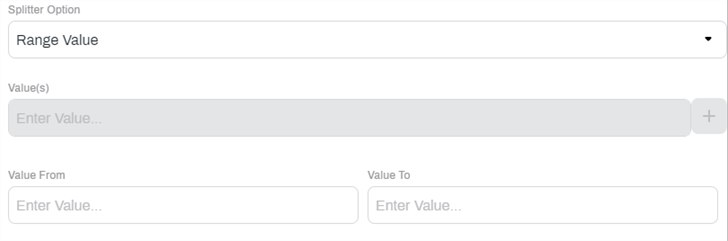
- You can use the Splitter Option drop-down to configure different ways the barcode value or part of the value can split the document.
Range Value — enter a starting and ending value range to use as criteria into the Value From and Value To fields.
Start With— enter the beginning characters of the barcode you want to use to split the document into the Value(s) field.
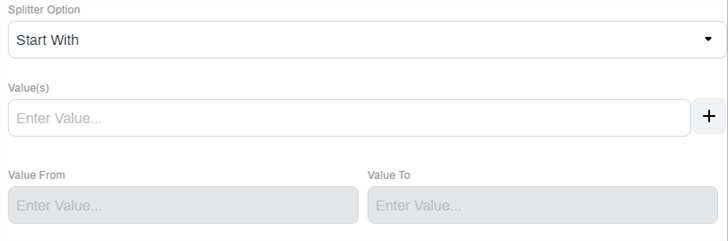
- Values — enter the exact value of the barcode you want to use to split the document into the Value(s) field.
- Value Changed — use this option to split the document every time there is a new barcode value.
- Select Start.