Last Updated: August 13, 2024
Field Validation
With Field Validation, you can open multiple documents and view the object data associated with those documents. You can access the Field Validation option from Search Results and Storage Actions menus.
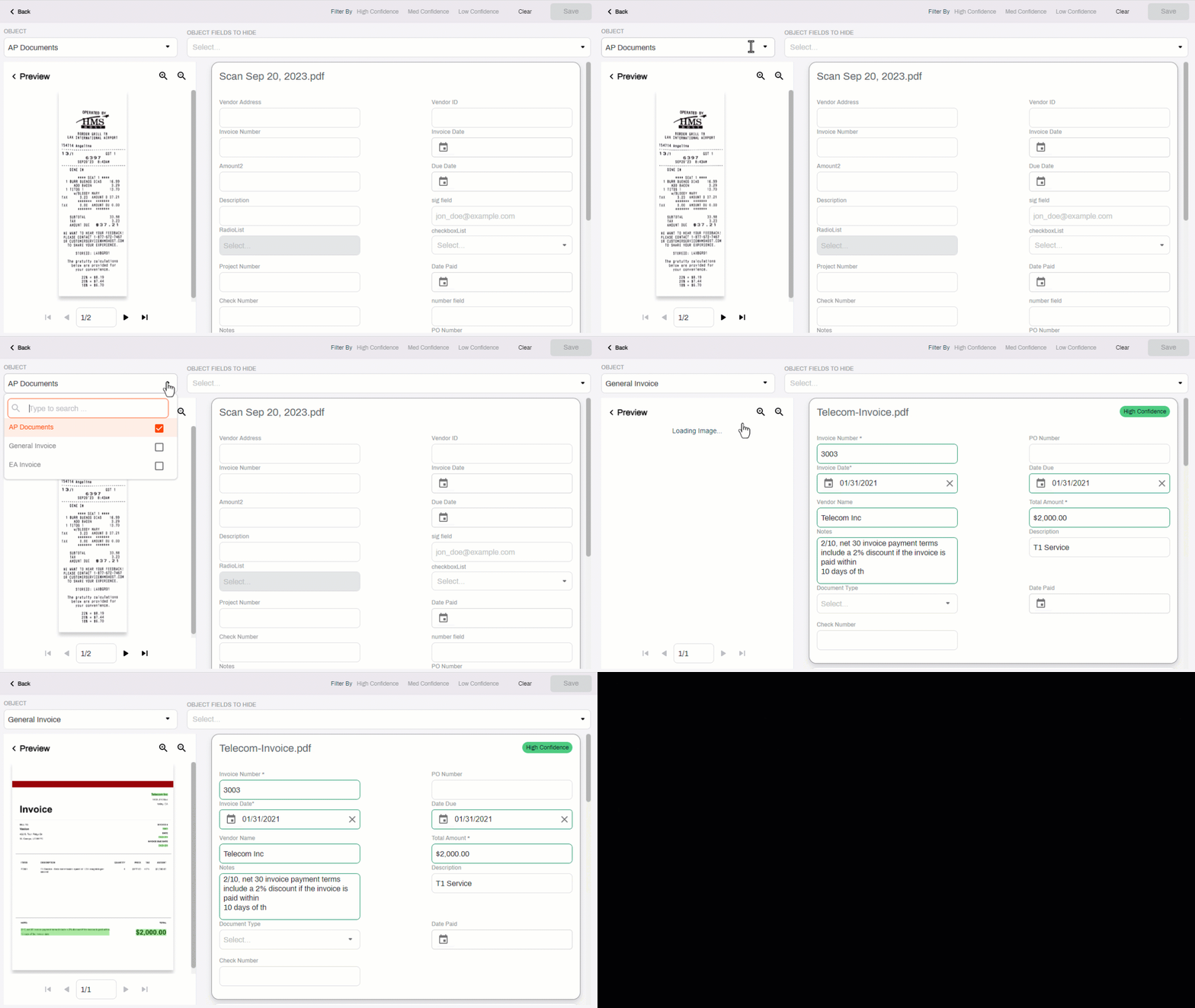
To use Field Validation, the documents have to be associated with an object. However, the documents selected do not have to be associated with the same object. The selected documents open in the Document Viewer and the document or form is displayed on the left and the object fields on the right. The Document Viewer loads the first document selected by default.
Field Validation Elements
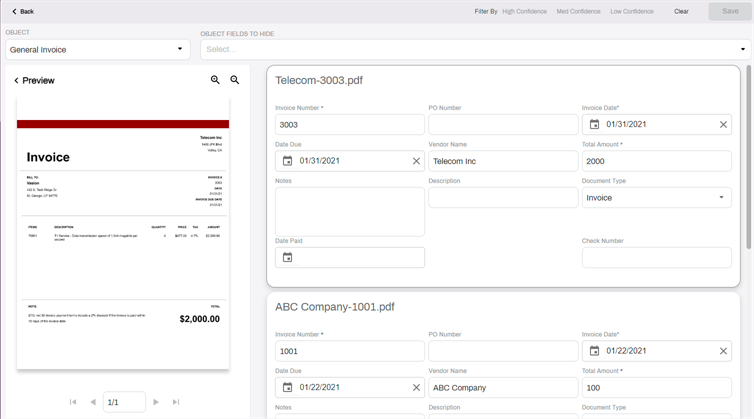
The document is displayed on the left and the data fields display in table format on the right.
The Field Validation section displays the following:
- Field Validation toolbar — shows the back button to return to the folder and if the documents were processed using AIP, the confidence level filters.
- Object — the name of the object for the current document.
- Object Fields to Hide — use this drop-down to choose fields you don't want to display in the field table.
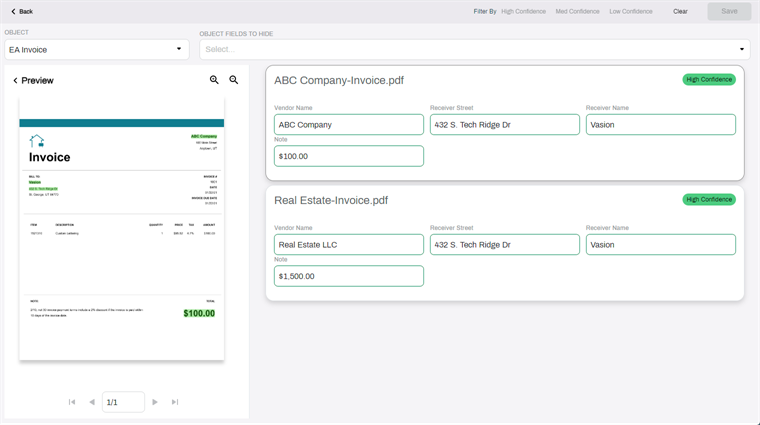
- Document Preview — shows a preview of the first document selected. Select the Preview button
 to toggle the preview off.
 - Object fields — all object fields are displayed by default. If the storage folder has a custom view applied, then the fields not included in the view are hidden by default.
Documents With the Same Object
The document displayed is the first document selected. If all the documents are associated with the same object, you can see the object fields listed in a card on the right. Use the scroll bar to view all object fields.
View Documents
Once the documents are open, you can do the following:
- Validate that the object data is correct.
- Enter missing data.
- Update data.
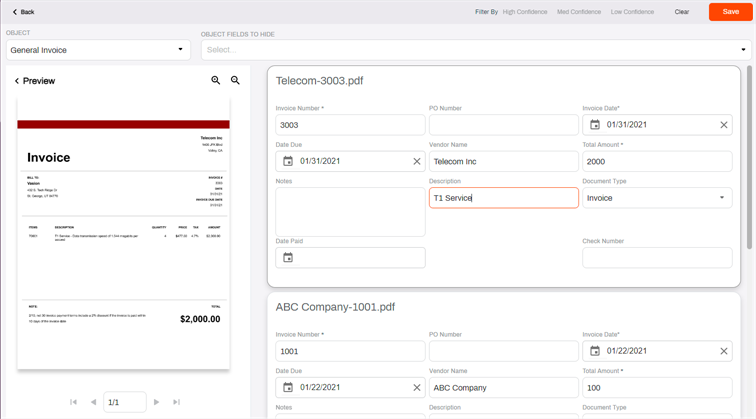
To save changes use the Save button on the top-right corner.
To view the document associated with a specific record, select the card containing the data for that record.
Hide Fields
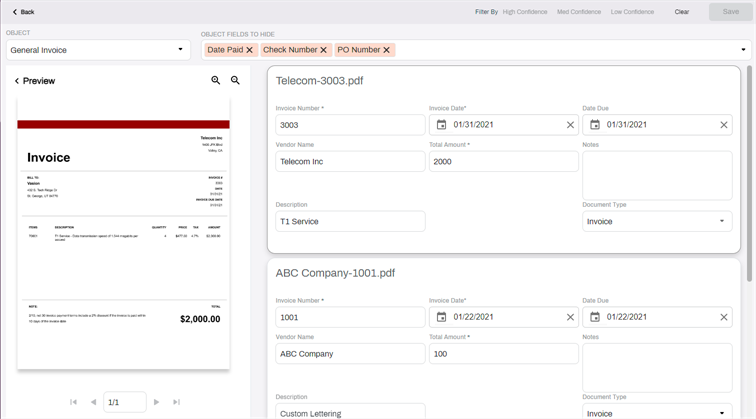
If the object has a large number of fields, and you only need to validate specific ones, you can hide any fields you don't need from the display by doing the following:
- Open the Object Fields to Hide drop-down.
- Select the fields you want to hide from the display.
- Close the drop-down.
Documents With Multiple Objects
If the documents selected are associated with different objects, the object data associated with the first document displays. Use the Object drop-down to select another object to view the document associated with that object.
AIP Processed Documents
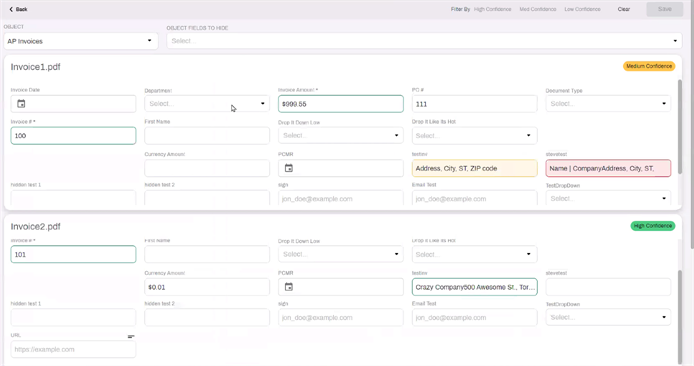
Documents with object fields that have data populated via Advanced Image Processing (AIP) Advanced Image Processing (AIP) is a feature that allows Administrators to set up image processing based on Zonal OCR, Barcode, and Zonal OMR. show a highlight color depicting confidence level. When the document is selected, all the processing zones display the confidence level color as follows:
- Green — high confidence (86% - 100%).
- Yellow — medium confidence (61% - 85%).
- Red — not confident, or nothing was picked up (0 - 60%).
You can place the cursor in any highlighted field to go directly to the document and view the field location.
Hide Preview
The Preview button serves as a toggle to hide a preview of the document. You can toggle off the preview to focus only on the data. To see the document preview again, select one of the cards.
Confidence Levels
Hover over a field to see the confidence level score.
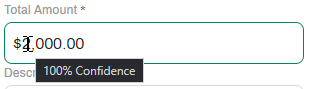
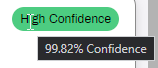
Hover over the confidence chip for the document to see the overall confidence score. The document-level score is the result of the average of all of the field scores.
Confidence Filter
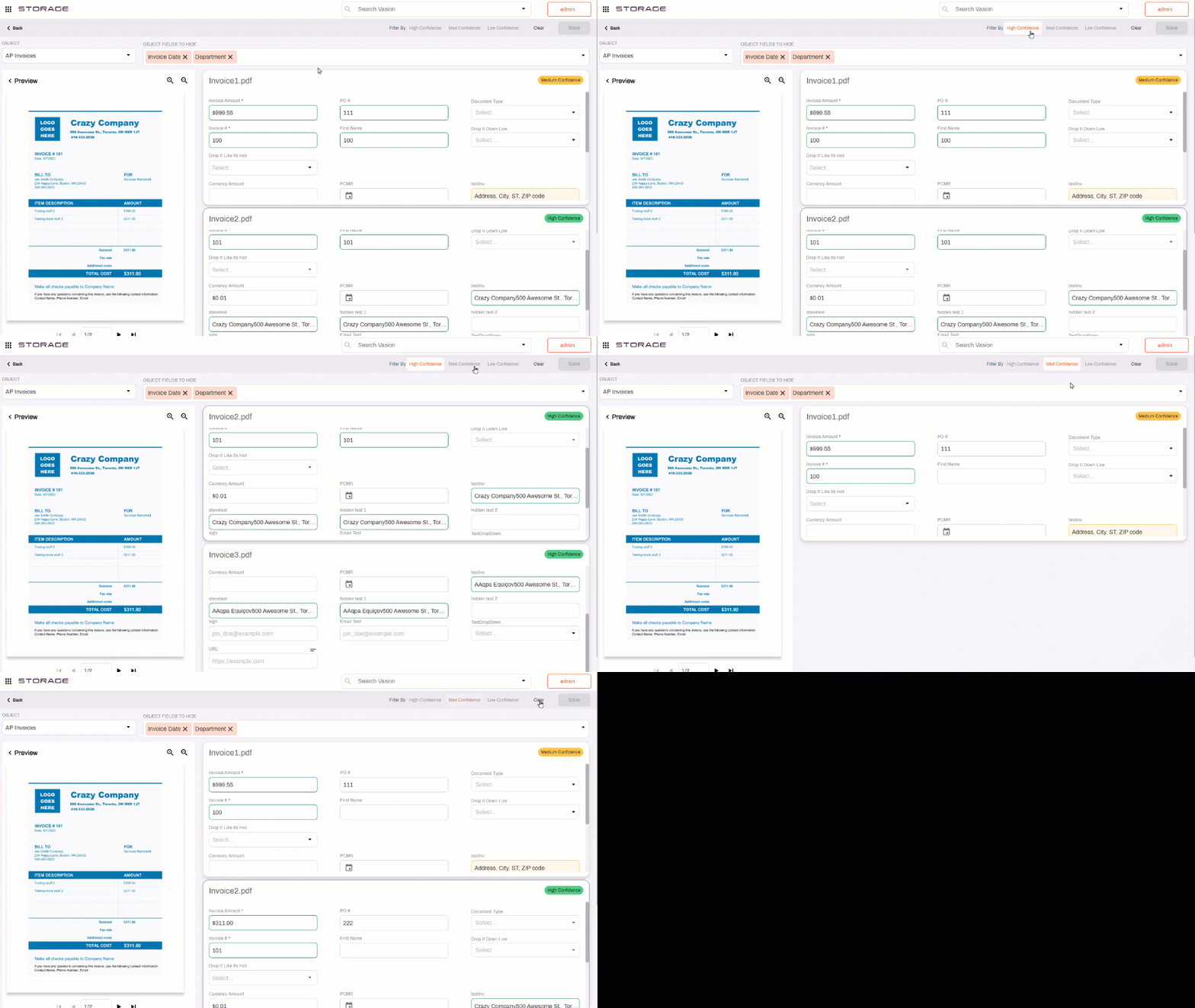
Select a confidence level from the toolbar to filter the documents based on the level selected.