Last Updated: July 02, 2024
Email Templates
Email templates are used to generate a an email message generated by the system that displays populate field data from an object and static content in the subject and / or body of an email that pertains to a document or record. A template message is formatted and form fields variables are inserted in the template so that data entered into a form is applied to the template and displays the data in the appropriate locations.
With Email templates, you to customize the email notification generated by Vasion when any of the following happens:
- A user submits a form or document that initiates a workflow
- A signature workflow is initiated
- A workflow moves to the next step, is approved, rejected or terminated
- When changes are made as a result of an automation
You can create dynamic templates easily with the no-code template designer.
Dynamic Fields
When an object is associated with a template, you can select an associated field to include in both the email subject and / or the email body. When you insert the selected object field, the email template displays the data for the field based on the object. You can also add links to the document and any metadata associated with it.
When the email is generated, all the appropriate information necessary to process the workflow quickly and efficiently is readily available.
Requirements
Email templates are tied to workflows or signature workflows, so before you create the email template, you must already have created at least one workflow. To learn more about workflows see Workflow.
Create an Email Template
To create a new email template you must do the following:
- Configure template details
- Configure template message
- Configure document link settings, if applicable
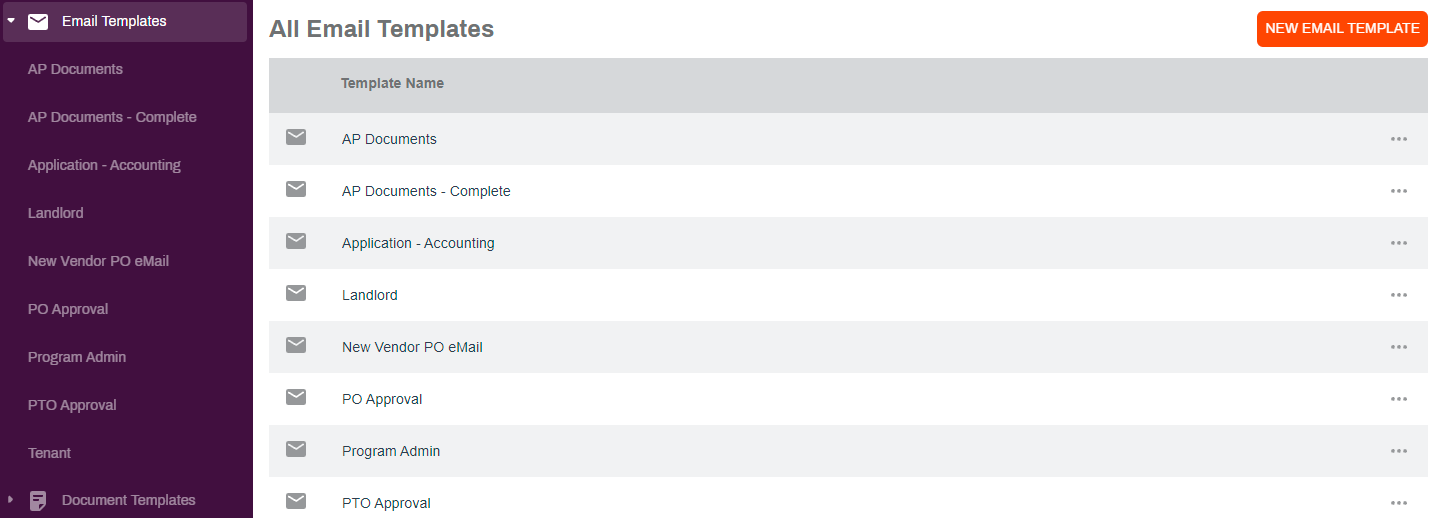
To start a new email template, select Email Template on the side navigation and click on New Email Template on the right side.
1. Template Details
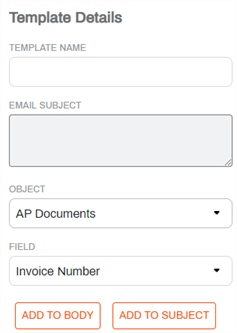
- In the New Email Template page, enter the following:
- Template Name — enter a name for your new template
- Email Subject — enter the subject for the email
- Use the Object drop-down to select the object associated with the workflow
- Use the Field drop-down to select the appropriate fields to add to the subject of the template, if applicable
- Once the field is selected, click on Add to Subject
2. Template Message
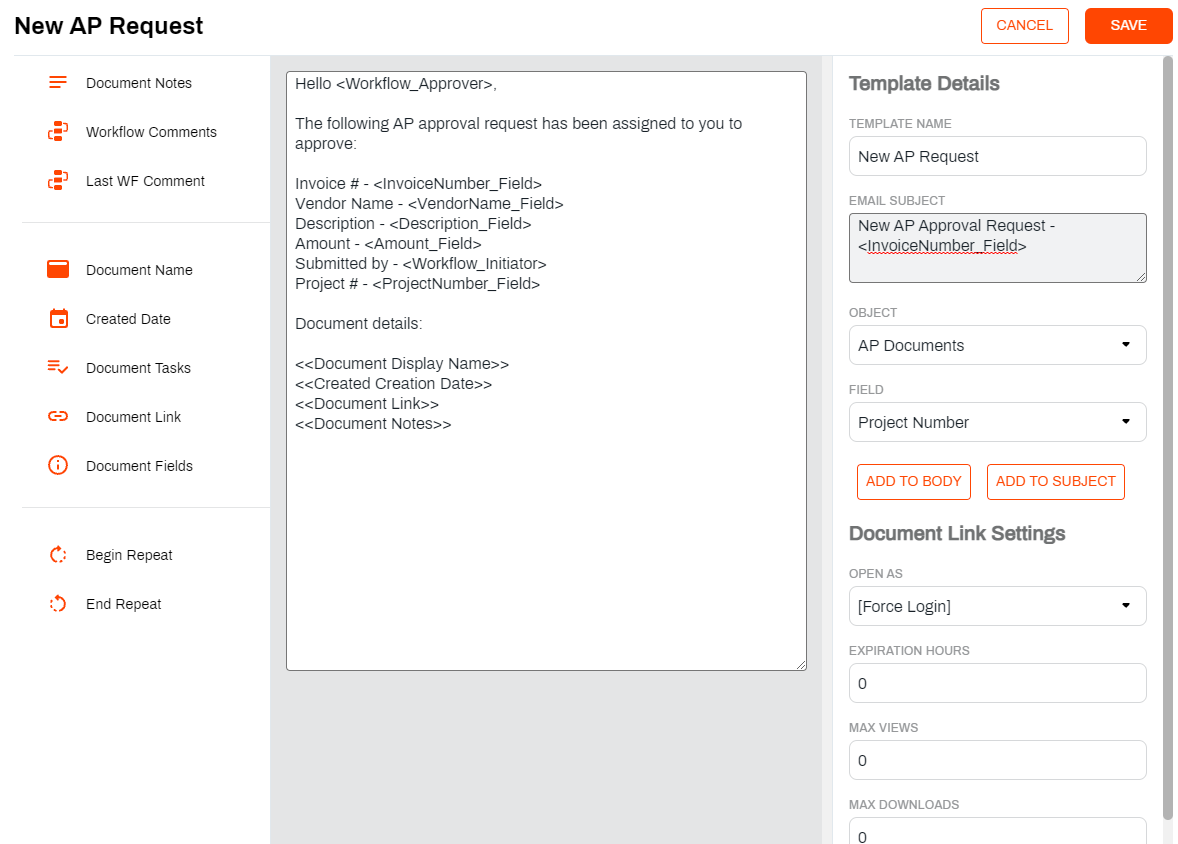
- Enter the text for the message of the email
- Add object fields, if desired
- Place the cursor where you would like to insert the field
- Use the Field drop-down to select the appropriate field
- Click Add to Body
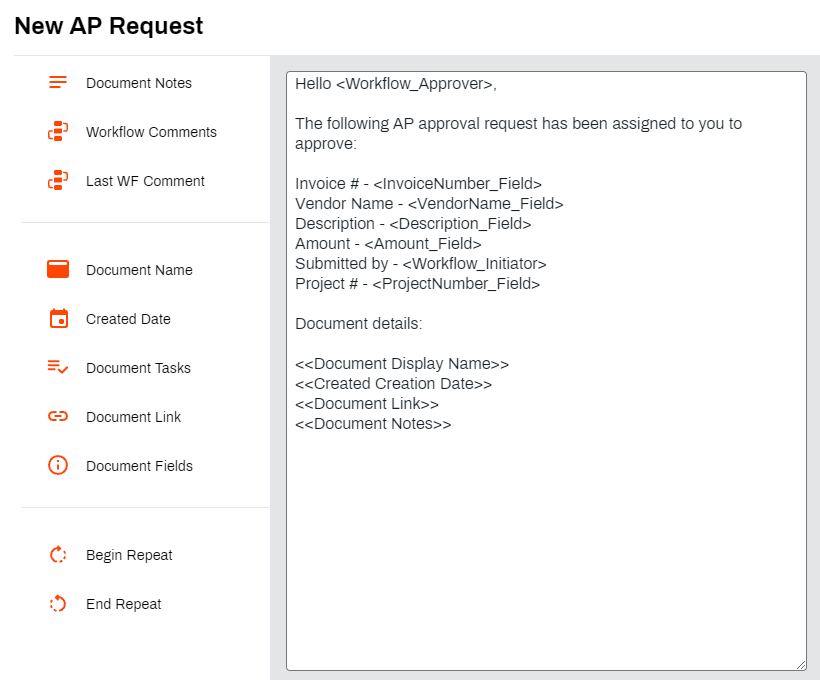
- Add a document link and any document metadata, if desired
- Place the cursor where you would like to insert the document link
- Click Document Link
- Click on any additional document metadata you would like to include
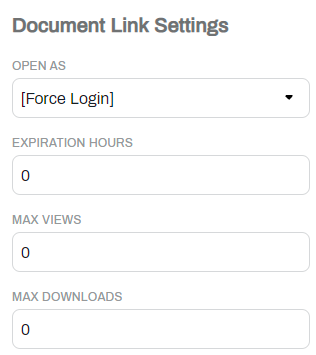
3. Document Link Settings
If you include a document link, your can adjust the following settings:
- Open As:
- [Force Login] — default setting. Forces the recipient of the email to log in to Vasion to view the document. The document views available depend on the user role.
- User — use the drop-down to select a user name from the list. If you choose this option, the email recipient does not need to log into Vasion to view the document. The system assigns the selected user's roles and permissions to display the document when clicking the link.
- Expiration Hours — you can set an expiration for the document link in hours. Once the number of hours expire, the link no longer opens the document.
- Max Views — you can set a maximum number times the document can be viewed. Once the user exceeds the amount of views set in this field, they can no longer view the document.
- Max Downloads — you can set a maximum number of times a document can be downloaded. Once the user exceeds the number of downloads they can no longer download the document.