License File Update
Last Updated: September 10, 2026
During the renewal process for your subscription, a Vasion representative provides you with an updated license file for your Virtual Appliance. The following steps guide you through swapping out the old license file with the new one.
Requirements
- Save the new license file on a device able to access your Virtual Appliance database.
Connect to the Network Share
The following steps show how to connect to the network share drive using Windows File Explorer; alternative methods for connecting to share drives follow similar steps.
- Open File Explorer.
- Right-click on your machine and select Map a Network Drive.
- In the wizard that opens, select the appropriate drive letter in the Drive field.
-
In the Folder field, enter the path to your network drive hosted on your Virtual Appliance using the following format.
\\<Server_IP or Hostname>\<Share>whereServer_IP or Hostnameis the IP address or hostname of your drive, andShareis the name of the folder. Example:\\va.example.net\appliance-storage.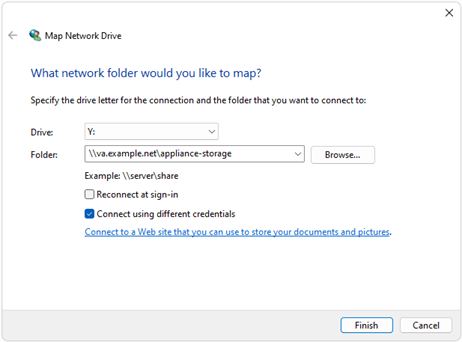
- Select the box for Connect using different credentials.
- Select Finish.
- Depending on your operating system, you may need to select the option to Use a different account in the sign-in modal.
-
Enter your credentials ensuring to use
\before the username to prevent authentication to your domain. Example:\admin.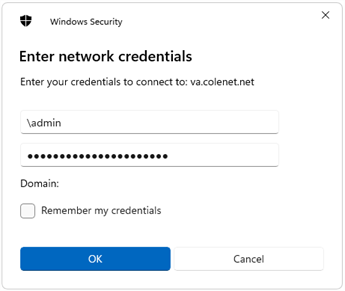
- Select OK.
Apply the License File
- In the Network Share, navigate to appliance-storage\pi\storage
- Paste the downloaded license file in this location.
Remove the previous license file from the folder, if it is still present.
In this topic: