Print Release
Last Updated: September 14, 2026
After you sign in to the Control Panel Application (CPA), here is a quick overview on how to release print jobs.
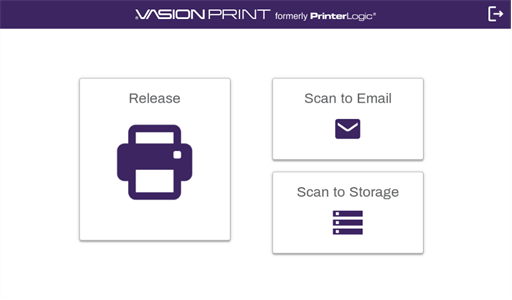
1. Select Print Release.
2. Select the print job(s) you want to print and select the Print icon  .
.
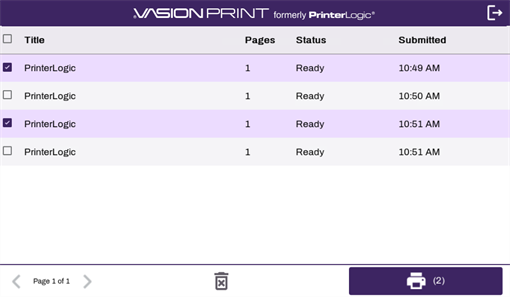
If you want to delete a held print job, select the job and use the Delete icon  .
.
Release Web Print Jobs
Email Notification
The system sends an email to the email address you entered with instructions on how to release the print job when you are at the physical printer.
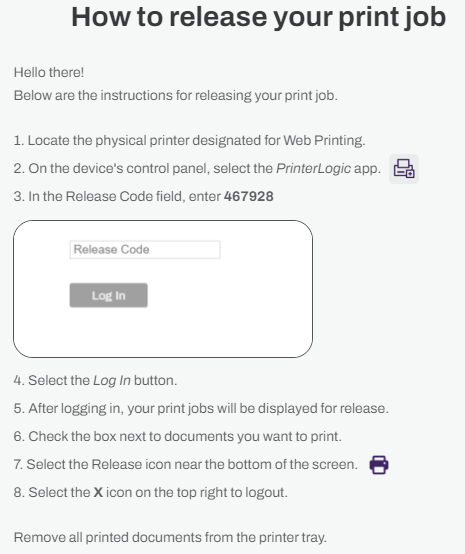
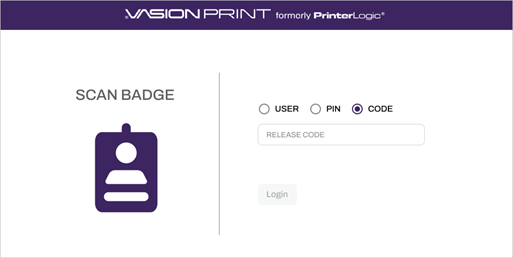
At the CPA Sign In screen select Code and enter the release code you received.
Select the print job(s) you want to print and select the Print icon .
In this topic:

CPA Guide