PrinterLogic Output Console
Last Updated: September 08, 2026
The Output Console provides admins with a central location to monitor PrinterLogic Output activity and can see near real-time print job traffic through Output services within the console, as well as the status of the physical printers themselves, providing critical insights when troubleshooting issues.
Key Points
- Monitor the Virtual Appliance Output environment.
- View printers.
- View the status of current and processed jobs.
- Recover from printing issues.
- Reprint, redirect, pause, release, or cancel print jobs.
- Use Custom Print Job Fields to add additional columns in the Print Jobs tab.
- Review the Output Service Recommendations for managing updates to the Output service on the Service Agent.
Virtual Appliance Output is not a feature enabled by default and requires an upgrade to the Host version. Contact your Vasion representative for details and assistance to enable this feature.
Access the Output Console
The Output Console is only available to Virtual Appliance customers with PrinterLogic Output enabled and have migrated to the unified login experience, as it requires additional functions only available with Vasion Automate. For more details refer to Unified Login Experience.
Learn more about PrinterLogic Output. Reach out to your Vasion representative for details and licensing.
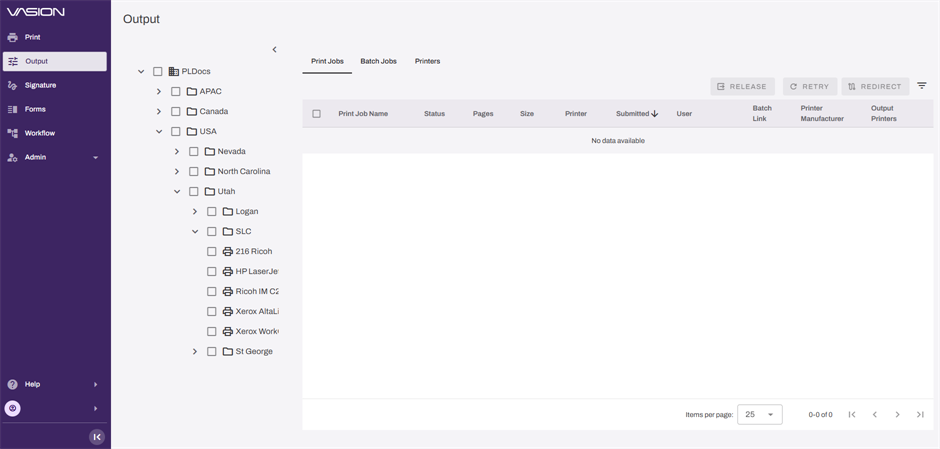
Console Tab Details
The Print Jobs tab shows information about jobs processed by Virtual Appliance Output. In the left-side tree structure, you can filter print jobs by selecting specific folder(s) or printer object(s). Not selecting a folder or object in the tree structure displays all print jobs.
- Print Job Name: The name of the file sent through Virtual Appliance Output.
- If you turned off the Include print job title in reports tree structure setting on Tools
 Settings Printing in the Admin Console, this field shows Omitted instead.
- If you turned off the Include print job title in reports tree structure setting on Tools
- Status: The current status of the job.
- Pages: Page count of the sent job.
- Size: Size of the file sent in bytes / megabytes.
- Printer: The destination printer for the print job.
- Submitted: Date and time the file was sent.
- User: The user who sent the print job.
Add additional columns to the Print Jobs tab using Custom Print Job Fields.
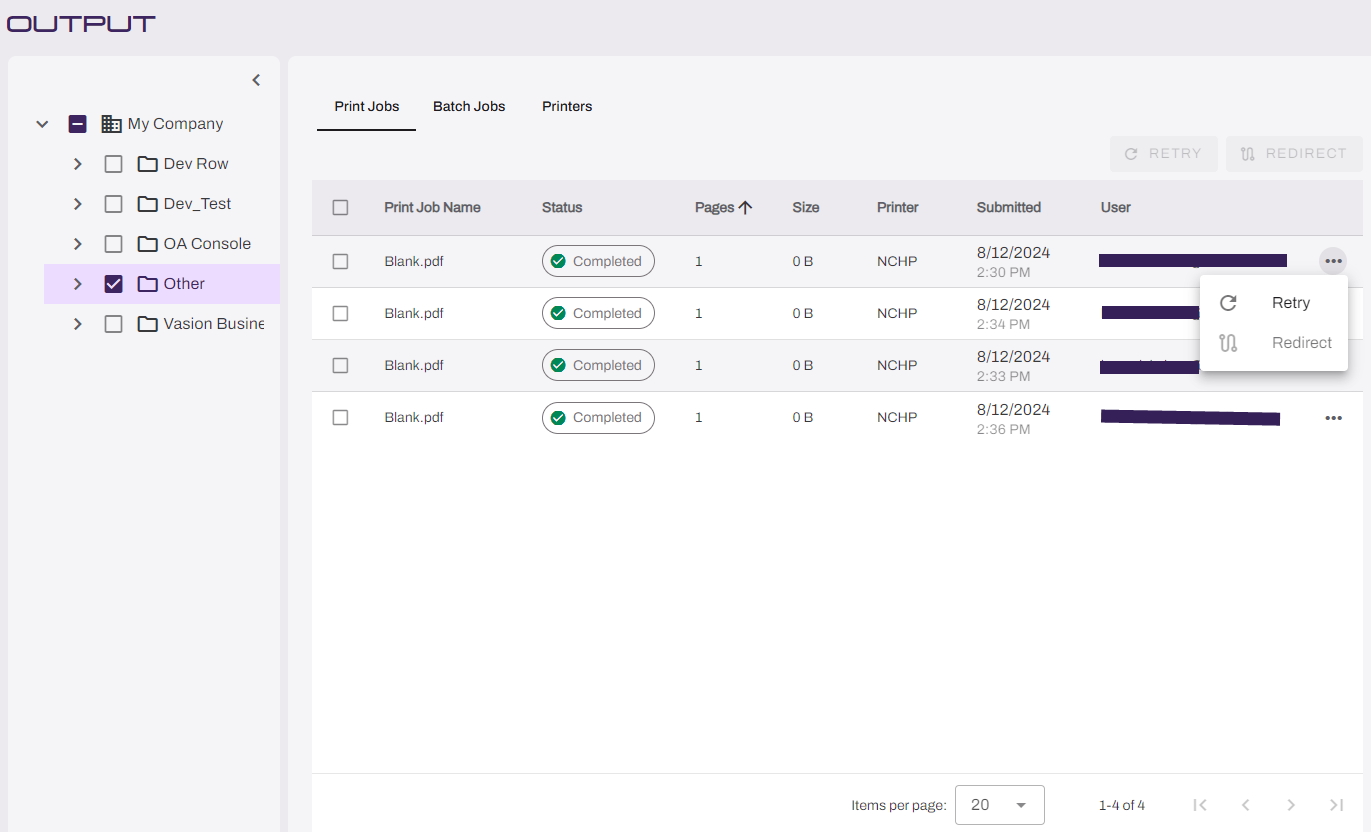
The Batch Jobs tab lets you quickly view and manage batch jobs in your environment.
The tab includes:
- Name: Batch ID of the job.
- Status: The current status of the job.
- Submitted: Date and timestamp the file was sent.
- Pages: Page count of the sent job.
- Size: Size of the file sent in bytes / megabytes.
- Printer: The destination printer for the print job.
- User: The user who sent the print job.
Add additional columns to the Batch Jobs tab using Custom Print Job Fields.
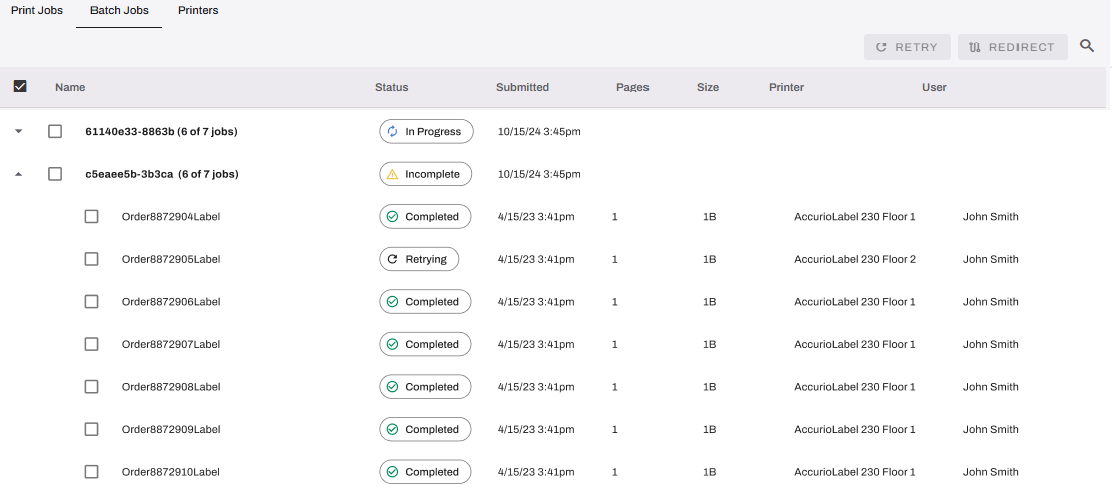
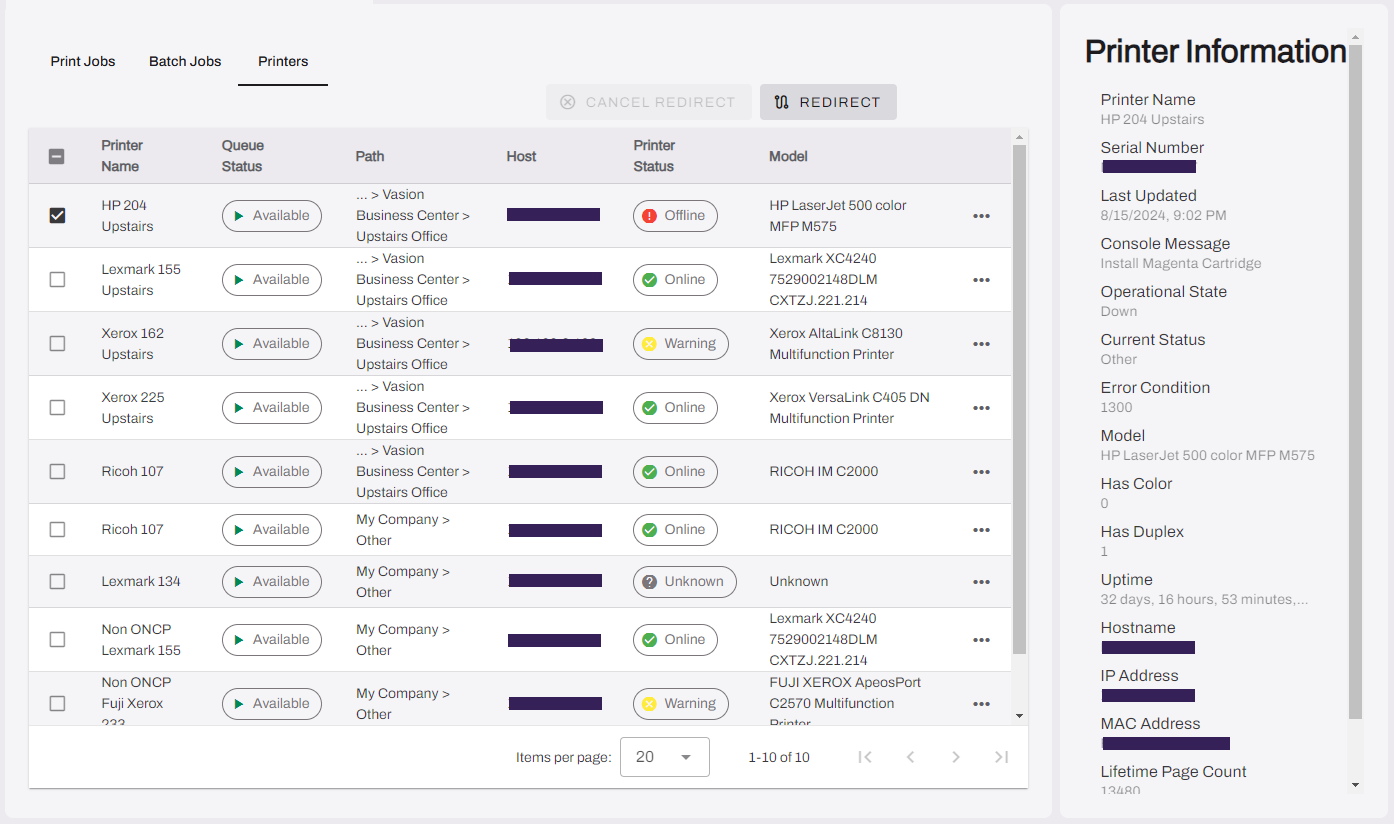
The Printers tab lets you quickly view and manage printers in your environment. In the left-side tree structure, you can filter printers by selecting specific folder(s) or printer object(s). Not selecting a folder or object in the tree structure displays all printers. The information showing on the Printers tab includes:
- Printer Name: The name of the printer as it appears in the Admin Console.
- Queue Status: The current queue status of the printer.
- Path: Path to the printer in the tree structure.
- Host: IP address or Hostname of the printer.
- Printer Status: The current status of the printer. Display options are Online, Warning, Offline, and Unknown.
- Model: Device model information reported via Simple Network Management Protocol (SNMP).
Printer Information
Select a printer from the list to view additional SNMP information and error messages. You can select only one printer at a time.
The panel shows:
- Printer Name.
- Serial Number.
- Last Updated.
- Console Message.
- Operational State.
- Current Status.
- Error Condition.
- Model.
- Has Color.
- Has Duplex.
- Uptime.
- Hostname.
- IP Address.
- MAC Address.
- Lifetime Page Count.
- SNMP Protocol Version.
Filters
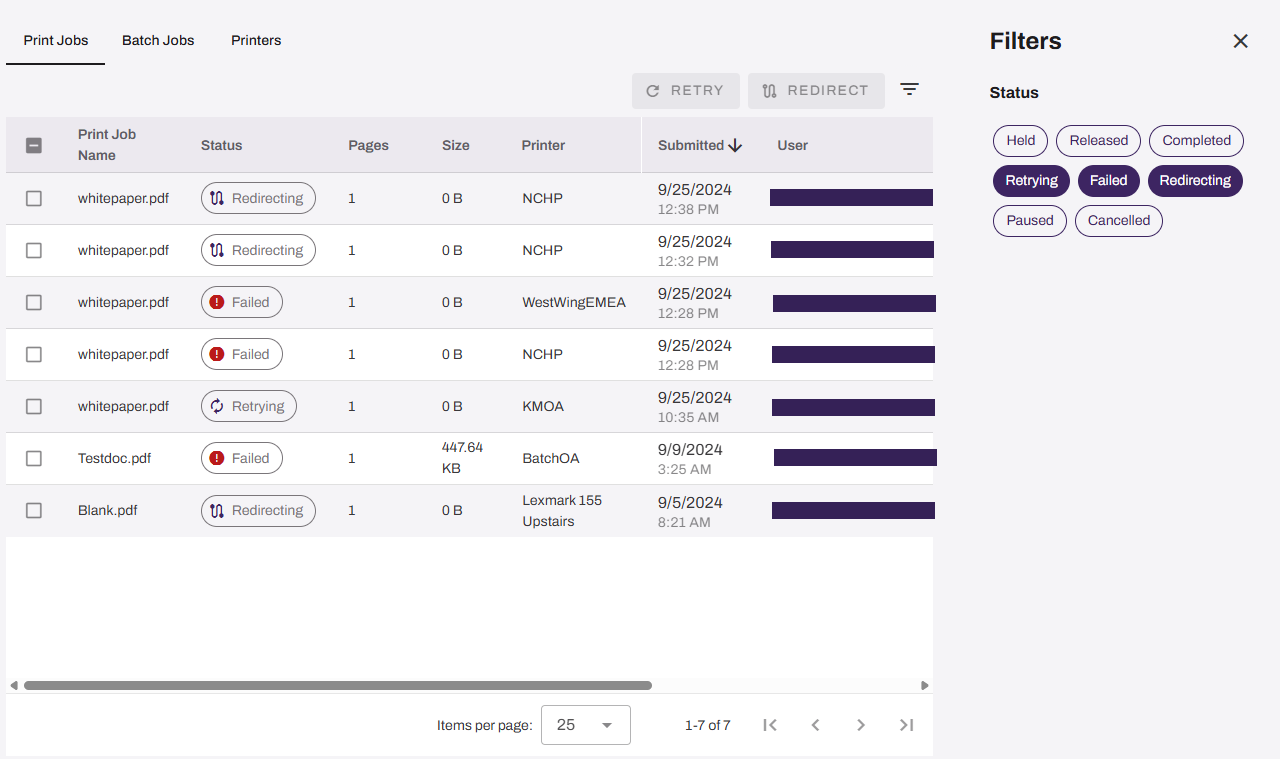
The Output Console has multiple filter and sorting options, described in this section. Each tab, Print Jobs, Batch Jobs, and Printers, supports the same tree structure and column sorting capabilities. The Batch Jobs tab does not support Status filters, and the Status filter options on the Print Jobs and Printers tabs differ slightly.
Tree Structure
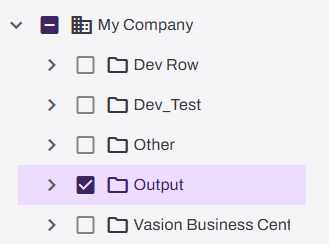
The left-side panel includes a mirror of your tree structure. Selecting a folder shows all printers and print jobs for the printers in the folder and subfolders. Selecting a printer object shows the print jobs for that printer.
Column Headers
The columns in each tab are sortable in ascending and descending order. This includes Custom Print Job Fields. Select the column title to adjust the order. The sorted column displays an up or down arrow to signify ascending or descending.

Status Filters
Selecting the filter icon  to the far right opens a new sidebar with Status options. The Print Jobs tab filters by the print jobs status. The Printers tab filters by queue and printer status.
In this topic:
PrinterLogic Output modernizes traditional output management by automating critical document and print workflows, bridging back-end systems and end-user printing, and connecting seamlessly with existing EMR, EHR, and ERP systems. PrinterLogic Output automates document routing, conversion, and delivery, reducing manual effort and streamlining operations
- EMR/EHR/ERP Connectors
- API Service
- Output Rules
- Batch Printing
PrinterLogic Output provides robust security features that protect sensitive documents during transmission and storage, ensuring that only authorized users can access critical information. It includes:
- Detailed Audit Trails: Track document access and delivery for compliance and security audits.
- Zero Trust Remote Printing: Enable secure print jobs from remote facilities without costly VPNs.
- Information Security: Document and print jobs are stored locally and encrypted when at rest on our services.
Vasion’s Secure Release Print capabilities ensure that print jobs are accessible to only authorized users. Users must authenticate at the printer before releasing their documents, whether by badge swipe, entering credentials at the CPA, or scanning a QR code, preventing sensitive documents from falling into the wrong hands.
PrinterLogic Output is licensed per print queue. You will need additional licensing to access additional features like Secure Release and Off-Network Printing.
As a PrinterLogic Output customer, you will already have a functional Service Agent and printer configured. From there, you must secure a digital certificate issued by a reputable Certificate Authority (CA), recognized and trusted by the system or application you are connecting to the Output Service.
For additional information on API Print Service prerequisites, refer to .
The API Print Service runs on the PrinterLogic Output Service on a Windows or Debian Linux server either on-premise or in your cloud instance. This allows the API Print Service to reach your source application and printers unless Off-Network Print is utilized. This back-end configuration is flexible to your environment’s requirements to function seamlessly with your existing systems and processes.