Configure IPP
Last Updated: September 22, 2026
Some cloud-enabled Enterprise Resource Planning (ERP) / Materials Requirements Planning (MRP) solutions print via the Internet Printing Protocol (IPP). Our Virtual Appliance Output solution supports the ingestion of print jobs into Virtual Appliance Output using IPP or IPPS protocols.
Requirements
- The IPP Connector supports the API Print Service.
-
You must have a functional Service Agent that meets the minimum required specifications. For more details refer to Service Agents.
Running IPv6 on your Windows Service Agent may cause conflicts. You may need to turn off IPv6 on the Service Agent's network adapter to resolve the conflict.
- Your Service Agent must be able to access
https://agent-api..Instance FQDN/ - For Transport Layer Security (TLS), have a certificate signed by a certificate authority (CA) A trusted entity that issues and validates digital certificates. The primary purpose of a CA is to verify the authenticity and trustworthiness of a website, domain, and organization. trusted by the source application submitting the job via IPP / IPPS.
- Source application must be able to reach the Service Agent over its assigned IPP port; the default is 631.
Ubuntu Service Agent
Customers with an Ubuntu (LTS) 22.04 Service Agent must run an additional command on the Service Agent after configuring the steps below. The command initializes the service.
sudo ln -s "$(cat /etc/pl_dir)/service_client/service-output-management/bin/libmako-adapter-lib.so" "$(cat /etc/pl_dir)/service_interface/lib/libmako-adapter-lib.so" Turn On IPP(S) Service
- In the Admin Console, select the Service Agent that will run the service.
- Select the Output Automation tab.
-
Enter the Domain Name of the Service Agent you are using for Virtual Appliance Output.
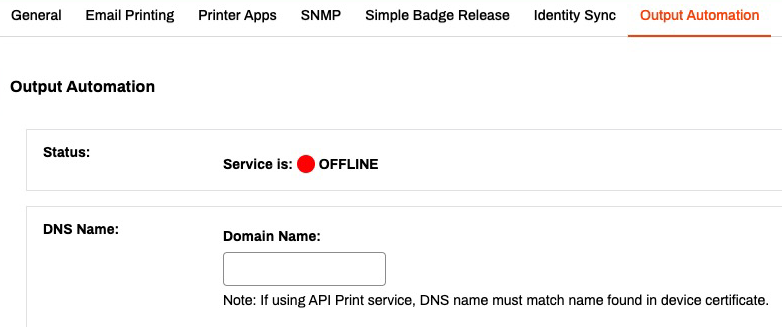
This Domain Name must match the device certificate name and the Service Agent must map this Domain Name to its local IP address. If this field is empty, the service will fail to start, and adds a "Failed to get host address" to the log.
-
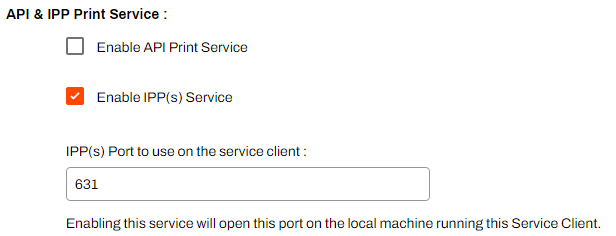
Scroll down to the API & IPP Print Service section and select Enable IPP(S) Service.
-
The default port is 631, but you can change this, if necessary.
-
- Select Save.
Certificate
You need a certificate only when you turn on Transport Layer Security (TLS) on a service. You can turn on TLS independently on the API Print Service and on the Internet Printing Protocol Secure (IPPS) service. When you turn on TLS, the certificate must be trusted by the source application calling the service.
Follow the steps below to configure your certificate:
-
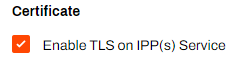
Select Enable TLS on IPP(S) Service.
-
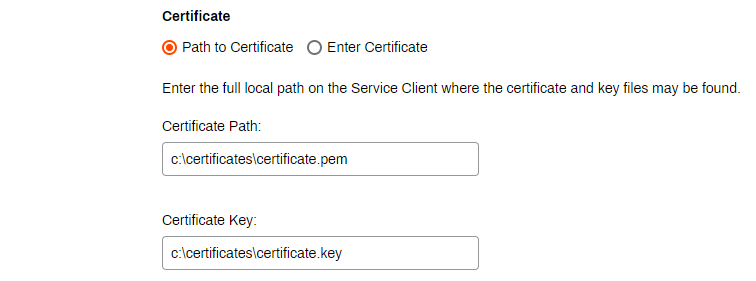
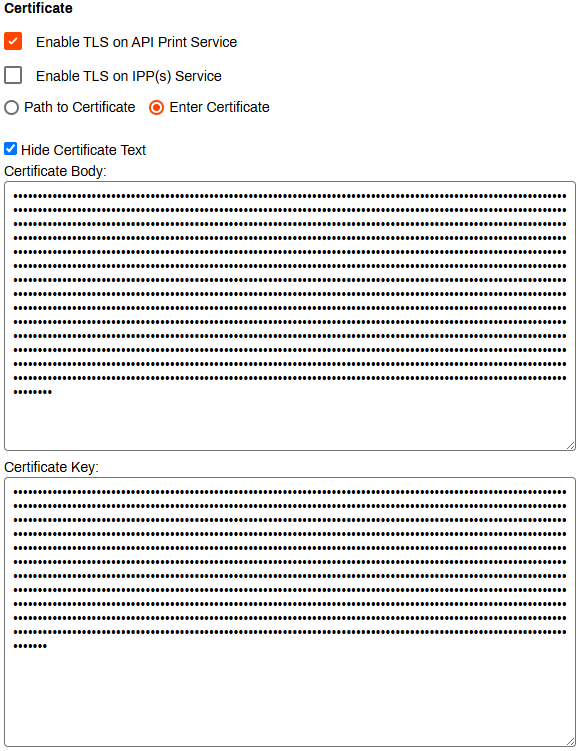
Enter the information for your certificate using one of the following options:
-
Path to Certificate: Enter the file path to where your .pem and .key files are stored on the Service Agent.
-
Enter Certificate: Paste the contents of the certificate and key files into the corresponding fields.
-
The Status section displays a green circle and indicates the service is Online when everything is configured correctly.

Optional Next Step
Troubleshooting Help
In some setups, external applications may need to reach the Virtual Appliance Output Service Agent using a DNS name that resolves to an external IP address. However, this can cause issues the following issues:
- The Service Agent cannot resolve the DNS name to its internal IP address.
- External DNS resolution conflicts with internal requirements.
Check if the Service Agent can resolve the DNS name to its internal IP address. If the DNS name does not resolve correctly, you may need to modify the hosts file. Refer to Troubleshoot DNS Resolution for Output Automation Service Client
Ensure that the DNS name in the UI matches the one in the certificate used by the Service Agent.
In this topic: