Configure SAP Integration
Last Updated: August 19, 2026
This configuration connects an Output service to SAP using a RESTful web API. The connected Output service watches for and downloads print jobs from SAP, then prepares and sends the files to their final destination for printing. This process also returns the print job's status to SAP to update its records. The information presented here applies to SAP S/4HANA environments. If you are using SAP ECC or an earlier version, refer to SAP Configuration instead.
Requirements
- A service user account configured in SAP S/4HANA.
- Output devices associated with the service user.
- The URL for the SAP S/4HANA server, or IP address.
- The default port to connect to the SAP S/4HANA server.
- A Service Agent running the Output Automation service. For more details refer to Service Agents.
Definitions
- Output Device
- SAP uses this term to refer to a printer. The Output Device settings determine how and where SAP sends print output.
- Device Type
- Specifies the printer driver and page control language (such as PCL or PostScript) used to format and output print data correctly for a particular printer model or output method.
- Access Method Q - Print Queue
- The Q refers to a device access method used in SAP systems to send print jobs to an external print queue managed outside of SAP, typically by a third-party print management system or external output server.
SAP Settings
Both Public and Private SAP S/4HANA environments use the same setup in PrinterLogic Output, but settings may differ. The customer’s SAP administrator should apply the correct configuration based on their environment. The key settings below provide general guidance.
SAP S/4HANA On-Premises and Private
Confirm the settings for the output device in SAP Business Client software.
- Access the Spool Administration: Initial Screen.
- If updating an existing printer definition, enter the name of the printer in the Output Devices field and select Display. Otherwise, create a new Output Device.
- Ensure the Output Device has the following attributes in the Spool Administrator: Output Device (Display) window:
- Make sure the Device Type selected roughly matches the manufacturer and model for the destination printer.
- If the Device Type is set to SAPWIN, change to a device type that is appropriate for the printer. SAPWIN won't work with Access Method Q.
- Select the Access Method tab and ensure the following:
- The Host Spool Access Method is set to Q: Print via print queue.
- The Print Queue field has the name of the printer as its named in the Admin Console.
- The User for Print Queue field has the name of the service user that has the appropriate permissions.
SAP S/4HANA Public Cloud
Create the print queue inside SAP.
- Go to the Output Management section and start the app Maintain Print Queues.
- Create a new print queue type Pull Integration Queue.
- Enter a name and a description for the queue.
- Choose format PDF.
- Select SAP_COM_0466 for the Communication Arrangement.
- Leave the other settings as they are.
Configure the SAP Connector
- In the Admin Console, select the desired Service Agent.
- Select the Output Automation tab.
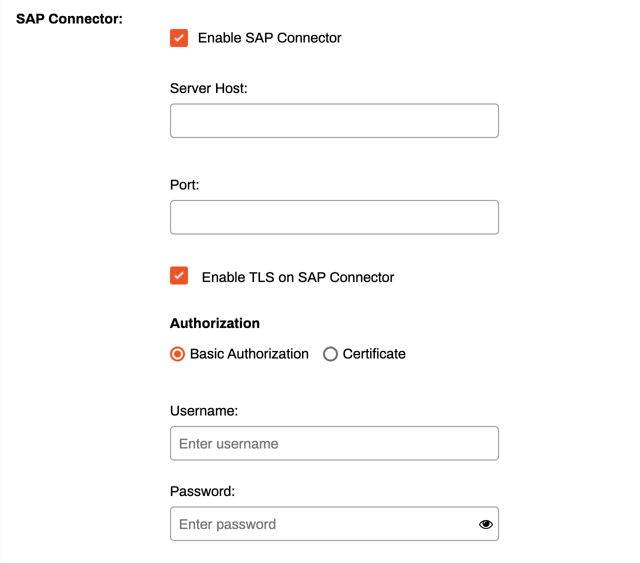
- In the SAP Connector section, select the box for Enable SAP Connector.
- Enter the IP address or hostname for the Server Host.
- Enter the port to connect with the server. The default port is 443.
- Optional: Select Enable TLS on SAP Connector.
- In the Authorization section, select one of the following.
- Basic Authorization
- Enter the Username and Password used to authenticate with the SAP server. This is the user associated with the output devices mentioned in the requirements.
- Certificate
- Create a Secure Sockets Layer (SSL) / Public Key Infrastructure (PKI) certificate to use with the connector.
- Copy and paste the X509 certificate and key into the X509 Certificate and X509 Key fields.
- Basic Authorization
- Select Save in the upper-right corner.
Troubleshooting Help
Access Method Q is enabled by default for only SAP S/4HANA Public Cloud and must be enabled manually for SAP S/4HANA on-premise or SAP S/4HANA private cloud instances. Contact your SAP Admin and refer to SAP documentation for assistance.
SAP S/4HANA on-premise or SAP S/4HANA Private Cloud must be on a supported kernel version to enable Access Method Q. At this time only the following kernels are listed: 7.77, 7.85, 7.89 and 7.93. Your SAP Admins with a S-user account can sign in and view the latest and most complete list.
Access Method E or BC-XOM is an older integration method that SAP S/4HANA has deprecated and no longer certifies. Vasion does not support Access Method E because we have built our solution around SAP S/4HANA’s newer, certified approach using Access Method Q, which uses a different data flow.
In this topic: