Manage Documents
Last Updated: October 01, 2026
Use the Sign document builder to manage documents.
Requirements
Review the Requirements before starting.
Manage Drafts
Manage Signers
Follow these steps:
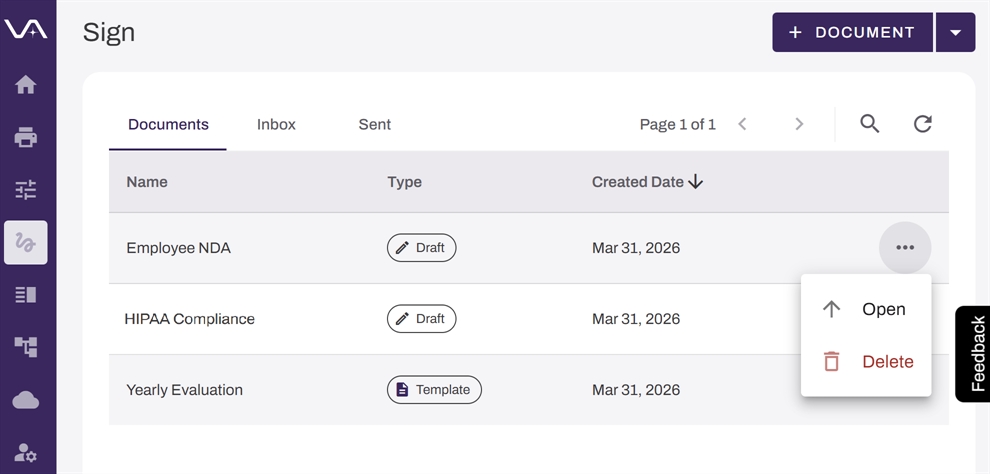
- Select Sign from the left-side navigation.
- On the Documents tab, do one of the following:
- Select the document draft line item.
- Select the More menu
 to the right of the document draft, and select Open.
- Make your changes in the document builder.
- Select Save.
You cannot edit an existing signer. You must delete and add the signer again.
Add a Signer
To add a signer, refer to 2. Add Signers.
Reorder Signers
Follow these steps in the document builder:
-
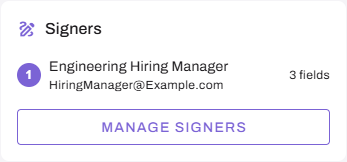
Select the Manage Signers button.
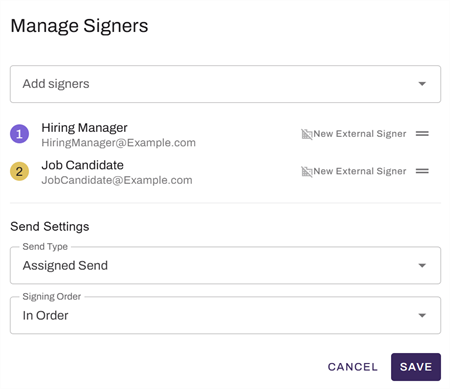
- Ensure that In Order is selected in the Signing Order field.
- Select the Reorder button
 to the right of a signer, and drag the signer to a new location in the list.
 - Select Save.
Delete a Signer
Follow these steps in the document builder:
- Select the Manage Signers button.
-
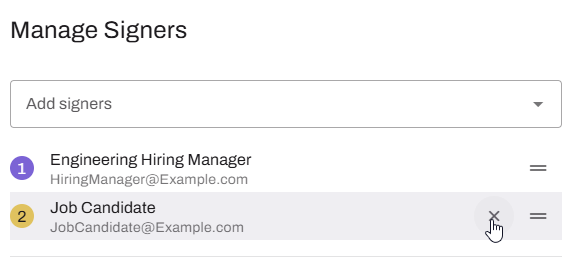
Hover over the signer, and select the X button.
- Select Save.
Edit a Document Draft
Follow these steps:
- Select Sign from the left-side navigation.
- On the Documents tab, do one of the following:
- Select the document draft line item.
- Select the More menu to the right of the document draft, and select Open.
- Make your changes in the document builder.
- Select Save.
Replace the PDF
Follow these steps in the document builder:
-
Select the trash can button in the PDF section.
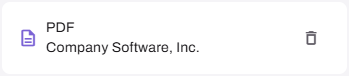
- In the modal select Remove.
- Upload a new PDF.
Replacing the PDF removes any fields you added but does not remove signers.
Add Fields & Assign Signers
To add fields and assign signers, refer to the 4. Add Fields & Assign Signers section above.
Delete a Field
Follow these steps in the document builder:
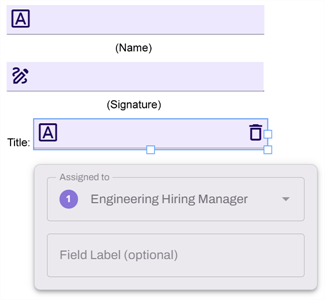
- Select the field.
-
Select the trash can button in the upper-right corner of the field.
Delete a Document Draft
Follow these steps:
- Select Sign from the left-side navigation.
- On the Documents tab, select the More menu to the right of the document draft.
- Select Delete.
- In the modal select Delete.
Manage a Sent Document
View and Download the Document
You can view all documents, but you can download only documents with the Completed status.
You can download the completed document from the notification email or by following these steps:
- Select Sign from the left-side navigation.
- On the Sent tab, locate the document. You can use the Search button
 to find the document.
 - Select the document line item, or select the More menu to the right of the document and select View document.
- Select the Download button.
- Select Download Signed Document.
Cancel a Signature Request
You can cancel a document that is In Progress. Canceling a document stops the signing process and is permanent.
Follow these steps:
- Select Sign from the left-side navigation.
- On the Sent tab, locate the document. You can use the Search button to find the document.
- Select the More menu to the right of the document.
- Select Cancel.
- In the Cancel Signature Request modal, select Yes, Cancel.
Next Steps
Refer to the following:
In this topic: