Audit Log
Last Updated: October 27, 2026
Use the Audit Log to review all interactions with a sent document. You can also export the log as a CSV file.
Audit Log Contents
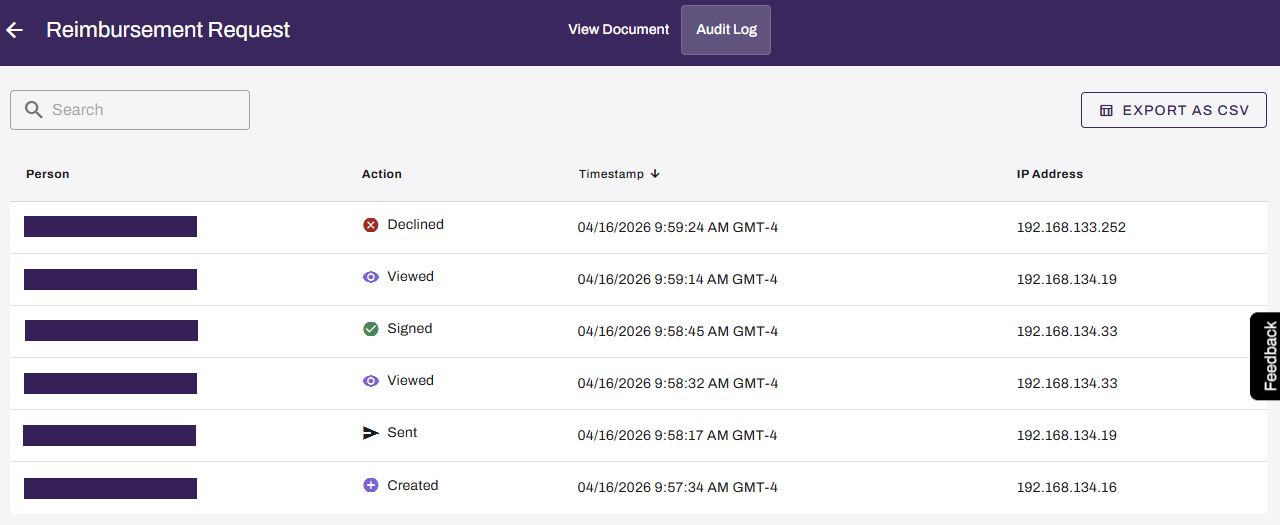
The Audit Log shows all interactions with a sent document in chronological order. Each row in the Audit Log contains the following information:
- Person: The user who performed the action.
- Action: The type of interaction, which can be Created, Sent, Viewed, Signed, Declined, or Completed.
- Timestamp: The date and time the action occurred.
- IP Address: The IP address from which the user performed the action.
View & Export the Audit Log
Follow these steps:
- Select Sign from the left-side navigation.
- Select the Sent tab.
- Locate the document. You can use the Search button
 to find the document.
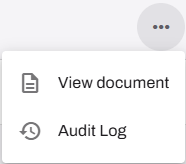
 - Select the More menu
 to the right of the template.
 -
Select Audit Log.
- (Optional) You can use the search bar to find a specific signer's activity.
- Select Export as CSV.
Signers cannot view the Audit Log.
Related Topics
Refer to the following:
In this topic: