Sign In
Last Updated: September 25, 2026
To sign in to the PrinterLogic mobile app, you need to know your company's PrinterLogic URL. For assistance contact your IT support. There are two way to sign in: an Active Directory (AD) or LDAP or an identity provider (IdP) A system that creates, maintains, and manages identity information for an organization. An IdP provides authentication services to apps in a federation or distributed network.. The way you sign in depends on how your system admin set up your instance.
App Permissions
The first time you access the PrinterLogic mobile app, you may be asked to grant the app permissions to access your files, allow notifications, and usage tracking for app improvements and support, depending on your device operating system.
Android
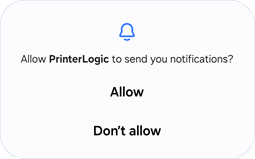
iOS
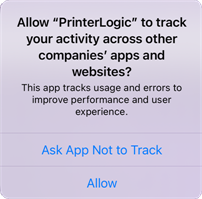
After you have downloaded the app and allowed the app permissions, you are ready to sign in.
With Active Directory
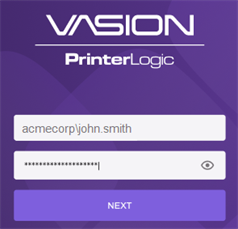
1. Enter the PrinterLogic URL and select Next.
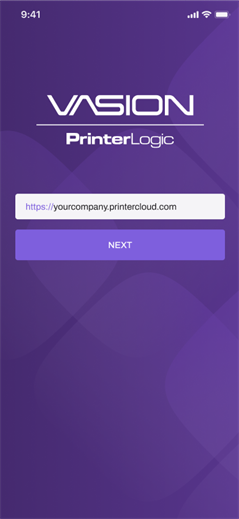
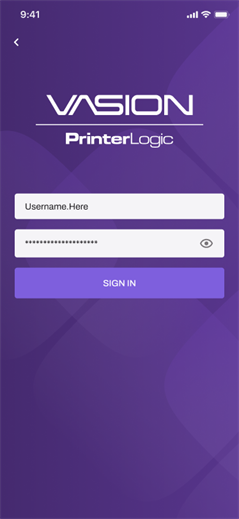
The username format must include your domain\username. For example. if the domain provided to you by your IT admin is https://acmecorp.printercloud.com and your username is john.smith, the user name you enter is acmecorp\john.smith.
With Identity Provider (IdP)
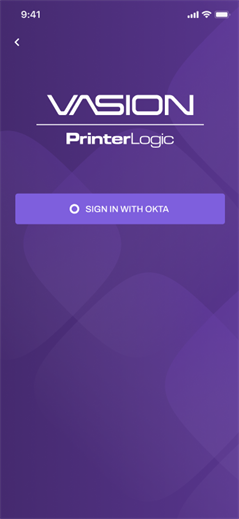
1. Enter the PrinterLogic URL and select Next.
2. Select the identity provider's Sign In button.
3. Enter your credentials.
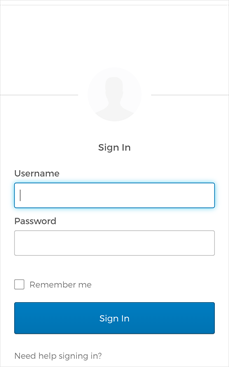
With an identity provider, the app launches the device's default web browser to complete the sign in via the provider's interface. The sign in experience varies depending on the provider.
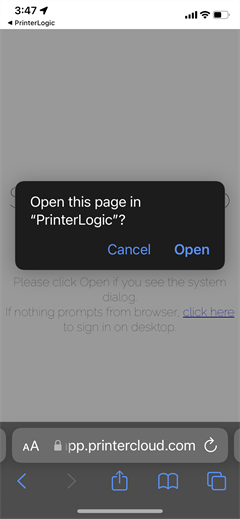
If you are using an iOS device you might have to select Open to return to the PrinterLogic mobile app.
Now that you are signed in, you can learn more about the app.
In this topic:

The PrinterLogic mobile app provides end users printing and scanning functionality right from their pocket with:
The PrinterLogic mobile app provides you printing and scanning functionality right from your pocket with:
- Mobile direct IP printing: Print documents from the mobile device directly to printers from your PrinterLogic environments.
- Mobile scanning: Scan paper documents into digital, readable formats to share directly through email, text and cloud storage locations.
- Mobile app print release: Release documents held for pull print or secure release originating from a workstation, at a printer.
-
Mobile Off-Network Print: Print documents to network printers while outside the local network.
The printer must support IPP 2.0 and it must be turned on.
- Print Quota Management: View the total assigned quota and remaining available quota.
This all-in-one solution provides the power of PrinterLogic in a single application that fits in your pocket.
Direct Secure Release, Off-Network Print, and Quota Management require additional licensing.
Yes. The app is available in English, Spanish, German and French.
It depends on how the app is used. Here are three scenarios:
- For direct mobile printing, the phone must be on the same Wi-Fi network as the printers.
- When releasing print jobs in the PrinterLogic environment or scanning documents, the phone can be on any internet connection.
- When releasing print jobs in the Virtual Appliance environment, the phone must be on the same Wi-Fi network as the PrinterLogic instance.
Yes. In addition, smartphones are secure devices that typically use biometrics (fingerprint or facial recognition) for authentication. Users are required to authenticate their identity when logging in to the app with user credentials and passwords or a configured IdP for your PrinterLogic environment before accessing any printing and scanning features and documents.
When the app is used to release print jobs that originate on a desktop computer in particular, those print jobs are never sent to the phone. They stay on the computer until they are released. Upon release, they travel directly to the printer.
Yes, the mobile app does feed metadata into the Admin Console that can be viewed in the various applicable reports.
No it does not. you must to manually sign yourself out of the app.
Any scanned documents saved locally within the PrinterLogic mobile app will be deleted from the workspace if the app is uninstalled. If those documents are sent via email or text, or shared to a cloud storage location, they are still accessible in those destinations.