ChromeOS Log In
Last Updated: September 08, 2026
Depending on the configuration, the Agent Software installed on a server or device that communicates with the PrinterLogic instance. The Agent installs and manages printers. may access your credentials and automatically sign you in. Signing in with your Google account credentials ensures that you are allowed to release pull A virtual print queue that holds a print job on the user's device until the user authenticates and releases it to a pull print-enabled printer. and secure print A printing method that holds print jobs in a queue until the user authenticates at the printer. Users authenticate using a PIN, password, or badge, preventing unauthorized access to sensitive documents. jobs, access the Self-service Portal, and receive automatic printer deployments.
If you are not automatically signed in to the Agent, the information below explains how to manually sign in and out.
Log In to the Agent
- Open the web browser and select the Agent extension.

-
Select Login with Google.
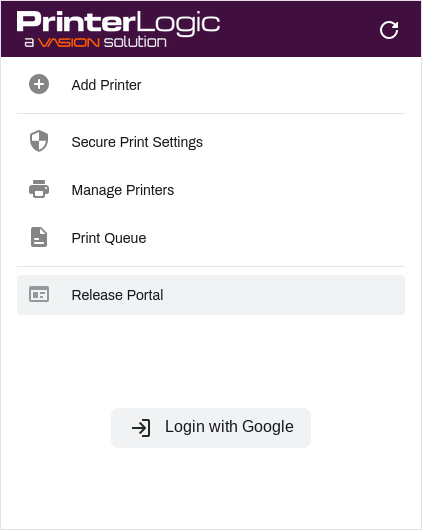
- Follow the sign in instructions.
Log In to the Self-service Portal
- Go to the Self-service Portal.
-
If prompted, select the button for Google.
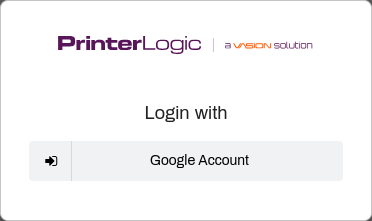
- Follow the Google sign in experience.
You are now signed in to the Self-service Portal with your Google credentials.
Sign Out of the Agent
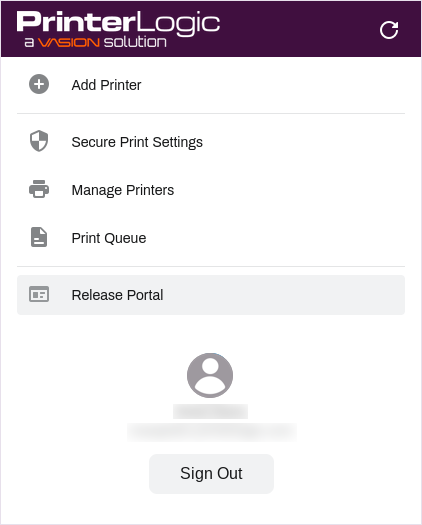
- Open the web browser and select the Agent extension .
-
Select Sign Out.
Log Out of the Self-service Portal
- Go to the Self-service Portal.
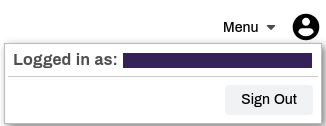
- Select the avatar.
-
Select Sign Out.