Print To Workflow Guide
Last Updated: August 26, 2026
This topic guides you through using the Print to Workflow option from the print dialog.
Key Points
- Print to Workflow keeps documents digital and routes them to a workflow. There is no physical job printed.
- If you do not see the Print to Workflow object in your print dialog, it may not be deployed.
- If you select the Print to Workflow object and it says No workflows available, you do not have View permissions for any workflows.
Print To Workflow
- When selecting Ctrl + P or File > Print, use the print dialog to choose Send to Vasion Automate.
-
Select the desired workflow from the modal.
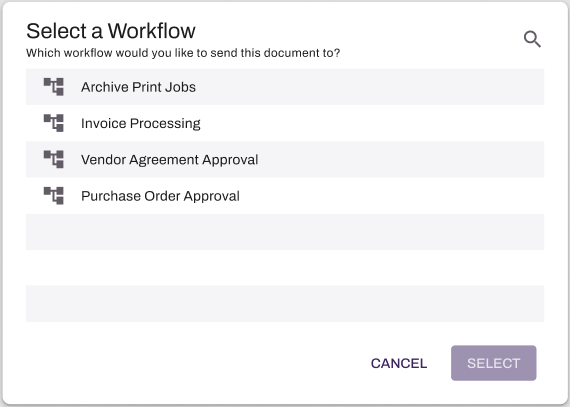
- Use the Select button when done.
This routes the job to the selected workflow.
In this topic: