Release Delegated Print Jobs
Last Updated: October 02, 2026
When you are selected as a delegate, you can securely release documents on behalf of Initiators who send a secure print job. Delegates use their own authentication credentials at the printer and release assigned print jobs by selecting them from the list, following the normal print release process.
When configured by the administrator, delegates can access the Print Jobs, depending on admin configuration, and Delegates tabs to see any jobs held.
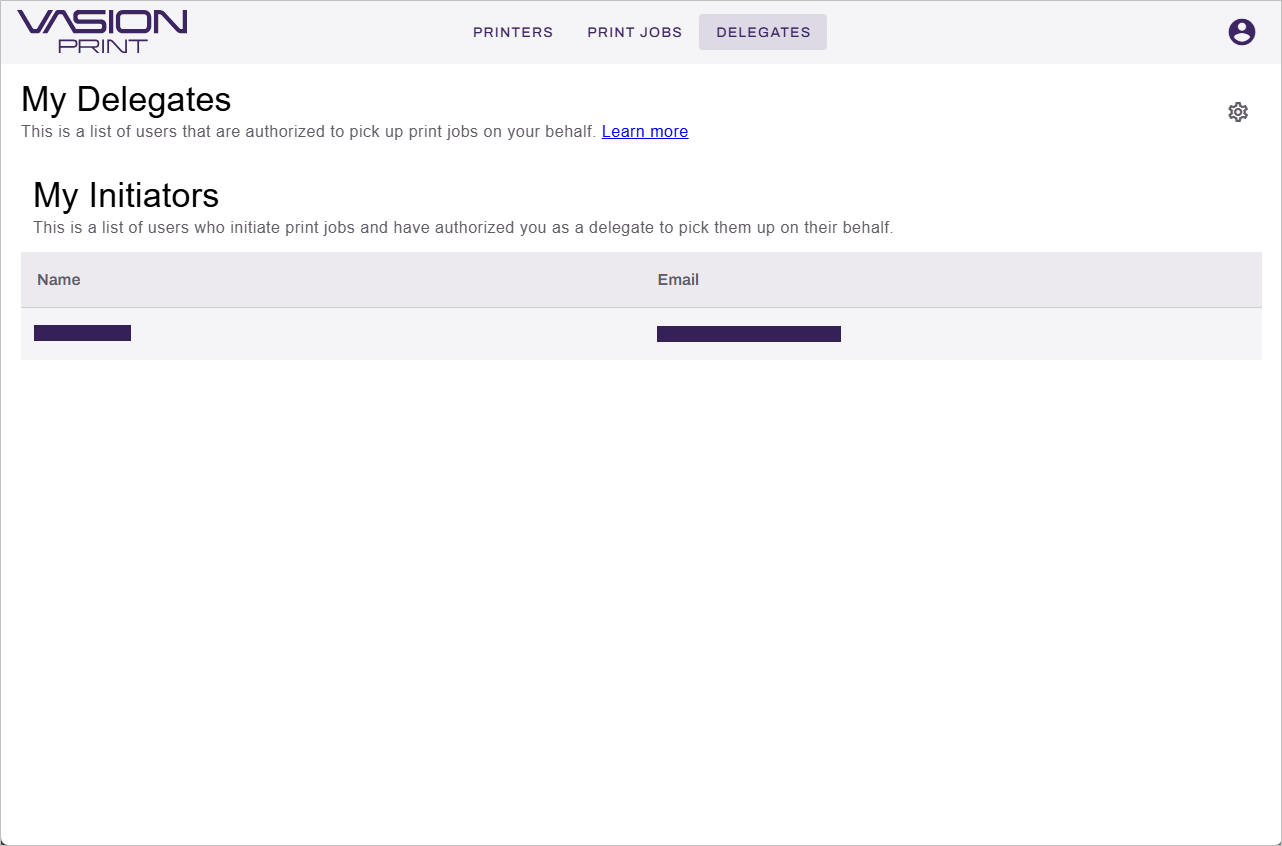
However, delegates can only release jobs directly at the printer using the Control Panel Application (CPA).
Release a Held Job
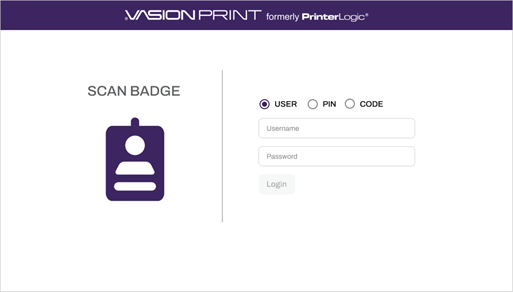
1. Sign in to the CPA.
2. Select Print Release.
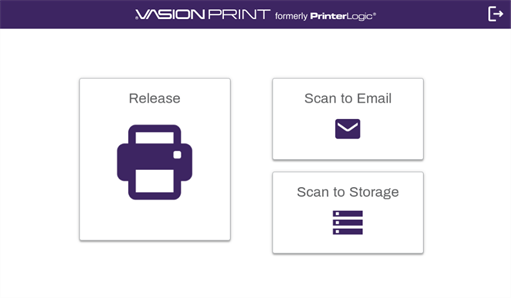
3. Select the desired initiator from the list.
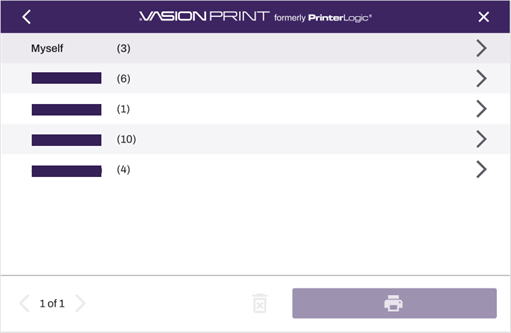
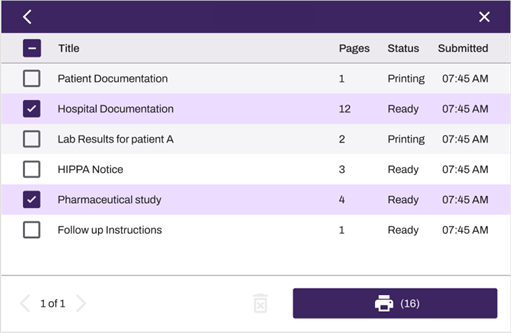
4. Select the desired print jobs and select the Print button.
Configure Settings
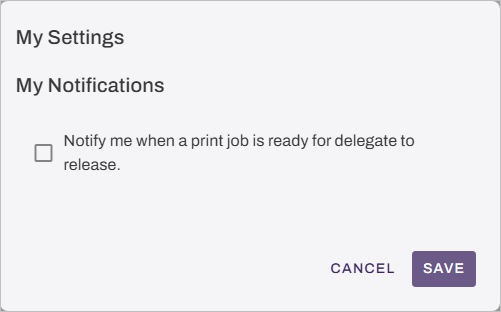
You can configure notification preferences on the Delegates page.
Turn On Notifications
- Access the Self-service Portal.
- Select the Delegates tab.
- Select the Settings icon
 in the upper-right corner.
 - Select Notify me when my print job is released to receive an email when a print job is ready for release.
- Select Save.