Manage Session Timeout
Last Updated: October 23, 2026
This topic describes how to manage session timeout, limit concurrent sessions, and end a user's current session.
Requirements
Review these Requirements before you start.
Configure Idle Timeout & Token Refresh
Follow these steps to configure idle timeout and token refresh intervals for each access type:
- Sign in to Vasion Automate.
- Select Admin from the left-side navigation and then Authentication.
-
Select the Session timeout tab.
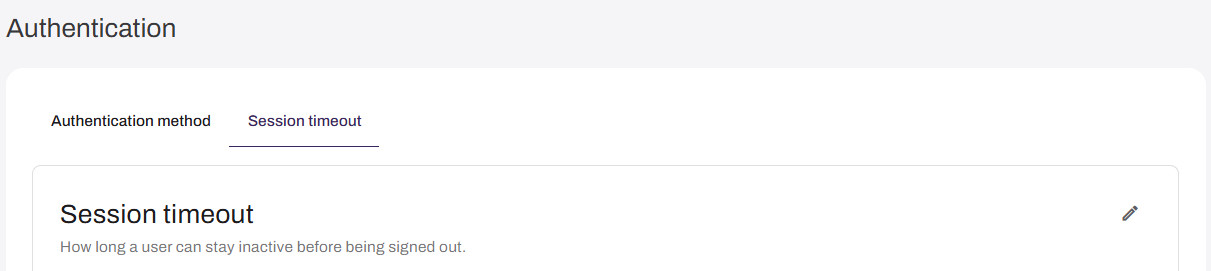
- In the Session timeout section, select the edit icon
 .
. -
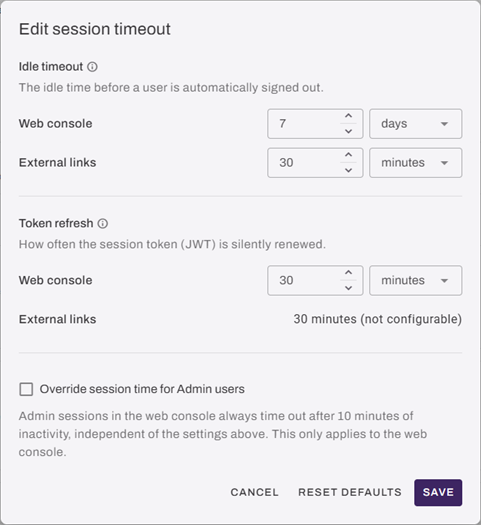
In the Idle timeout section, configure the timeout value and unit for each access type:
The minimum idle timeout is 30 minutes.- Web console: Admin Console and Self-service Portal.
- External links: Password reset and shared links.
-
In the Token refresh section, configure the refresh interval and unit for each access type:
The minimum token refresh interval is 5 minutes. The token refresh interval must be equal to or shorter than the shortest configured idle timeout value across all access types.- Web console.
- External links: Fixed at 30 minutes.
- (Optional) Select the Override session time for Admin users checkbox. When this setting is on, admin user sessions in the web console time out after 10 minutes of inactivity.
- Select Save.
To restore original settings, select Reset defaults before saving.
Limit Concurrent Sessions
Follow these steps to limit concurrent sessions:
- Sign in to Vasion Automate.
- Select Admin from the left-side navigation and then Authentication.
- Select the Session timeout tab.
- In the Concurrent sessions section, select the edit icon .
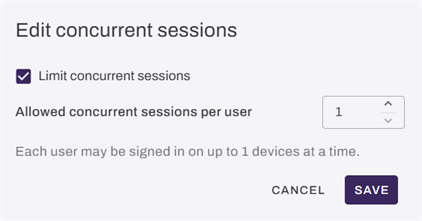
- Select the Limit concurrent sessions checkbox.
- Enter the maximum number of sessions allowed per user.
- Select Save.
Revoke Active Sessions
To immediately end a user's session, revoke the session from the Users page:
- Sign in to Vasion Automate.
- Select Admin from the left-side navigation and then Users.
- Select the user whose session you want to revoke.
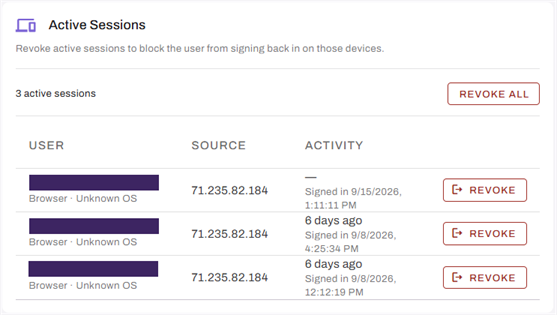
- In the Active Sessions section, select Revoke for individual sessions or Revoke All for all sessions.
- Select Revoke or Revoke All in the modal.
When you revoke a session, the user receives a message about session termination and returns to the sign-in page.
Related Topics
Refer to the following:
In this topic: