Notifications
Last Updated: October 26, 2026
Vasion Automate has a centralized, configurable notification system that alerts you to new task assignments and status updates for Workflow, Forms, and Sign.
Key Points
Review the following key points:
- In-app and email notifications are turned on by default.
- Configure your notification preferences to send in-app notifications, email notifications, both, or none.
- Notifications might have buttons that are direct links to relevant tasks or documents.
How Notifications Work
When a task is assigned to you
A brief delay might occur before you receive a notification.
Notification Types
Vasion Automate supports the following notification types:
- Workflow task: A task is assigned to you for review and approval.
- Workflow task update: A task you are involved with is completed or rejected.
- Workflow error: A workflow that you manage has had a step fail.
- Complete form: A form in a workflow is assigned to you.
- Sign document: A document is sent to you to sign.
- Sign status update: The sign status changes on a document.
Home Notifications
When you receive a notification, an unread indicator appears next to the Notifications tab on the Home page. Select the tab to view your notifications, which are organized into two tabs: Unread and Read.
Each notification has a timestamp and, depending on the notification type, might have one or more buttons that take you to the relevant task or document.
To mark all notifications as read, select the Mark All As Read button at the bottom.
Side Navigation Notifications
When you receive a notification, an unread indicator appears next to the Notifications option in the left-side navigation.
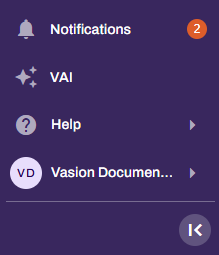
The indicator counts up to 99 unread notifications; however, more might be present.
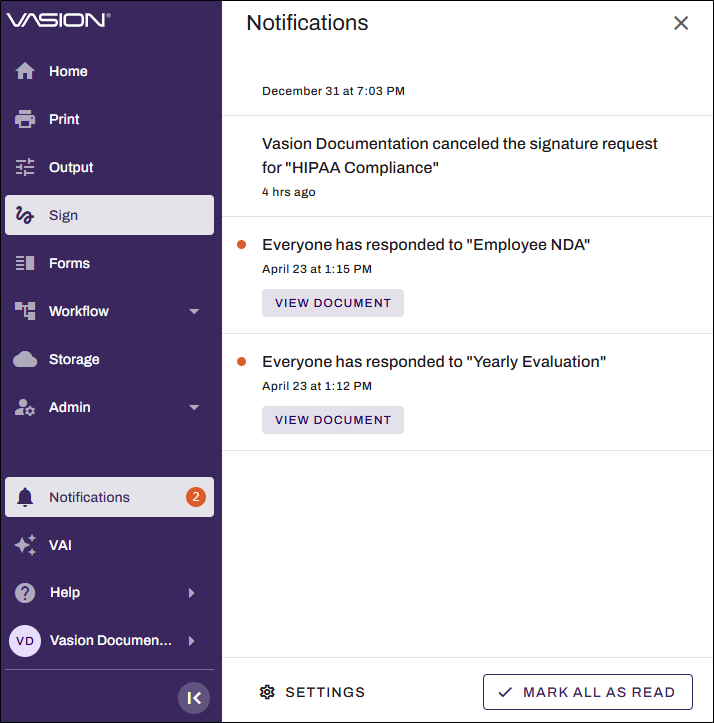
Select the Notifications option to view the Notifications panel. This panel shows all your notifications. Each notification has a timestamp and might have one or more buttons that take you to the relevant task or document.
Email Notifications
Email notifications work alongside in-app notifications. An email notification has a subject line that indicates the notification type and task type. The email might also include a copy of the document or one or more buttons that take you to the relevant task or document. The button links do not expire.
Requirements
Review the following requirement:
-
Vasion Automate access.
Next Steps
Refer to the following:
In this topic: