Manage Notifications
The Notifications panel lets you view, manage, and configure your notification preferences.
Requirements
Review the following requirement:
-
Vasion Automate access.
View Notifications
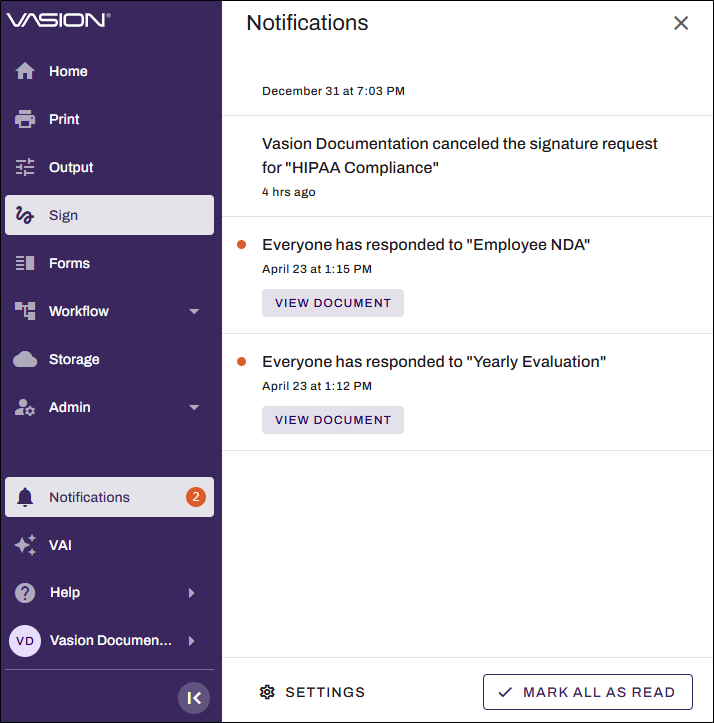
To view your notifications, select Notifications in the left-side navigation.
Long notifications are truncated. Select the Show More button on the notification to expand it; select the Show Less button to minimize it.
To close the panel, select the Close button in the upper-right corner of the panel or the Notifications option in the left-side navigation.
Mark Notifications as Read
Vasion Automate marks unread notifications with an alert indicator. After you select a notification, it marks as read, and the alert indicator disappears. To mark all notifications as read, select the Mark All As Read button at the bottom of the panel.
Delete Notifications
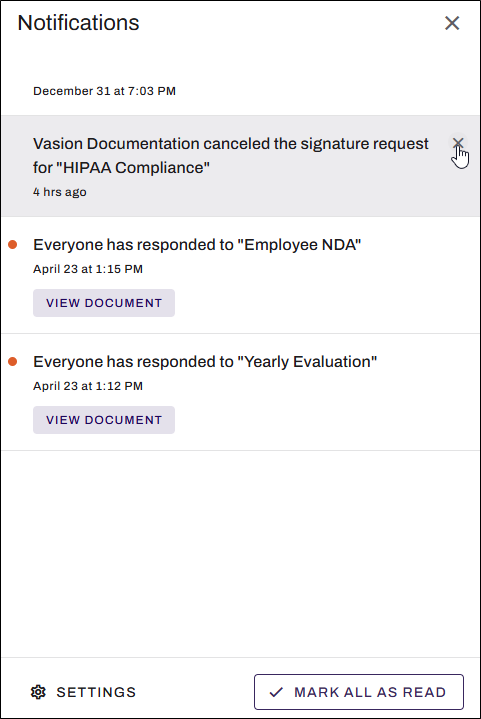
To delete a notification, select the Close button in the upper-right corner of the notification. When you have no notifications, a message appears that says "No notifications at this time."
If you accidentally delete a notification, you can still find the task on the Home page.
Change Notification Settings
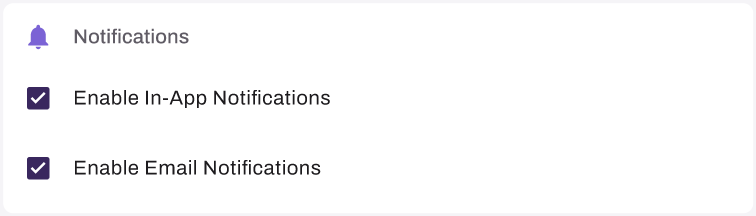
In-app and email notifications are turned on by default. Follow these steps to configure your notification preferences:
- Select the Notifications option in the left-side navigation.
- At the bottom of the panel, select the Settings button
 .
.Alternatively, you can select your user avatar from the left-side navigation, and select Account Settings.
- On the General tab, scroll down to the Notifications section.
- Select or deselect the following options:
- Enable In-App Notifications.
Enable Email Notifications.
- If you deselect an option, select Turn Off in the modal.
Turning off notifications does not turn off password reset emails.
Related Topics
Refer to the following:
In this topic: