Create a New Custom Role
Last Updated: July 21, 2026
Create a custom role to define a specific set of permissions that addresses your organization's needs. You can assign custom roles to individual users and groups. Custom roles are fully editable after you save them.
Manage Print and Output permissions in the Admin Console in PrinterLogic.
Requirements
Review the following requirement:
- A Vasion Automate account with the Application Admin role.
Select Admin  Roles and Permissions from the side navigation to access the page.
Create a Custom Role
Follow these steps:
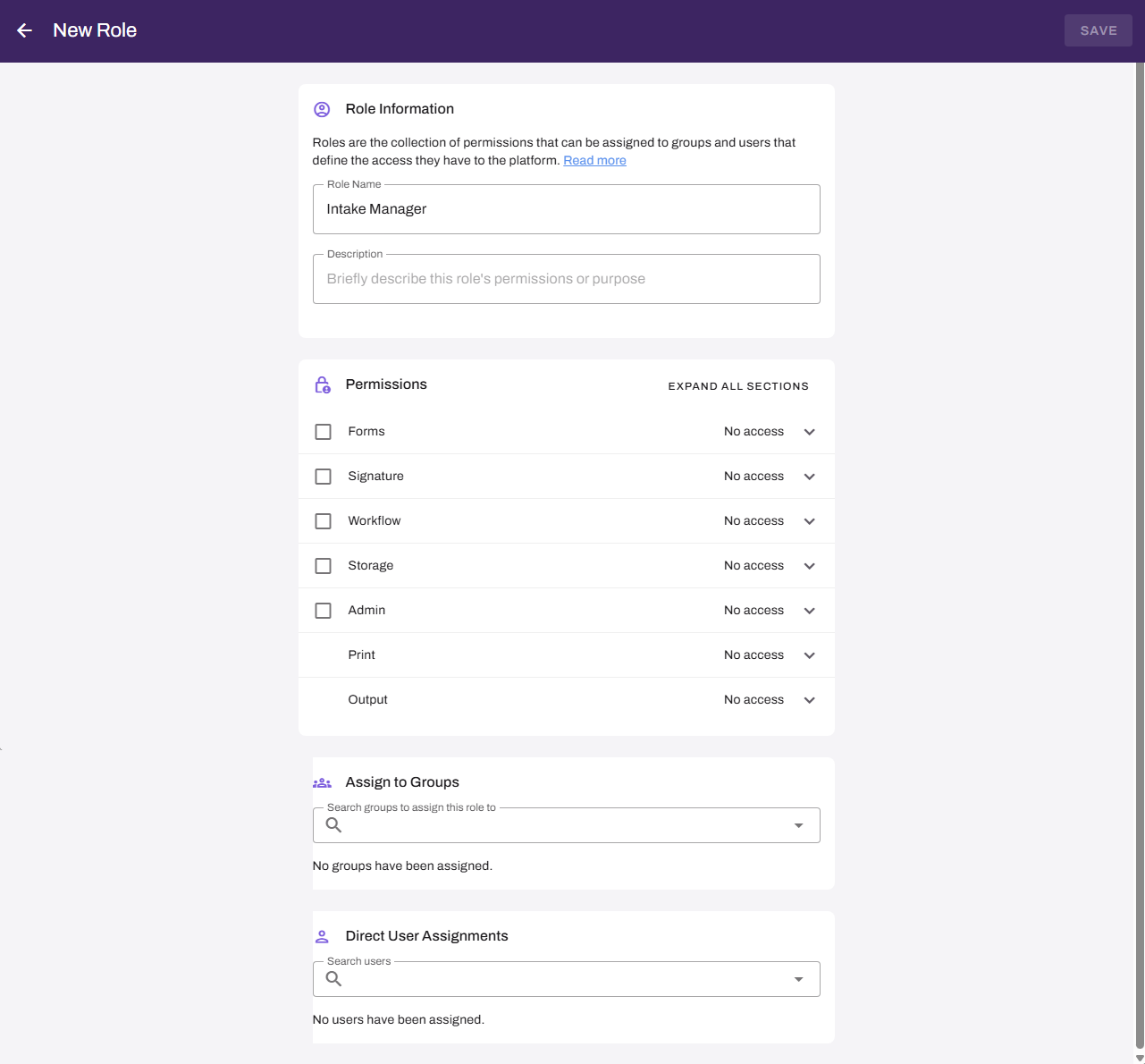
- Select + Create Role in the upper-right corner.
- Enter a name in the Role Name field.
- (Optional) Enter a description.
- In the Permissions section, expand each app, and select the permissions you want to grant. As you make selections, permissions automatically update to the following:
- No access.
- Partial access.
- Full access.Select the checkbox next to the app name to grant all permissions for that app.
- (Optional) In the Assign to Groups section, search for and select the groups you want to assign to this role.
- (Optional) In the Direct User Assignments section, search for and select the users you want to assign to this role.
- Select Save.
The role is immediately active for all assigned users and groups. Users who are currently signed in must sign out and sign back in for the changes to take effect.
In this topic: