Off-Network Cloud Print Coach
Last Updated: October 21, 2026
Set Up Off-Network Cloud Print (ONCP)
Complete each section in order. The next section unlocks once you finish the one before it.
Before You Begin
Review the following key points:
- Requires additional licensing. Contact your Vasion representative for details.
- Uses RAW printing on the Windows platform.
- Line Printer Remote (LPR) is not currently supported.
- Supports Windows, macOS, and mobile devices (iOS and Android).
- Provides two internal routing options:
- Installing the ONCP app on the printer.
- Using an Internal Routing Service (IRS) Service Agent for manufacturers that do not support the app.
Manufacturers that support the ONCP app also work with an IRS Service Agent. The following manufacturers support ONCP:
- Fujifilm.
- Fuji Xerox.
- HP.
- Kyocera.
- Lexmark.
- Ricoh multifunction printer (MFP) devices.
- Canon.
- Epson.
- Konica Minolta.
- Sharp.
- Toshiba.
- Xerox.
For more details refer to Off-Network Printing.
Review the following requirements:
- For a list of supported devices, refer to Supported Printers for Printer Apps. Filter the results by selecting the Off-Network Cloud Printing option from the Feature dropdown menu.
- You need a Service Agent running the Printer Apps service. The ONCP app installs using the Printer Apps service. You can turn off or delete the Service Agent after installing the app.
- Ensure that the following allow list URLs are open:
oncp-ofn.<instance URL>.oncp-pgw.<instance URL>.
- The Vasion ONCP app for HP requires you to turn on the HP Workpath platform on the printer.
- Contact your HP representative or your HP-certified reseller to add the Vasion ONCP app from the HP Command Center. The representative needs to do the following:
- Claim and add printers to the HP Command Center.
- Add the Vasion ONCP app as a solution.
- Add the app to your account.
- Manage and deploy the ONCP app to the printers.
For ONCP configurations using the IRS Service Agent instead of the app, the IRS Service Agent requires the following:
- All devices must access the Domain Name System (DNS) server to resolve names.
- For redundancy, you can add multiple Service Agents.
- Routing from the IRS to the printer occurs over Transmission Control Protocol (TCP) port 9100 or port 631 for Internet Printing Protocol Secure (IPPS).
For Windows Service Agents, install the Visual C++ Redistributable for Visual Studio 2015-2022 package or later. You must install both the x86 and x64 redistributable packages. You can download these packages from the Windows Download Center.
For more details refer to Service Agent Setup.
Review the following ports and requirements for each manufacturer:
|
Manufacturer |
Ports and Requirements |
|---|---|
|
Fujifilm |
|
|
Fuji Xerox |
|
|
HP |
|
|
Kyocera |
|
|
Lexmark |
|
|
Ricoh |
|
Off-Network Priority controls where the Virtual Appliance Agent tries to send the job first, either directly to the printer or to the ONCP or ONP service.
- Off-Network Only
- The Agent sends the print job using only the ONCP or ONP service and does not try to send the job directly to the printer, which is direct IP printing.
- Direct IP Primary
- The Agent sends the print job directly to the printer, which is direct IP printing. If unsuccessful, the Agent sends the print job using the ONCP or ONP service.
- Off-Network Primary
- The Agent sends the print job using the ONP service. If unsuccessful, the Agent sends the print job directly to the printer, which is direct IP printing.
Note the following:
- The Off-Network Priority options apply only to computers, not to mobile devices.
- ONCP does not support the Off-Network Primary option.
Set the following environmental variables on the Virtual Appliance before configuring any settings in the Admin Console:
- Access your Virtual Appliance persistent storage.
- Go to
\\<Instance URL>.com\appliance-storage\. - Open the secrets.env file.
- Set the following variables:
REPLICAS_STORAGE=1.REPLICAS_ONCP_PGW=1.REPLICAS_ONCP_REG=1.REPLICAS_ONCP_HOLD=1.REPLICAS_ONCP_OFN=1.
Configure ONCP
Follow these steps:
- In the Admin Console, go to Tools
 Settings General, and scroll down to the Off-Network Printing section.
 - Select the Allow Cloud Printing checkbox.
- Select Save in the upper-right corner.

The following steps guide you through configuring ONCP as the default for all printers or for specific printers. Turning on the global settings makes all printers off-network printers, which forces all print jobs to follow the flow of ONCP, regardless of whether you are on the network. If you want to turn on ONCP only for specific printers, follow the steps in the Turn on per-printer dropdown.
Turn on globally
Follow these steps:
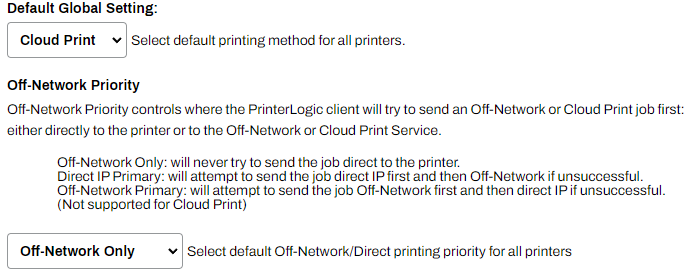
- From the Default Global Setting menu, select Cloud Print.
-
In the Off-Network Priority section, select the default print priority:
- Off-Network Only.
- Direct IP Primary.
- Select Save.
The Off-Network Priority section applies only to computers and not to mobile devices.
Turn on per-printer
Follow these steps:
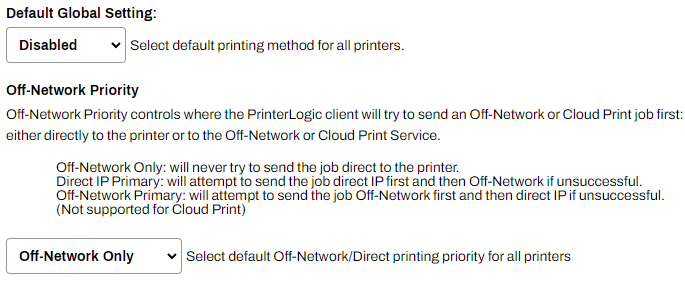
- From the Default Global Setting menu, select Disabled.
-
In the Off-Network Priority section, select the default print priority:
- Off-Network Only.
- Direct IP Primary.
- Select Save.
The Off-Network Priority section applies only to computers and not to mobile devices.
For the printer-specific configuration, complete the following steps on each printer object to turn on ONCP:
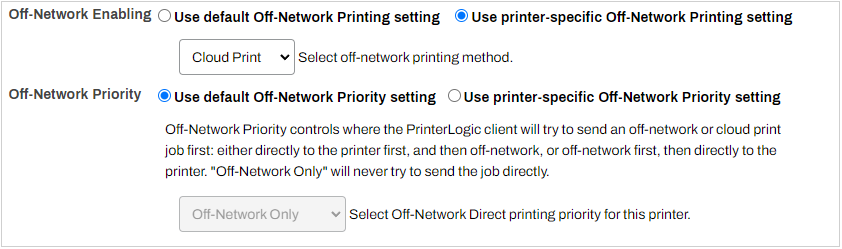
- Go to the printer object's Off-Network tab.
- For the Off-Network Enabling setting, select Use printer-specific Off-Network Printing setting.
- From the Select off-network printing method dropdown menu, select Cloud Print.
- (Optional) Use the default Off-Network Priority setting, or select Use printer-specific Off-Network Printing setting, and select one of the following:
- Off-Network Only.
- Direct IP Primary.
- Select Save.
- Repeat these steps for any other printer objects.
Install the ONCP App
These steps apply only to HP devices. For supported HP devices, you must work with an HP representative or HP-certified reseller to complete the steps below before installing the ONCP app.
Turn On the HP Workpath Platform on the Printer
If the HP Workpath platform is not already turned on, follow these steps:
- Open the printer's web interface in a browser, or sign in on the printer's control panel as an admin.
- On the Security tab, select General Security from the menu if it is not already selected.
- In HP Workpath platform, select Enable.
- Select Restart.
Add the Vasion ONCP App
The following steps outline the process that the HP representative or HP-certified reseller must complete to add the Vasion ONCP app to your printers:
- Open the printer's web interface in a browser, or sign in on the printer's control panel as an admin.
-
Select the HP Command Center app on the printer.

- Select Continue.
-
When the sign-in information appears, copy the code.
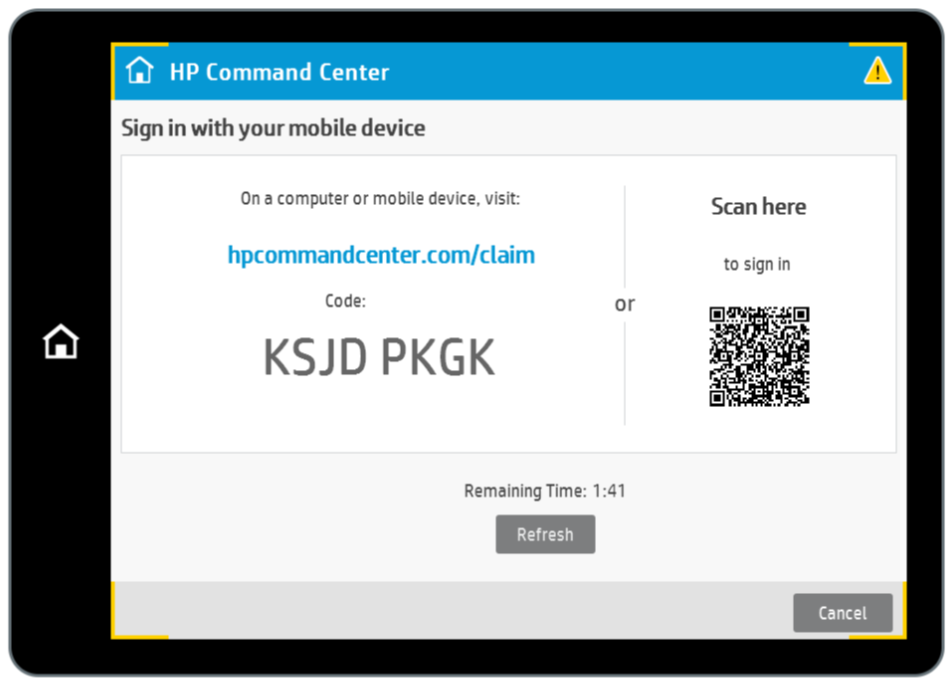
You can use a mobile device to scan the QR code and follow the provided steps.
- Sign in to hpcommandcenter.com/claim and claim the printer by entering the printer code.
-
Then go to the HP Command Center.
You can quickly complete this step by removing the subdirectory "claim" from the URL that you used in the previous step.
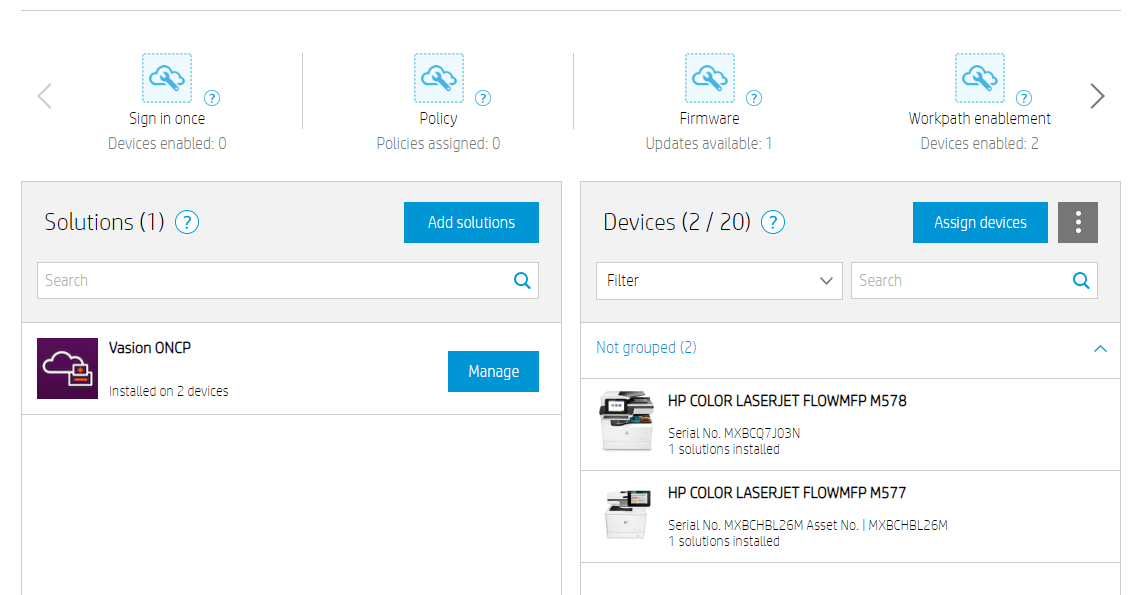
- Select Accounts, and then select your account.
-
In Solutions, search for and select Vasion ONCP, and then select Manage.
-
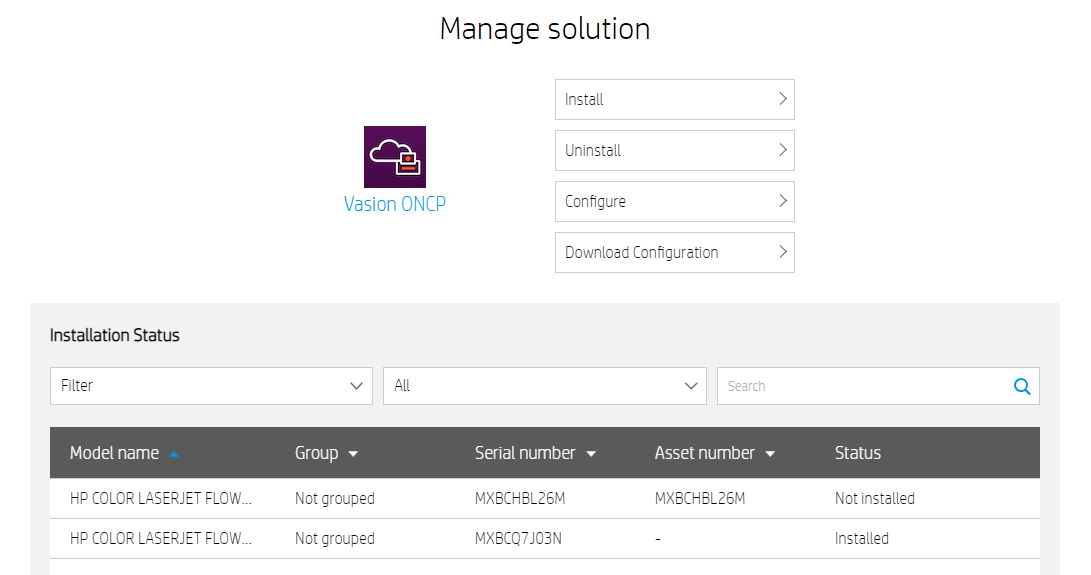
Select Install.
-
Select the printers you want to install, select Next, and then select Install.
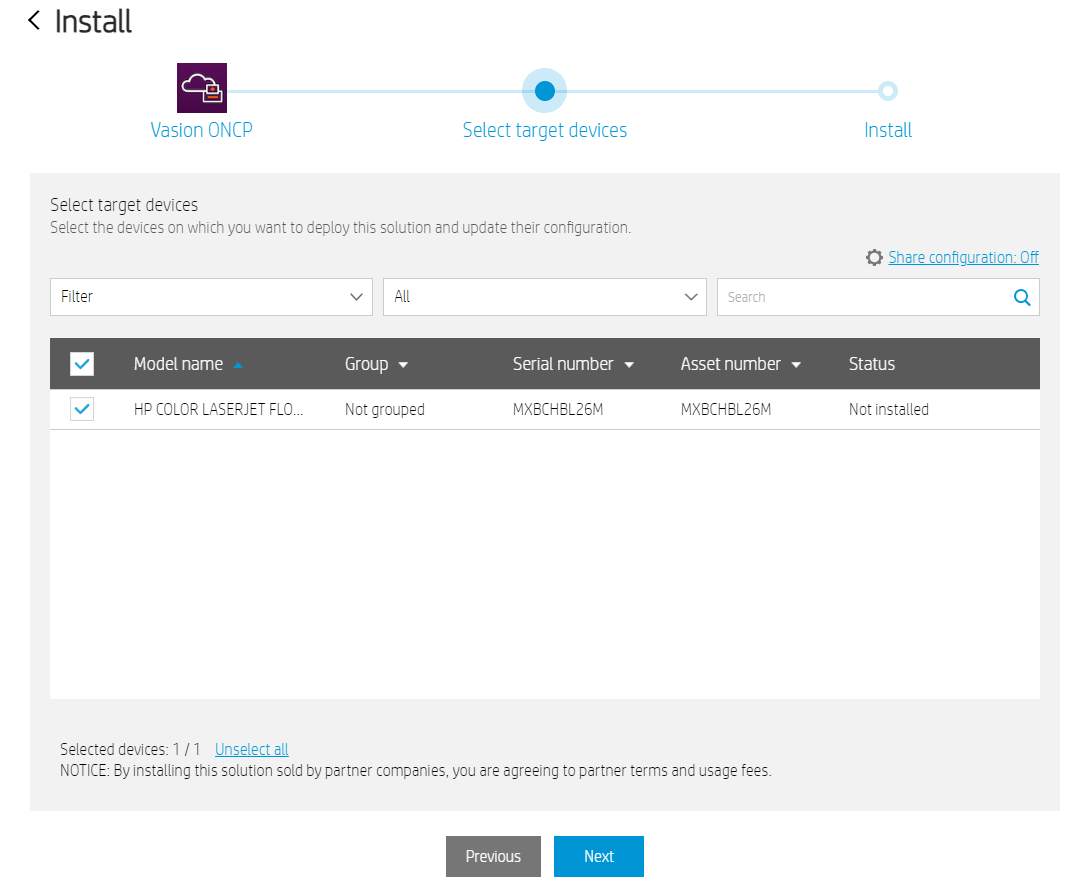
These steps make the ONCP app available for your printers. Follow the steps in the next section to install the app on the printers.
When a user on another network sends a print job to a printer with ONCP turned on, the encrypted job goes to the external gateway. The ONCP app monitors the gateway, immediately retrieves the print job, and releases it at the printer. This step guides you through installing the ONCP app using the Control Panel Application (CPA).
Install from the Apps tab
These are general steps for installing ONCP using the printer's Apps tab in the Admin Console. If you need to configure a Service Agent to run the Printer Apps service, refer to CPA Manager.
Follow these steps:
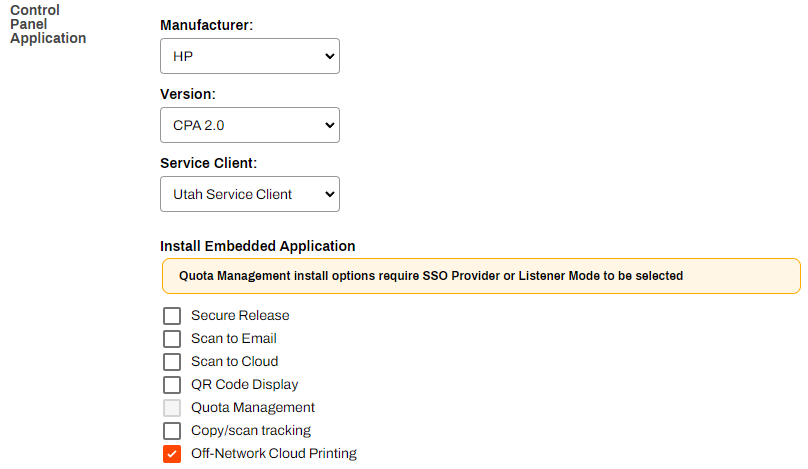
- In the Admin Console, select the printer object's Apps tab.
- Select the printer manufacturer in the Manufacturer dropdown.
- Select CPA 2.0 in the Version field.
-
In the Service Agent field, select the Service Agent that is running the Printer Apps service.
Cloud Print is not dependent on the CPA and can be installed as either a stand-alone app or in conjunction with the CPA.
- Select the Off-Network Cloud Printing option.
- Select which administrator credentials to use to install the ONCP app on the printer:
- Configure default credentials by going to Tools Settings General and adding credentials in the Control Panel Application section.
- Configure printer-specific credentials on the printer's Apps tab.
- Configure default credentials by going to Tools
- Select Save.
Install using the CPA Manager
These are general steps for installing ONCP using the CPA Manager. If you need to configure a Service Agent to run the Printer Apps service or need to add printers to the Printers list, refer to CPA Manager.
Follow these steps:
- Go to the Service Agent that is running the Printer Apps service, and select the Printer Apps tab.
-
Select printers from the Printers list.
When you add multiple printers, they must all be from the same manufacturer.
-
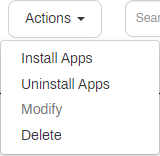
From the Actions dropdown, select Install Apps.
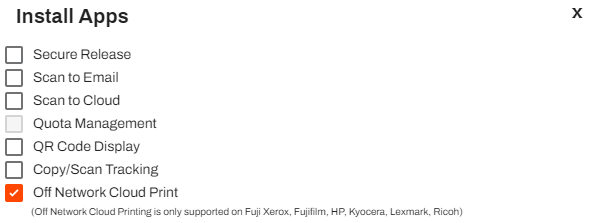
- Select the Off Network Cloud Print option in the Install Apps modal.
- Select Save.
You can close the Updating settings modal. ONCP installation continues in the background.
The Status column for the printer shows whether installation succeeded.
Configure the IRS Service Agent
If your device does not support the ONCP app, you can use the Service Agent as the IRS. The IRS is a designated device on the printer network that acts similarly to the ONCP app. The IRS monitors the external gateway, immediately retrieves print jobs, and routes them to the correct printer. ONCP automatically assigns the external gateway based on the instance’s region, and you do not assign the IRS to the root, a folder, or a printer. In environments with multiple printer networks, each network requires an IRS on that network to reach the printers. For redundancy, you can turn on the IRS on multiple Service Agents.
When a print job is ready, the external gateway sends a WebSocket notification to every IRS Service Agent and ONCP app. Each IRS checks whether it can reach the printer on port 9100, and the IRS Service Agents that can reach the printer try to claim the job. The first one to claim the job downloads and prints it. The IRS with the most available resources and the fastest connection typically claims the job first.
IRS assignments do not affect ONCP. The location of the IRS Service Agent in the tree structure and any IRS assignments at the root, folder, or printer level do not determine which IRS handles a print job. Any IRS that can reach the printer can claim the job.
The IRS Service Agent is a designated device on the printer network that monitors the external gateway, immediately retrieves print jobs, and routes them to the correct printer. Follow these steps to turn on the IRS:
- Go to the Service Agent object in the tree structure.
- Select the Internal Routing tab.
-
Select Enable Internal Routing Service.

- Select Save.
- On the device designated as the IRS Service Agent, use the Virtual Appliance icon in the system tray or the Start menu to refresh configurations.
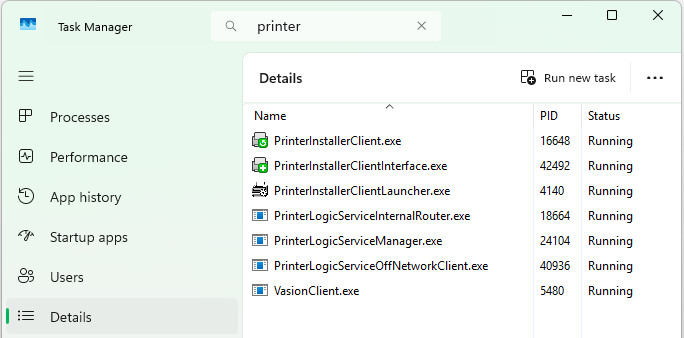
- Open the Task Manager, and select the Details tab.
- Search for printer to locate the Agent services.
- Confirm that the following services are running:
- Agent services, which include VasionClient.exe, PrinterInstallerClient.exe, PrinterInstallerClientInterface.exe, and PrinterInstallerClientLauncher.exe.
- PrinterLogicServiceManager.exe.
- PrinterLogicServiceInternalRouter.exe.
- PrinterLogicServiceOffNetworkClient.exe.
Other active services on the Service Agent also appear.
The folder structure creation for the new service takes a minute. After the Agent creates the folder structure, the service begins running and you can view it in Task Manager or similar management apps.
If the service does not start or does not create the folder structure after 2 minutes, select on the General tab of the Service Agent object, then refresh the Agent on the Service Agent device.
Install and Test
Follow these steps to test this feature:
- Select a workstation on a different network than the destination printer.
- Install a printer configured for ONCP.
- After installing, print a job and select the printer as the destination.
- Go to the printer and confirm the job printed.