Internal Service Agent
Last Updated: September 08, 2026
A Service Agent is a designated device within the network that runs additional services for advanced features. The Virtual Appliance has a built-in internal Service Agent, but this legacy feature only supports a few advanced feature services.
As part of our ongoing efforts to enhance security, streamline functionality, and align with industry best practices, Vasion deprecated the Virtual Appliance Internal Service Client in Host version 25.2.169 (June 2025).
Impact: Customers utilizing the Internal Service Client should not upgrade to this version until they've reconfigured the services to use an external Service Client. Upgrading to this version before migrating to an external Service Client will cause a loss of functionality for the services running on the Internal Service Client.
Virtual Appliance versions Host v25.1.116 / Application v25.1.1428 and earlier support the Internal Service Client. Do not upgrade past these version before switching to the external Service Client.
Key Points
Review the following key points:
- The internal Service Agent supports:
- SNMP Monitoring
- LDAP Sync
- Internal Routing Service (IRS)
- Using the internal Service Agent requires an additional 2 CPUs and 4 GB RAM added to the Virtual Appliance. For more details refer to Minimum System Requirements.
- The following features require an external Service Agent:
- Email Printing
- Control Panel Application (CPA)
- Offline Secure Release Print
- Simple Badge Release
- Google Identity Sync
- External Gateways (Off-Network Print)
- For more details refer to Service Agents.
Configure the Internal Service Agent
1. Modify the Secrets File
- Access the network share for the Virtual Appliance. For more details refer to Accessing Data Files.
-
Locate the appliance-storage folder and open the secrets.env file.
Edit the secrets.env file using an editor like Notepad++, Sublime Text, or Visual Studio Code to ensure the file uses Unix line endings (LF only) and saves in UTF-8 format without a byte-order mark.
- Near the bottom of the file add REPLICAS_CLIENT=1.
- Note the Virtual Appliance FQDN, required in a later step.
- Save and close the secrets.env file.
2. Assign the Service Agent
- Access your Admin Console.
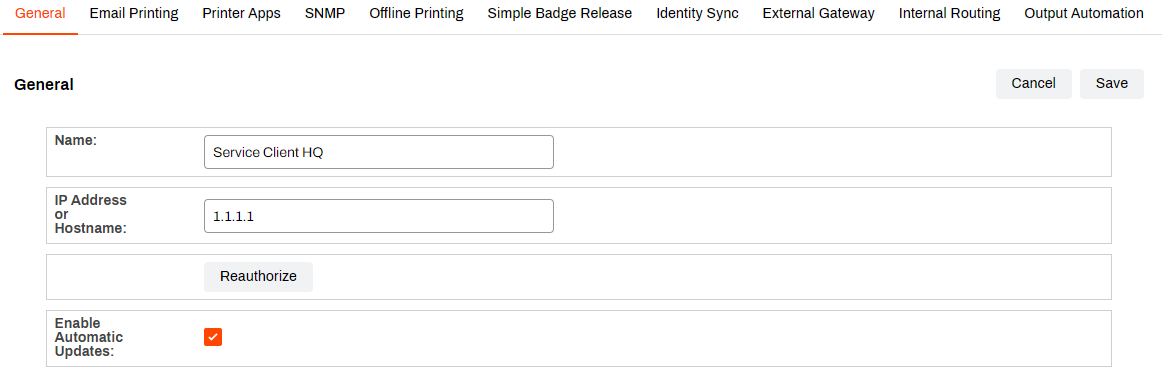
- Locate the Service Agent object in the tree structure, or create a new one.
- On the General tab, adjust the name as needed.
- Enter the Virtual Appliance FQDN in the IP Address or Hostname field.
- Select Save.
- Restart the Virtual Appliance for the change to take effect.
3. Verify the Service is Running
- Access the network share for the Virtual Appliance. For more details refer to Accessing Data Files.
-
Access the client folder (appliance-storage
 logs client).
If the client folder is not available or you receive and error stating "connection unavailable" when selecting the folder, upgrade to Host Build 22.0.818 or later. Our support team can assist with a workaround for this issue if upgrading the host build right away is not an option.
- Locate the PrinterLogicServiceManager.log file.
- The log file shows whether the internal Service Agent started, any errors, and any other advanced features enabled on that Service Agent object.
In this topic: