Offline Secure Release Print (OSRP)
Last Updated: August 26, 2026
With OSRP the user can release a print job from a virtual pull print queue even if the device that sent the print job turned off, entered sleep mode due to low power, entered hibernate mode due to no power, or logged out of a virtual session.
When a user holds a job, the Service Agent receives a copy and keeps it in a virtual print queue. When the user releases the job and Virtual Appliance detects that the device Agent is offline, the Service Agent releases the copy to the printer.
Requirements
Review the following requirements:
- This feature works with Pull Print and Direct Secure Release.
- OSRP supports devices with the Windows, macOS, or Linux operating system (OS).
- You need at least one Service Agent running the OSRP service on a Windows device. For more details refer to Service Agents.
- The OSRP service uses port 31989. Open this port on the Service Agent device.
- The OSRP Service Agent must be able to reach the printers over the network. Additional Service Agents might be required if printers are on different networks.
- OpenSSL must be installed on the Service Agent.
- Configure your identity provider (IdP). For more details refer to Identity Providers (IdPs).
Process Overview
You perform these high-level procedures:
- Install OpenSSL.
- Turn On the OSRP Settings & Filter.
- Turn On the OSRP Service.
1. Install OpenSSL
OpenSSL encrypts held print jobs. Install Win32 OpenSSL v3.3 on the Windows Service Agent device that is running the OSRP service:
Follow these steps:
- On the Service Agent device, go to https://slproweb.com/products/Win32OpenSSL.html.
- Select the EXE link to download the file.
- Run the downloaded file, and complete the installation process.
- Add OpenSSL to the Path variable.
- Select the Windows Start menu, and type "path."
- Select Edit the system environment variables.
- On the Advanced tab, select the Environment Variables button.
- In the System Variables section, select Path, and then select Edit.
- Select Edit in the window.
- Double-click the next available empty line, and enter the path to the OpenSSL bin folder. For example, C:\Program Files (x86)\OpenSSL-Win32\bin.
- Select OK.
- After you install OpenSSL, restart the device.
2. Turn On the OSRP Settings & Filter
Follow the steps below to turn on OSRP:
- In the Admin Console, go to Tools
 Settings Printing.
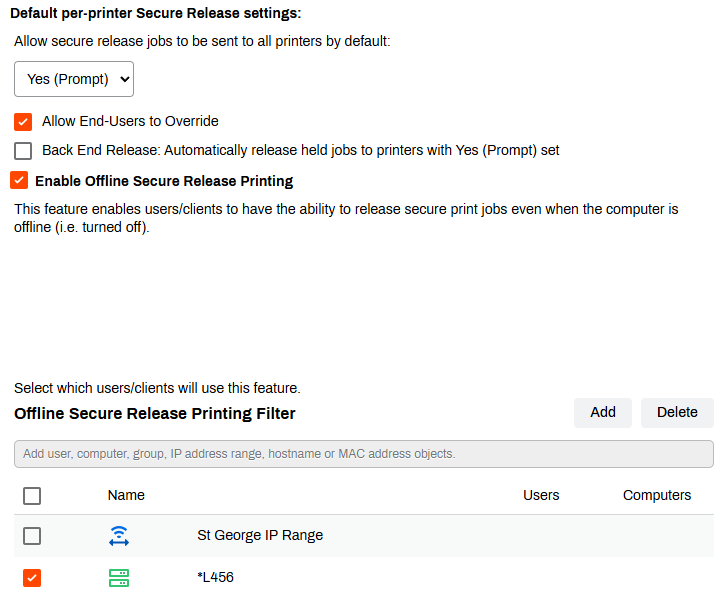
 - In the Pull Printing section, select Enable Offline Secure Release Printing.
-
Below Select which users/clients will use this feature, select Show Filter.

- Select the Add button.
- Select the object type, use the modal to select the object, and then select OK.
- Select Save.
Users and groups that you add to the filter can print using OSRP.
3. Turn On the OSRP Service
Turn on the OSRP service on the Windows Service Agent. The OSRP Service Agent must be able to reach printers over the network. Printers on different networks require another Service Agent that can reach them.
Follow these steps:
- Select the Service Agent in the tree structure.
- Select the Offline Printing tab.
-
Select Enable Offline Secure Release Printing.
- Select Save.
- Access the physical device designated as the Service Agent.
- Use the system tray icon or Start menu to refresh configurations.
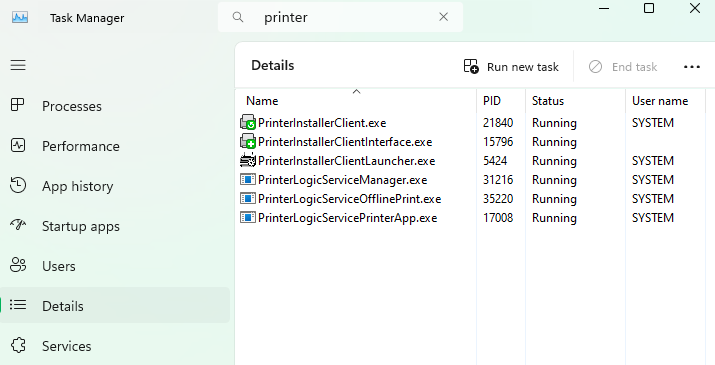
- Open the Task Manager, and select the Details tab.
- In the Search field, enter "printer" to locate the Agent processes.
- Confirm that the following services are running:
- Agent services, which include PrinterInstallerClient.exe, PrinterInstallerClientInterface.exe, and PrinterInstallerClientLauncher.exe.
- PrinterLogicServiceManager.exe.
- PrinterLogicServiceOfflinePrint.exe.
Other active services on the Service Agent also appear.
Once configured and running, if a user's workstation is unavailable when they release a held print job, a copy from the Service Agent gets sent to the printer instead. For environments with multiple sites, a preferred Service Agent is recommended.
Preferred Service Agent
Follow the below steps to define the Service Agent that users in an IP address range use when printing with OSRP. This configuration is optional but can be helpful in large environments. With an OSRP Service Agent selected on the IP address range object, when a user who is in the range prints, the copy of the print job goes to that specific Service Agent.
For steps on creating an IP address range object, refer to IP Address Ranges.
Follow these steps:
- In the Admin Console, select the IP address range object.
-
On the General tab, use the Preferred service client dropdown menu to select the Service Agent.

- Select Save.
Next Steps
Troubleshooting Help
-
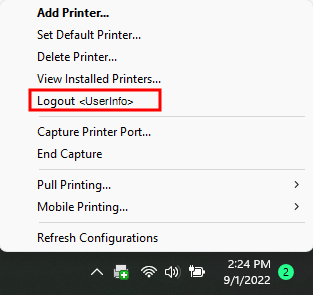
Verify that you are logged in to the Agent. You can right-click the Virtual Appliance icon to confirm you are signed in.
-
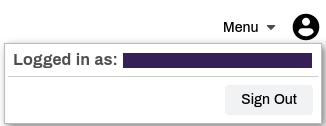
You can also go to the Self-service Portal and select the user avatar to check who is signed in.
If you do not see your Secure Release Print jobs in the release portal, check the following:
-
Verify that you are logged in to the Client on the workstation you used to send the print job. You can right-click the Virtual Appliance icon to confirm you are signed in.
-
Verify that you are signed in to the Self-service Portal / Release Portal. Select the user avatar to verify user identity.
In this topic: