Manage Badges
Last Updated: September 09, 2026
The following sections guide you through standard options to manage badges stored in your instance's database.
Register Badges
You can manually register a badge at any time:
- Select the + Register New button.
-
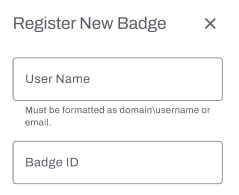
In the Register New Badge modal, enter the following:
- User Name: Start typing and select the user.
- Badge ID: Enter the badge ID value.
-
Select Register.

Edit Badges
Follow these steps:
- Select the user from the list or the More menu
 next to the user.
 - Select the Edit option from the menu.
-
Update the Badge ID value.
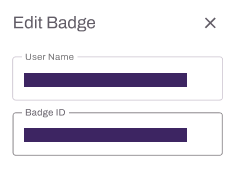
- Select Save.
Delete Badges
The badge deletion process unregisters the badge from the user and then removes it from the Admin Console.
Follow these steps:
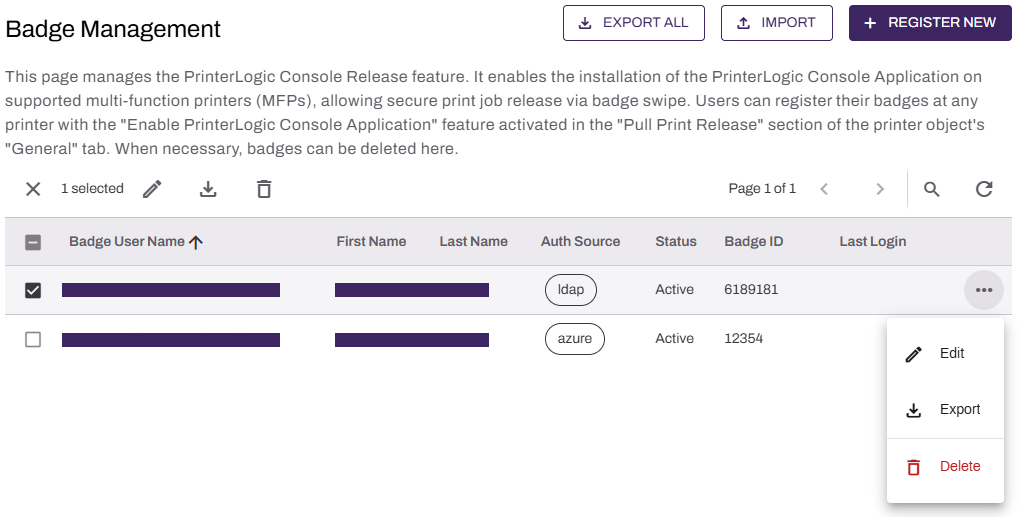
- Select the user from the list or the More menu next to the user.
- Select the trash can icon
 or the Delete option from the menu.
 - Select Delete.
Import Badges
You can bulk import badges using a CSV file. Note the following:
- The file must contain at least two columns: Badge User Name and Badge ID.
- Select the
- The maximum number of entries per file is 1,000.
Follow these steps:
-
Select Import.

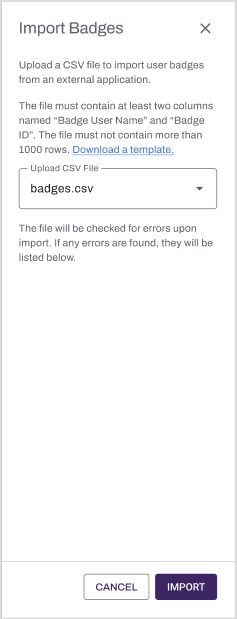
- In the Import Badges modal, select Upload CSV File, and select the CSV file.
- Select Import.
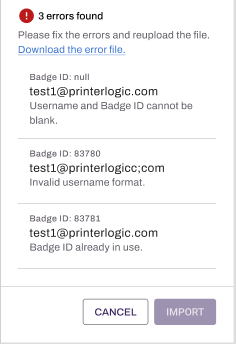
After the upload completes, the modal shows any import errors and provides a link to download the error file. If the import has many errors, the modal shows the download link instead of every error.
For more details refer to Import Badges into Virtual Appliance.
Export Badges
To export badge information, select Export All to download the CSV file.
If you are exporting LDAP badge information, the export file includes an extra backslash (\) in the username. For example domain\\first.last.
If you want to use the file as a template to import badges, remove the second backslash. The import fails if both backslashes are present.
Troubleshooting Help
Common errors seen when importing badges are:
- Badge ID Already In Use: If the existing user information for that badge is incorrect, unregister the existing badge.
- User does not exist: Verify the user is within
- Invalid user identifier: Check if there are additional backslashes or characters added between the domain and username.
In this topic: