Last Updated: June 18, 2024
Vasion Desktop Folder
The Vasion folder desktop shortcut is used to quickly send documents to a Vasion Storage folder or workflow using drag-and-drop functionality.
Please note that there is no functionality when you double-click the folder.
How to use the Vasion Folder
-
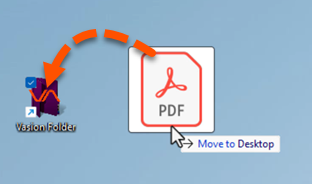
Drag a file to the Vasion folder on the desktop.
-
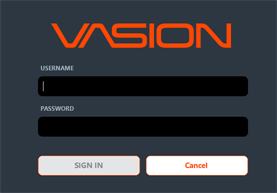
If applicable, sign in to Send to Vasion.
-
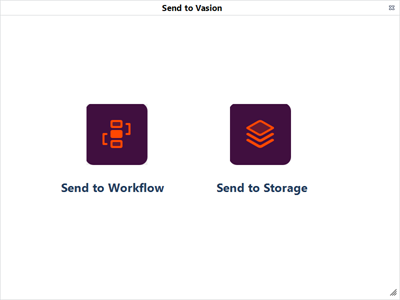
From the Send to Vasion window select Send to Storage or Send to Workflow.
Send to Workflow
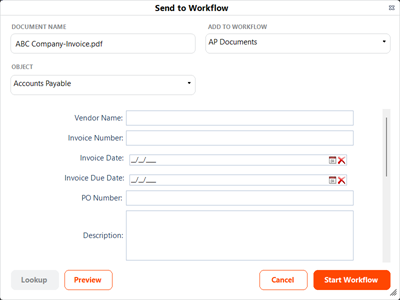
When you select Send to Workflow complete the following:
- Document Name — enter the name for the file.
- Add to Workflow — use the drop-down to select the workflow to which you want to attach the document..
- Object — use the drop-down to select the object to associate with this workflow.
-
Fields and Values — these fields vary depending on the form you selected. Fields listed with an asterisk are required fields.
-
Select Start Workflow.
Send to Storage
When you select Send to Storage complete the following:
- Document Name — enter the name for the file.
- Add to Folder — click the Browse button to select the file location.
- Object — use the drop-down to select an object to associate to the file. Depending on how your system is set up a folder may already have a default object that is automatically selected, or you may skip this step.
-
Fields and Values — these fields vary depending on the object you selected. Fields listed with an asterisk are required fields.
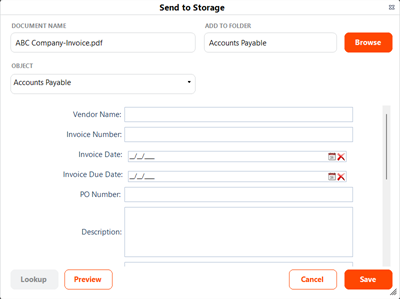
- Select Save.