Last Updated: August 13, 2024
Send to Vasion
Send to Vasion is a client application that is installed on workstations and is used to send documents to Storage or Workflow. In addition to scanning documents, you can also use drag-and-drop functionality to quickly move files into Vasion Storage or print a document directly to a Storage location or a Workflow.
Install the Send to Vasion App
You must have the rights to install software on your computer for this. Once the application is installed on your system, test the connection to your Vasion instance.
The Send to Vasion app can only be installed in Windows systems
1. Download and Install Send to Vasion
- From the Capture Home page click on the Set up Scanner button. The installation file starts downloading immediately.
- Open the Send_to_Vasion_Setup.exe file.
- Follow the steps in the installation wizard to install Send to Vasion and Print to Vasion.
2. Test Authentication
- Copy the API URL displayed in the instructions.
- When the wizard completes the installation, go to your windows programs and open Vasion Connection.
- In the Vasion Connection modal, paste the Vasion API URL.
- Enter your Username and Password.
- Click Test Authentication.
- Click OK to dismiss the Authentication Succeeded modal.
- In the Vasion Connection modal, click OK.
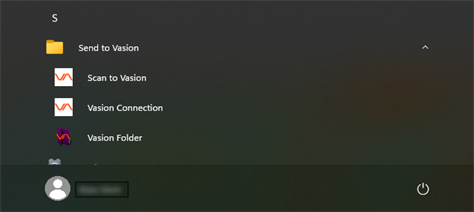
When the Send to Vasion application is fully installed you'll see:
-
The Scan to Vasion, Vasion Connection apps and the Vasion Folder shortcut in Windows Apps.
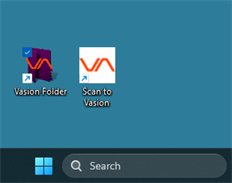
- A Vasion Folder shortcut on your desktop.
-
A Scan to Vasion shortcut.
-
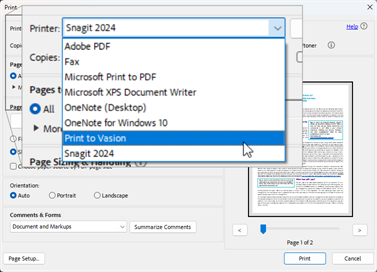
The Print to Vasion printer option.
To view more details about how to use the Send to Vasion components see: