Last Updated: June 18, 2024
Print to Vasion
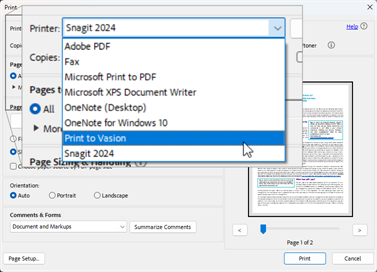
With Print to Vasion you can easily send documents to Vasion Storage or Workflow by simply printing them. Once Send to Vasion is installed on your workstation, Print to Vasion is available as an option from the list of printers.
How to use Print to Vasion
- Print the document using your preferred method.
-
Select Print to Vasion from your printer options.
-
From the Send to Vasion window select Send to Storage or Send to Workflow.
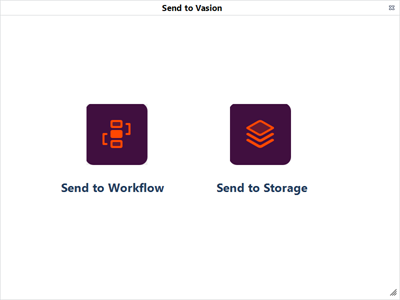
Send to Workflow
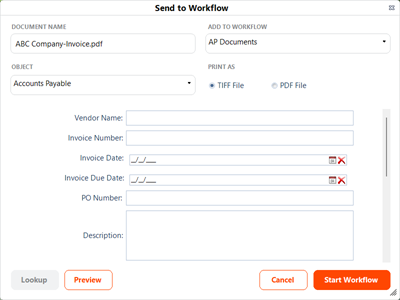
When you select Send to Workflow complete the following:
- Document Name — enter the name for the file.
- Add to Workflow — use the drop-down to select the workflow to which you want to attach the document..
- Object — use the drop-down to select the object to associate with this workflow.
- Print As — select from the following:
- TIFF File — converts and saves the document in storage as a TIFF file.
- PDF File — converts and saves the document in storage as a PDF file.
-
Fields and Values — these fields vary depending on the form you selected. Fields listed with an asterisk are required fields.
-
Select Start Workflow.
Send to Storage
When you select Send to Storage complete the following:
- Document Name — enter the name for the file.
- Add to Folder — click the Browse button to select the file location.
- Object — use the drop-down to select an object to associate to the file. Depending on how your system is set up a folder may already have a default object that is automatically selected, or you may skip this step.
- Print As — select from one of the following:
- TIFF File — converts and saves the document in storage as a TIFF file.
- PDF File — converts and saves the document in storage as a PDF file.
-
Fields and Values — these fields vary depending on the object you selected. Fields listed with an asterisk are required fields.
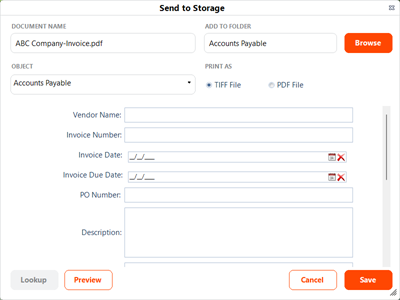
- Select Save.