Last Updated: June 18, 2024
Task Lists
The Workspace tasks are divided into two sections with tasks lists under each.
- My Tasks
- Pending Tasks — tasks waiting for your review or approval
- Completed Tasks — completed tasks in which you participated at any point in the workflow
- My Requests
- Drafts — form drafts you have not submitted yet.
- Pending Requests — tasks you created and are awaiting review or approval by another user
- Completed Requests — tasks you created and were completed
- Recent Documents — documents you recently accessed
List Views
The default view shows the following columns:
- Priority — the priority of the task, which can be set when the task is created or at any other point in the workflow.
- Workflow — the workflow in which the task is currently.
- Type — the type of workflow the task is currently in, such as basic, signature, task.
- Primary ID — a key attribute field used to distinguish one task from another.
- Assigned To — the person or group to which the task is assigned.
- Status — where the task is in the workflow process.
- Step Name — The title associated with the current workflow step.
- Due Date — the date the task is due.
Sort the Lists
You can sort by any column on the dashboard in ascending or descending order.
- Click on the heading of the column you want to sort to view in ascending order.
- Click on the heading a second time to sort in descending order.
Filter the View
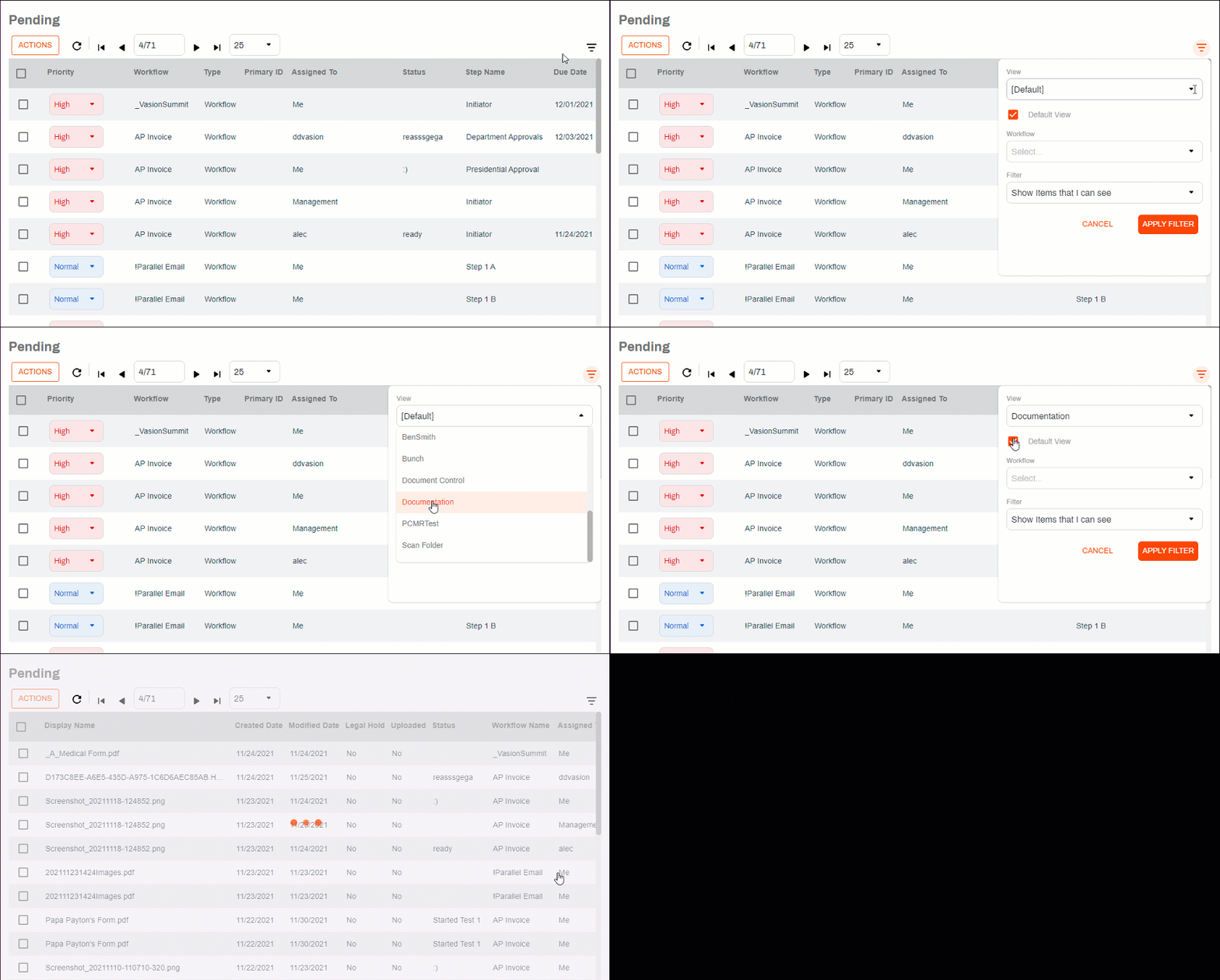
If your instance has custom folder views configured, you can select one of those views. The information shown depends on which columns were selected for the custom view. Custom views are associated with a storage folder. Contact your Vasion Automate Pro administrator for assistance with custom views.
If you or your groups are assigned to several workflows, you can filter which workflow displays. The workflow view is automatically reset to show all workflows next time you log into Vasion Automate Pro.
To change the view and workflow:
-
Click the Filter button.
-
Use the View drop-down to make a selection from the available choices. If you would like the new view to always load when you log in to Vasion Automate Pro, check the Default View box.
-
Use the Workflow drop-down to make a selection from the available choices.
-
Use the Filter drop-down to filter the results to items assigned to you or all items.
-
Click Apply Filter.
You can start typing in the search field of either the View or the Workflow drop-down to filter and quickly locate the item(s) you want.
Pending Task Lists
The Pending list shows tasks assigned to you or a group you are assigned is loaded by default. The actions you can take depend on your user role and the status of each task.
The Completed list shows tasks that you or one of your groups completed.
My Requests Tasks Lists
The Drafts list shows the following information in a table format.
- Draft Name — the name of the draft.
- Workflow Name — the name of the workflow associated with the draft.
- Form Name — the name of the form associated with the workflow.
- Created Date — the date the draft was created.
- Modified Date — the date the draft was modified.
The Pending list shows workflows you initiated and are being processed.
The Completed list shows workflows you initiated and have been completed.
Recent Documents
Any documents you have accessed, whether through a workflow or in Storage.
Only items from the last six months are displayed in the My Requests section.
To learn what actions you can take on your tasks see Manage Tasks.