Last Updated: August 13, 2024
Completed & Pending
You can view, email, print and download your completed tasks, and pending or completed requests. Because the requests or tasks are completed, there are no other workflow options. On pending requests, you have no actions available as you're waiting on your created requests.
To view a completed task, a pending request or a completed request:
-
In the left pane, click on:.
-
Completed under My Tasks.
-
Pending or Completed under My Requests.
-
To save time, you can take the same action on multiple tasks by checking the box for each task first and then selecting the action.
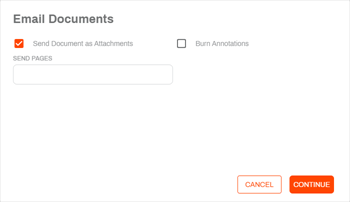
With the appropriate permissions, you can use the Email option to send a link to the document via email, or send the document as an attachment. Some options available when using this feature are:
- Send Document as Attachments.
- Sending only selected pages as attachments.
- Burn annotations.
- Send a link to a document.
- Set a maximum number of views for the document.
- If you want to allow the recipient to download the document, you can set a maximum number of downloads.
- Set document access limit in hours.
- Do not require the recipient to log in to view the document.
For more details, see Email.
The print function for completed tasks, pending requests, or completed requests is the same as printing from other locations in the application. You can print documents, with or without burning annotations.
Print the selected document and any annotations. If the document is part of a signature workflow, you can also print the signature history.
- Select the document you want to print.
- Select the Actions button and then select Print.
- Select the Print button
 .
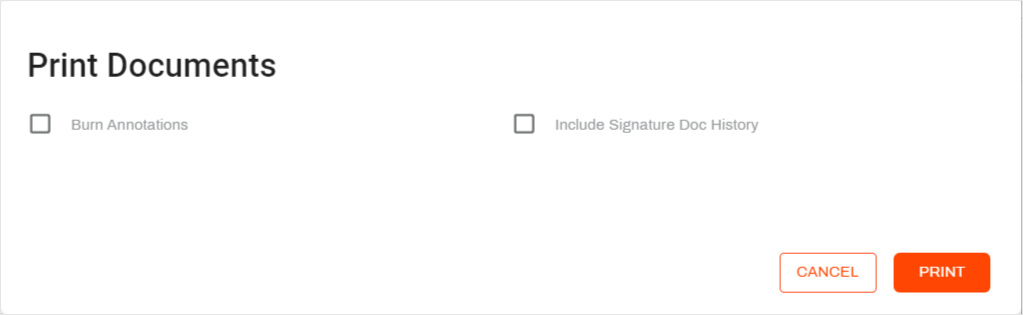
. - In the Print Documents modal, select from the following options:
- Burn Annotations — select this option to include unburned annotations on the document you’re printing.
- Include Signature Doc History– this option only displays if a document is part of a signature workflow. When selected, it downloads the current signature audit trail in a separate PDF.
- Select Print.
Download
Downloading completed tasks, pending requests, or completed requests is the same as downloading from other locations in the application. You can download task documents – the complete file or selected pages – and you can convert the documents to a PDF.
Use the Download option to save a copy of the
- Select the document.
- Select the Actions button and then select Download.
- Select the Download button
 .
. -
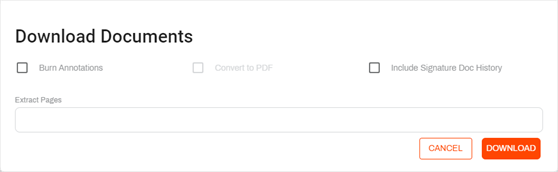
In the Download Documents modal, select your download options:
- Burn Annotations – includes annotations on the document. If you leave this box unchecked, the document will not include unburned annotations.
- Convert to PDF — select this option to download a form as a PDF.
- Include Signature Doc History– this option only displays if a document is part of a signature workflow. When selected, it downloads the current signature audit trail in a separate PDF.
- Extract Pages – use this option if you want to download specific pages from the document. To save a range of pages, use a hyphen between the first page number and last page number, for example, 2-7. To extract single pages, use a comma, for example, 3, 7, 9. You can combine hyphens and commas to get the pages you need, for example 2-7, 9, 15.
- Select Download.
The file is saved to your system's default download location.