Last Updated: June 18, 2024
Drafts
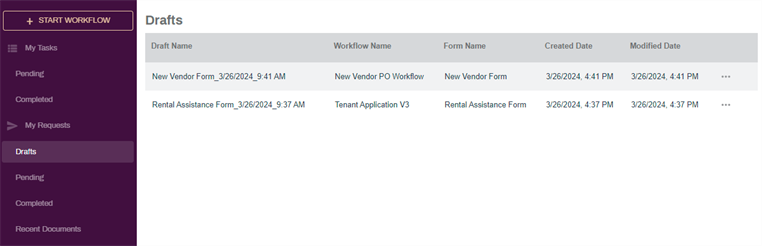
Any form workflows that have been saved as drafts are listed here. The workspace Drafts page shows the following information:
- Draft Name
- Workflow Name
- Form Name
- Crated Date
- Modified Date
- More button
Draft Key Points
Here are some important things to know about form workflow drafts:
- You can save a draft multiple times, any additional data is saved at your current progress.
- The draft retains its original name and the modified date is updated with the date and time when the updated data was saved.
- You can rename the draft at any point before the form is submitted.
Draft Options
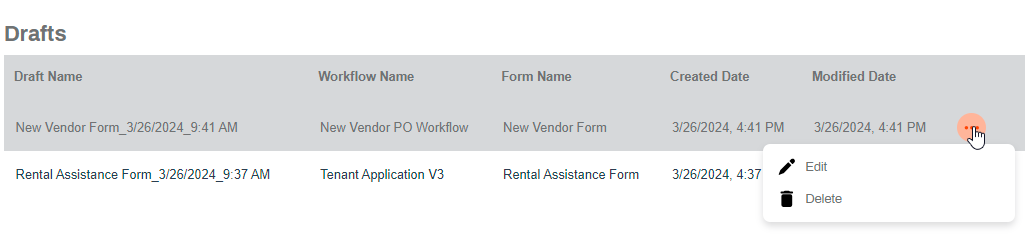
When you select the More button, the following options are available:
- Edit — select this option to open the form and finish completing the fields. Once complete you can submit the form.
- Delete — select this option to delete the draft and any file attachments.
Select any draft to open the form and continue completing the required fields. When the form is submitted, the draft is removed and the workflow is initiated.