Manage Storage Administration
Last Updated: October 08, 2026
Use the Storage Admin page to monitor your organization's storage consumption and configure optical character recognition (OCR) indexing for files stored in Storage.
Monitor Storage Usage
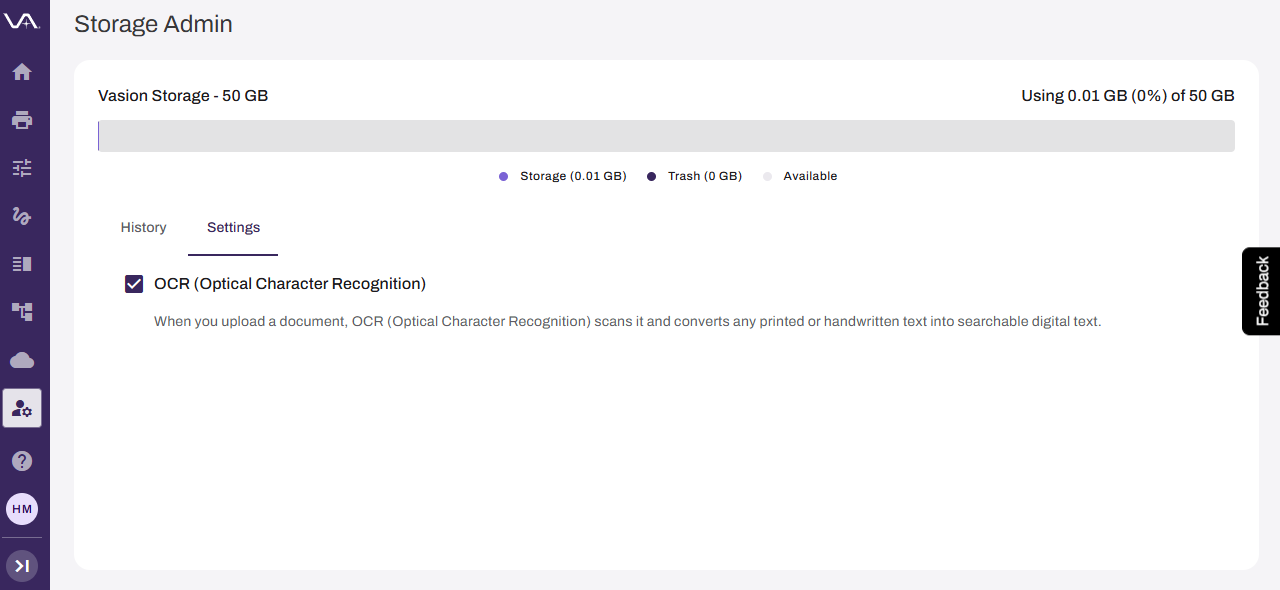
Select Admin from the left-side navigation, and then select Storage. The header on the Storage Admin page shows total storage consumption for your organization. The total storage is divided into three categories:
- Storage: Space consumed by active files.
- Trash: Space consumed by files in the trash.
- Available: Unused space.
Each segment's width reflects its proportional share of the total storage. Hover over a segment to view the exact amount in GB for that category.

Respond to a Storage Warning
When your organization's total storage consumption, which includes active files and files in the trash, reaches 95% of its allocation, a warning appears at the top of the page. You cannot dismiss the warning, and it persists until storage consumption drops back below 95%.
You can either direct users to delete unnecessary files and empty their trash or contact your Vasion representative to purchase additional storage.
Configure OCR Indexing
OCR automatically scans files uploaded to Storage and converts any printed or handwritten text into searchable digital text, making file contents discoverable through search.
Follow these steps to turn on OCR:
- Select Admin from the left-side navigation, and then select Storage.
- Select the Settings tab.
- Select the OCR (Optical Character Recognition) option.
For more details refer to Full Text Search.
Files that you uploaded before OCR was turned on still appear in content-based search results. Depending on the number of files, it might take a few days for all files to be OCR processed.
Related Topics
Refer to the following:
In this topic: