Configure Login Consent
Last Updated: October 23, 2026
Use this topic to create, edit, preview, and turn on a login consent message.
Requirements
Review the Requirements before you start.
Create a Login Consent Message
To create a consent message:
- In the Admin Console, go to Admin
 General Settings.
 - On the Login Consent Message card, select the edit icon
 .
. - Turn on Enable consent message.
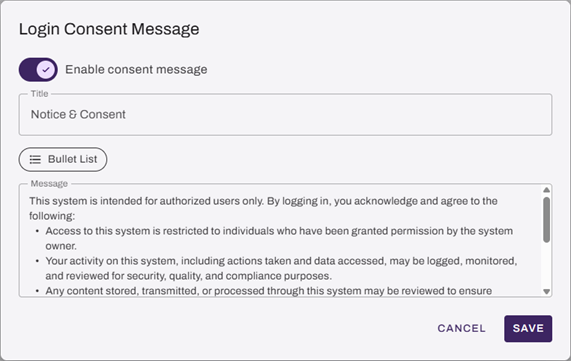
- Enter a Title for your message. This displays as the message header.
-
In the Message field:
- Enter your message content.
- Select Bullet List to add a bulleted list.
- Use keyboard shortcuts for bold, italic, and underline formatting.
Keep your message within the 10,000 character length limit. The field does not display a character count.
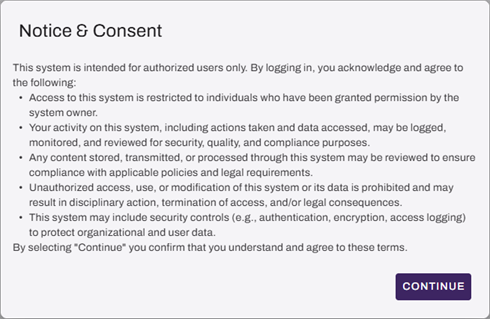
- To see how your message displays to users, select the preview icon
 .
. - Select Save.
Vasion displays the message the next time a user accesses the Admin Console. Users must select Continue to proceed past the message.
Edit a Login Consent Message
To edit the consent message:
- In the Admin Console, go to Admin General Settings.
- On the Login Consent Message card, select the edit icon .
- Update the title, the message content, or both.
- Select Save.
Turn Off a Login Consent Message
To turn off the consent message:
- In the Admin Console, go to Admin General Settings.
- On the Login Consent Message card, select the edit icon .
-
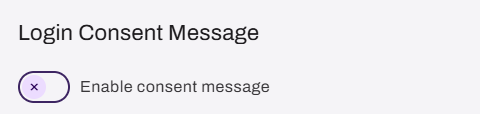
Deselect Enable consent message.
- Select Save.
Vasion stops displaying the message.
In this topic: