Create a New Rule
Last Updated: September 08, 2026
Output Rules automates print job handling based on the triggers, conditions, and actions you configure. Use this topic to create your first rule.
Requirements
Creating a new rule requires the following:
- The Rules Admin role assigned to your user to create and manage workflows.
Create a Rule
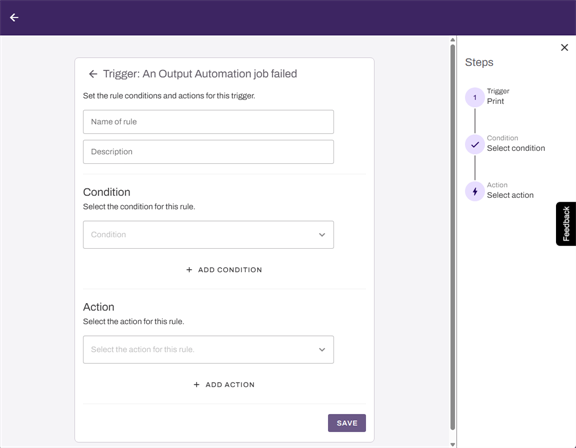
The builder guides you through each component in sequence. All three components, trigger, condition, and action are required before you can save a rule. Refer to Output Rules Components for details about available triggers, conditions, and actions.
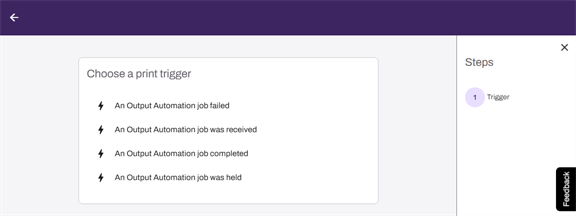
1. Choose a Print Trigger
- In the side navigation, select Workflows
 Output Rules.
 - In the Output Rules page, select + New Rule.
-
Select a trigger from the Choose a print trigger list.
2. Name the Rule and Set Conditions
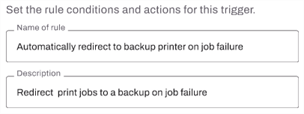
Complete the following:
- Name of rule: Enter a name.
-
Description: Enter a brief description of the rule.
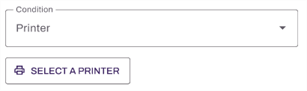
- Condition: Use the dropdown to select a condition.
-
Configure the input option for the selected condition.
-
Add Condition: Use this option if you want to add additional conditions.
3. Select the Action
Complete the following:
- Action: Use the dropdown to select the appropriate action.
-
Configure the input option for the selected action.
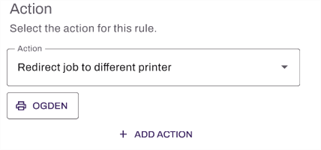
- Add Action: Use this option if you want to add additional actions.
4. Save the Rule
-
When all the steps are configured, select Save. The Save option is enabled only after all the rule components are completely configured.
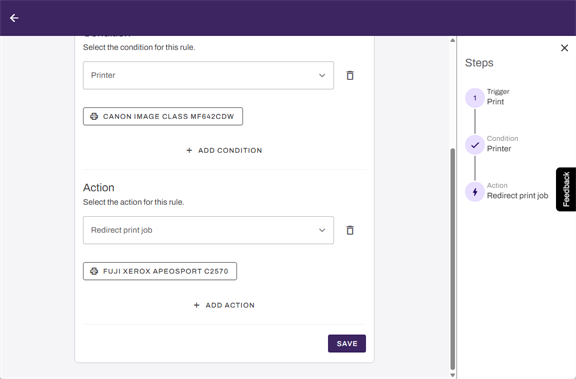
When you save the rule, it activates immediately. PrinterLogic Output starts applying the rule to incoming print jobs.
Next Steps
- Refer to Output Rules Components for details about available triggers, conditions, and actions.
- Refer to Manage Rules to edit, reorder, or deactivate existing rules.
In this topic: