Last Updated: October 20, 2025
Advanced Search Configuration
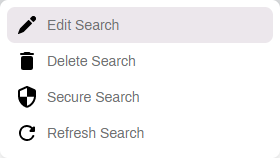
Once you have some searches set up, they display on a list under the respective search type in the Admin app. From the list, you can select the More button  to see other options for working with existing searches.
Secure Search
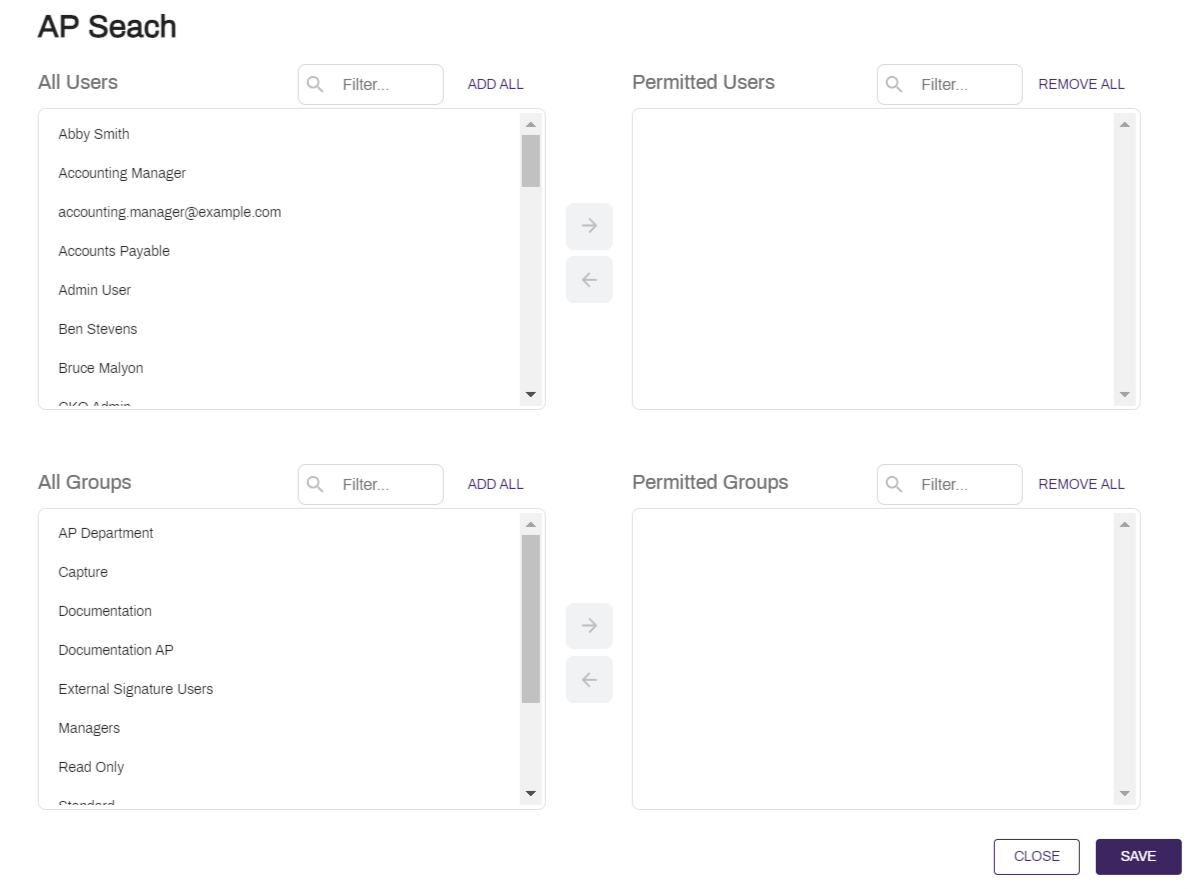
The Secure Search option lets you assign access permissions to users or groups. When a user or group is assigned permission, they are the only ones who can see and access the search from the Search bar. You can secure both Object and Full-Text searches.
-
From the appropriate Search Setup page, select the More button
on the right to view the Search menu.
- Select Secure Search.
- In the Permission page you can do the following:
- Select the user(s) in the All Users list and select the right arrow button
 to move the selected user to the Permitted Users list, or
 Select the group(s) in the All Groups list and select the right arrow button
to move the selected user to the Permitted Users list.If you’d like to add all of the users or groups, select Add All. If you’d like to remove all of the users or groups, select Remove All.
- Select the user(s) in the All Users list and select the right arrow button
-
Select the Save button.
Edit Search
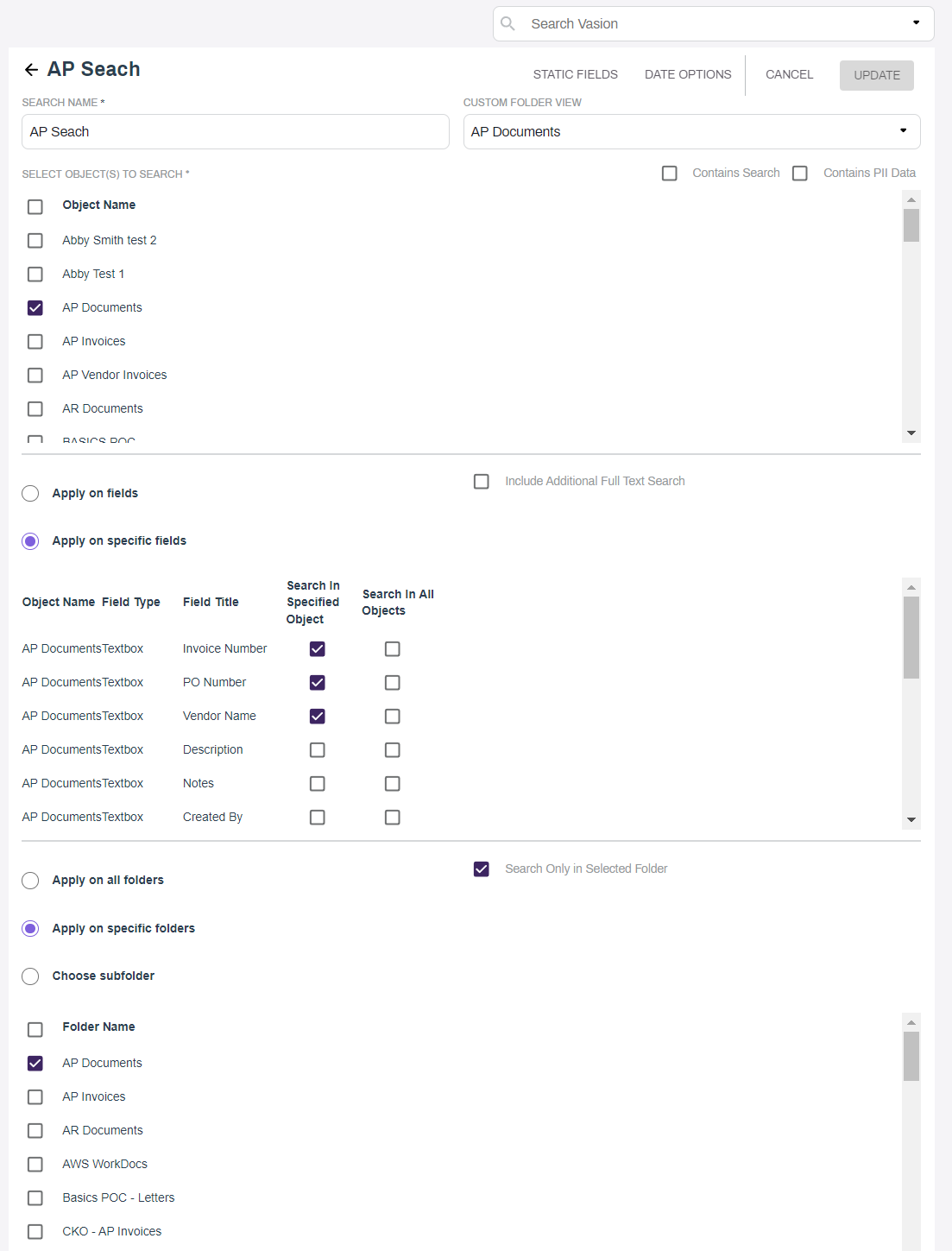
You can make any changes necessary to existing searches.
-
From the appropriate Search Setup page, select the More button
on the right to view the Search menu.
- Select Edit Search.
- In the setup page make the changes you want. For details on search setup components see Object Search Setup or Full-Text Search Setup.
-
Select the Save button.
Delete Search
Follow these steps to delete a search:
-
From the appropriate Search Setup page, select the More button
on the right to view the Search menu.
- Select Delete Search.
-
In the confirmation modal, select Yes button.

Refresh Search
The Refresh Search option lets you manually update the Full-Text search database so that the latest documents and objects that have been added since the last time the database was updated can now be searched.
-
From the appropriate Search Setup page, select the More button
on the right to view the Search menu.
- Select Refresh Search.
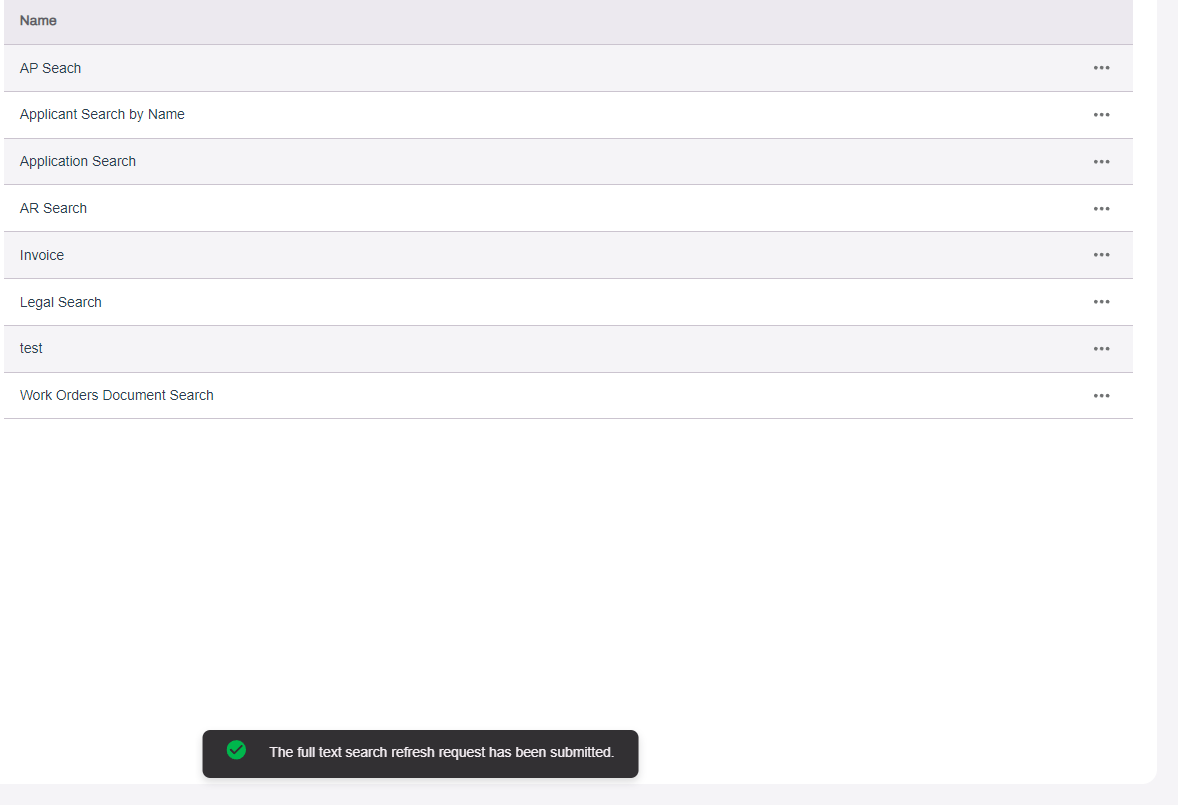
A message at the bottom of the page lets you know the refresh request has been submitted. Depending on the size of your database it may take some time for the update to complete. A system email is sent when the update completes.