Last Updated: August 13, 2024
User Profile
Your user profile contains settings for you to set a default app to load upon log in, control your view of the workspace, allow you to upload a digital signature, and more.
User Settings
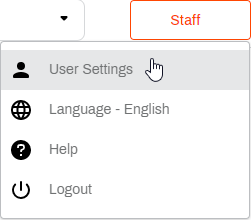
Access your user settings.
- Select an app from the Home page.
- Select your name on the top-right corner button.
-
Select User Settings.
Reset Your Password
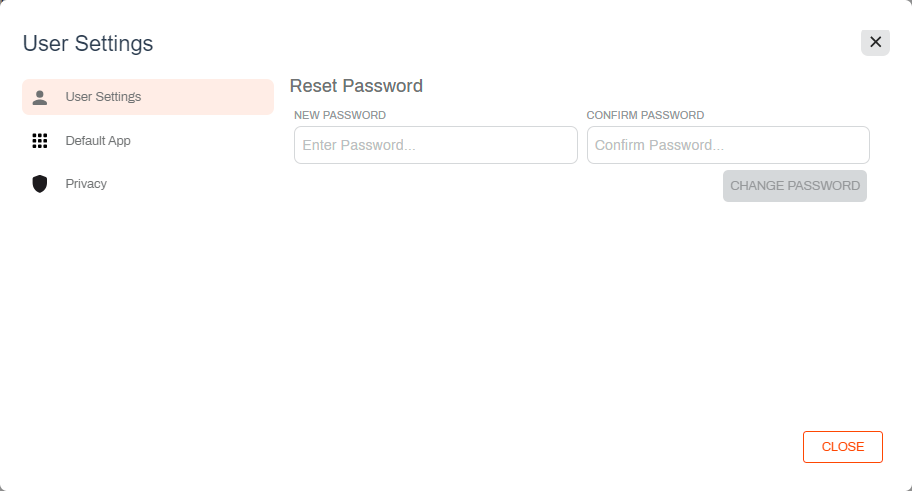
In the User Settings modal do the following:
- Enter your new password in the New Password.
- Re-enter the password in Confirm Password.
- Select Change Password.
- Select Close to exit the modal.
If your organization uses Single Sign On or LDAP, the Reset Password option is not available.
Default App
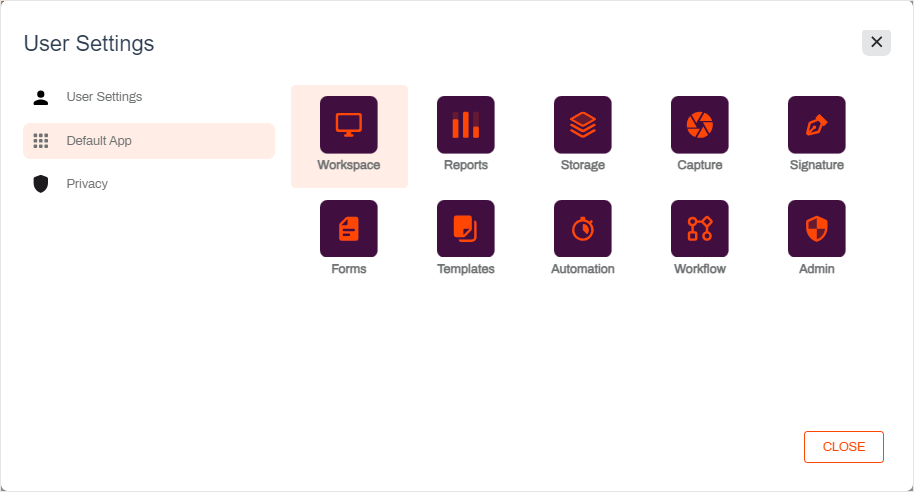
You can configure an app to load by default instead of the Home page when you log in. In the User Settings modal do the following:
- Select Default App.
- Select the app you want as default.
- Select Close to exit the modal.
Privacy
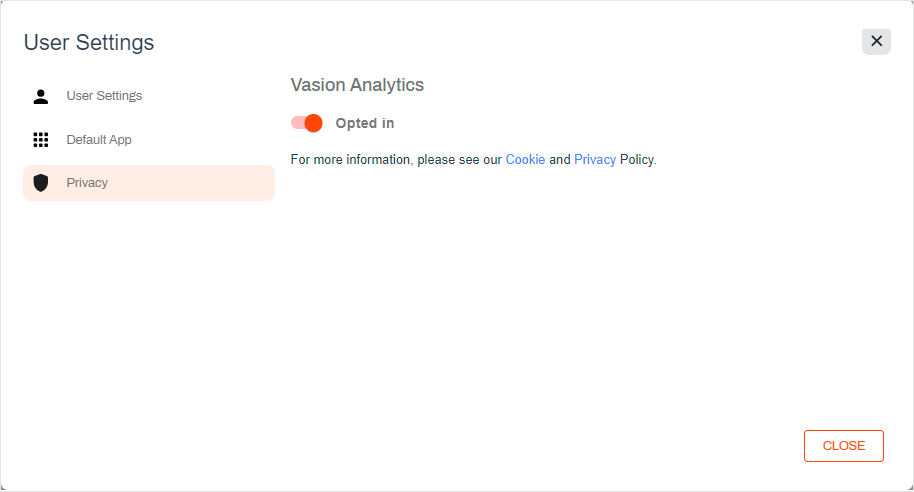
Tracking analytics are integrated throughout Vasion Automate Pro to continuously improve functionality and deliver the best customer experience. By default, Vasion analytics are enabled for all customers. If you wish to know more about our policies, links to our cookies and privacy policies are available. To turn off analytics tracking do the following:
- Select Privacy.
- Toggle Opted In to off.
- Select Close to exit the modal.