Last Updated: August 13, 2024
Sign In
-
Click on the link provided to you or paste the link on your web browser.
-
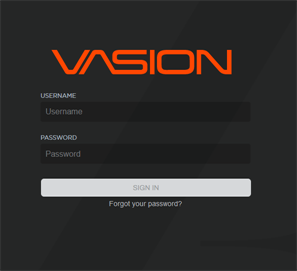
On the Sign In page, enter your username and password.
-
Select the Sign In button,
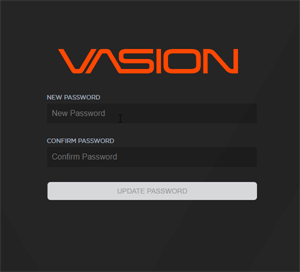
The first time you sign in you may be required to update your password.
- Enter and confirm you new password.
- Click on Update Password.
Reset Password
- To reset your password click on Forgot your password?
- Enter you username and email address and select Reset Password.
- Follow the email instructions to update your password.
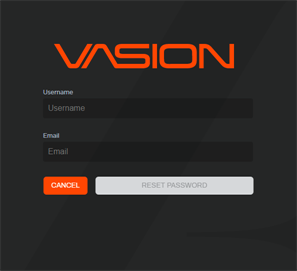
To return to the Sign In page click Cancel.
Home
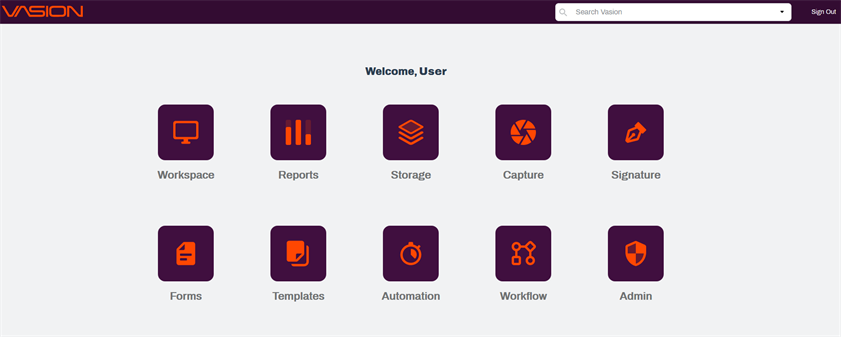
The Vasion Home page displays the apps you have permission to access. The number of apps you see may be different from what's depicted in the image.
Log Out
There are two ways to log out, depending on where you are in Vasion.
- From the Home page, select Sign Out from the top right-hand corner.
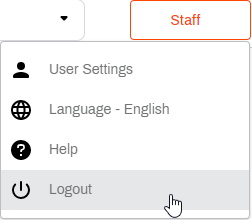
- From any of the apps, select your name from the top-right corner button.
Select Logout.