Print Language
Last Updated: October 23, 2026
The PrinterLogic Output service automatically converts documents to a print-ready file format before sending them to the printer. However, some printers work better with specific file formats. This option allows you to configure which file formats your print jobs convert to via a dropdown menu at a printer-specific or default level. To make changes to existing settings in bulk, see Quick Config Tool.
Set Print Language
Default Settings
- In your Admin Console go to Tools
 Settings Output.
 - Go to the Output Print Language section.
- Use the dropdown to select the desired print language you want to apply globally.
- Auto-Detect (Passthrough): Direct to printer.
- Do not modify: Direct to printer.
- PS: PostScript.
- XPS: XML Paper Specification.
- PDF: Portable Document Format.
- PCL5: Printer Command Language 5.
- PCLXL: Printer Command Language XL (PCL6).
- ZPL: Zebra Programming Language.
- ESC/POS: Epson Standard Code for Point of Sale.
-
Use the language profile dropdown to select a profile. Select Default to use our recommended settings.
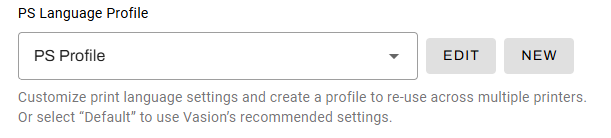
- Select Save in the upper-right corner.
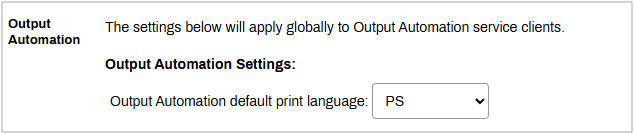
The selection option is the default print language for all Output Automation printers.
Printer-Specific Settings
To adjust the print language for specific printers:
- In your Admin Console go to the desired printer object in your tree structure.
- Select the Port tab.
- Scroll down to the Output Automation Print Language section.
- Select Use printer-specific print language.
- Use the dropdown to select the print language.
- Auto-Detect (Passthrough): Direct to printer.
- Do not modify: Direct to printer.
- PS: PostScript.
- XPS: XML Paper Specification.
- PDF: Portable Document Format.
- PCL5: Printer Command Language 5.
- PCLXL: Printer Command Language XL (PCL6).
- ZPL: Zebra Programming Language.
- ESC/POS: Epson Standard Code for Point of Sale.
-
Use the language profile dropdown to select a profile. Select Default to use our recommended settings.
- Select Save in the upper-right corner.
- Repeat as needed for additional printers.

The selection option is the default print language for the adjusted Output Automation printers.
Print Language Profiles
Create a Language Profile
A language profile groups default print settings for one print language. Any printer that uses the same language can select the same profile. The settings you can configure depend on the print language. Auto-Detect (Passthrough) and the Do not modify option do not support profiles.
To create a language profile:
- In your Admin Console, go to the location where you want to create the profile:
- For the default settings:
- Go to Tools Settings Output.
- Then go to the Output Print Language section.
- Go to Tools
- For one printer:
- Go to the printer object's Port tab.
- Scroll down to the Output Automation Print Language section, and select Use printer-specific print language.
- For the default settings:
-
Use the dropdown to select a print language.
- Next to the language profile dropdown, select New.
- In the New Language Profile modal:
- Enter a name for the profile in the Profile Name field.
- Set the print settings for the language.
Select the service:
- API Cloud Link.
- Output Service (On-Prem).

- (Optional) Select the TEST PRINT THIS PROFILE button to send a test print to confirm the settings.
- Select Save Profile.
- Select Save in the upper-right corner.
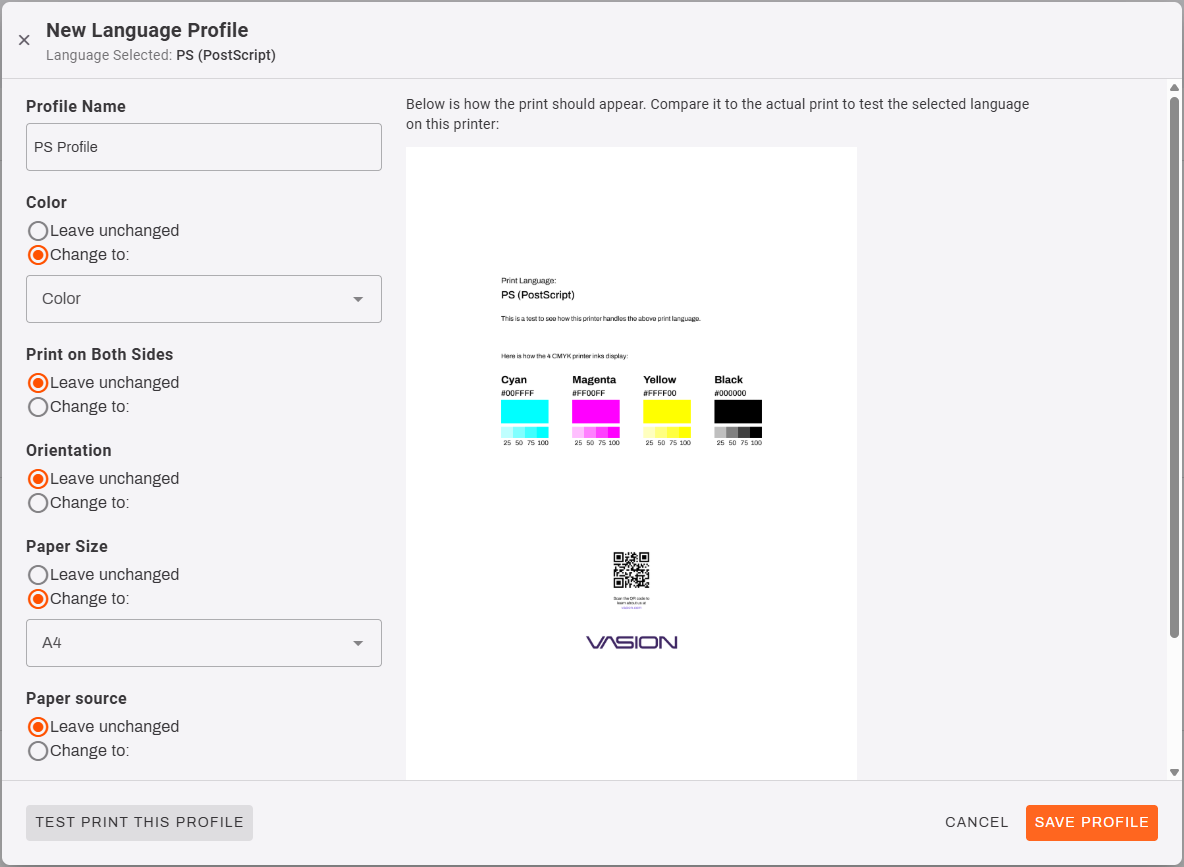
A profile sets default values. The print request takes precedence over the profile, and the profile takes precedence over the default. For example, a paper tray that Epic specifies in a print request overrides the tray in the profile.
Edit a Language Profile
To edit a language profile:
- In your Admin Console, go to the location where you want to edit the profile:
- For the default settings:
- Go to Tools Settings Output.
- Then go to the Output Print Language section.
- Go to Tools
- For one printer:
- Go to the printer object's Port tab.
- Scroll down to the Output Automation Print Language section.
- For the default settings:
- Next to the language profile dropdown, select Edit.
- In the New Language Profile modal:
- Adjust the print settings for the language.
Select the service:
- API Cloud Link.
- Output Service (On-Prem).
- (Optional) Select the TEST PRINT THIS PROFILE button to send a test print to confirm the settings.
- Select Save Profile.
- Select Save in the upper-right corner.
Delete a Language Profile
To delete a language profile:
- In your Admin Console, go to the location where you want to delete the profile:
- For the default settings:
- Go to Tools Settings Output.
- Then go to the Output Print Language section.
- Go to Tools
- For one printer:
- Go to the printer object's Port tab.
- Scroll down to the Output Automation Print Language section.
- For the default settings:
- Next to the language profile dropdown, select Edit.
-
In the New Language Profile modal:
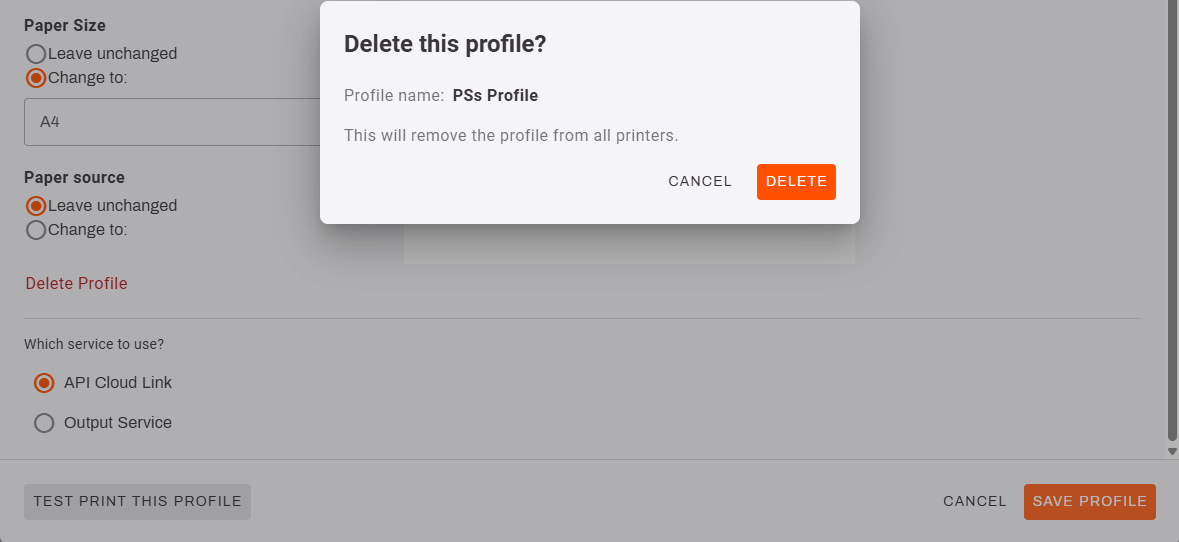
- Select Delete Profile in the lower-left.
- Select Delete in the Delete this profile? modal.
- Select Save in the upper-right corner.
In this topic: