Print Language Test
Last Updated: October 23, 2026
Use the print language test to find the print language that works best for a printer. PrinterLogic Output sends one test page in each language you select, and each page states the language it uses. Compare the printed pages to choose the language that prints correctly. After you choose a language, you can create a language profile for it.
Requirements
Configure API Cloud Link or the API Print Service (for on-premises environments).
Print Test Pages
- In your Admin Console, go to the desired printer object in your tree structure.
- Select the Port tab.
- Scroll down to the Output Print Language section.
-
Select Print Test Page(s).

-
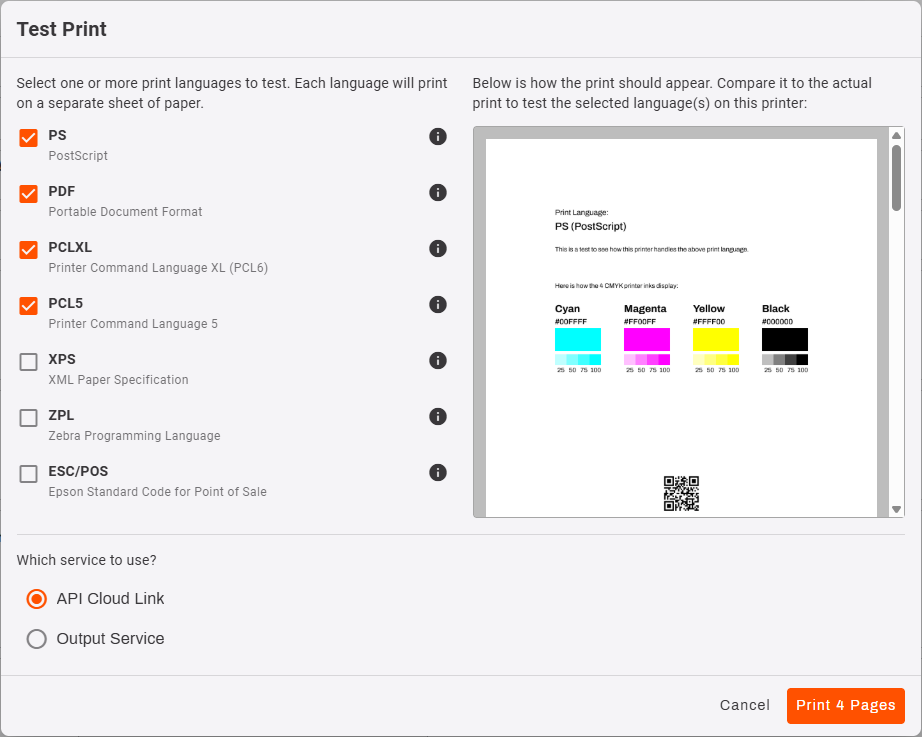
In the Test Print modal, select the languages you want to test.
The modal shows a preview of the test page for the last selected language.
- Select the service:
- API Cloud Link.
- Output Service (On-Prem).
- Select the Print Pages button.
-
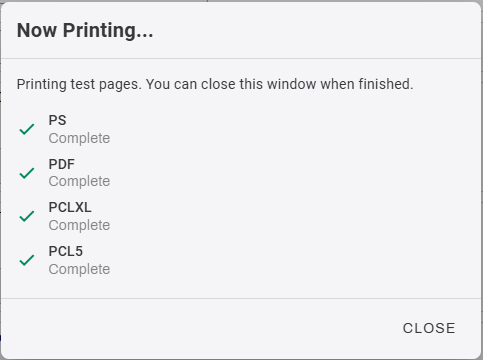
The Now Printing modal shows job status, review the status of each test job.
- Compare the alignment and color elements on the printed pages.
Results
The Output Console shows the test print jobs.
- If the Output Console shows the service sent a job to the printer but nothing prints, or the printed job contains unreadable characters, the printer does not support that print language.
- The printer discards a job it cannot interpret. If only some test pages print, the printer does not support the languages that did not print.
Next Steps
In this topic: