Configure a Conditional Step
Last Updated: May 19, 2026
You configure conditional logic to route a workflow to different steps based on data from an upstream workflow source. This topic describes how to add and configure a Conditional Logic step and connect its branches to downstream steps.
Requirements
Review these Requirements before you start.
In addition to the general requirements, Conditional Logic requires the following:
- Your workflow must include at least one upstream step that emits variables before you add a Conditional Logic step.
Add the Conditional Logic Step
Follow these steps to add the step to your workflow canvas:
- From the workflow builder, drag the Conditional Logic step from the steps panel onto the canvas.
- The step card appears with a Default Branch and Branch 1. A configuration side sheet opens automatically on the right side of the screen.
- Drag the connector from the previous step to the Conditional Logic step card to connect them.
- Configure the branch.
- Select the + Add Branch button to add another branch.
- Repeat the branch configuration as necessary.
- Drag the connector from each branch to the corresponding workflow steps.
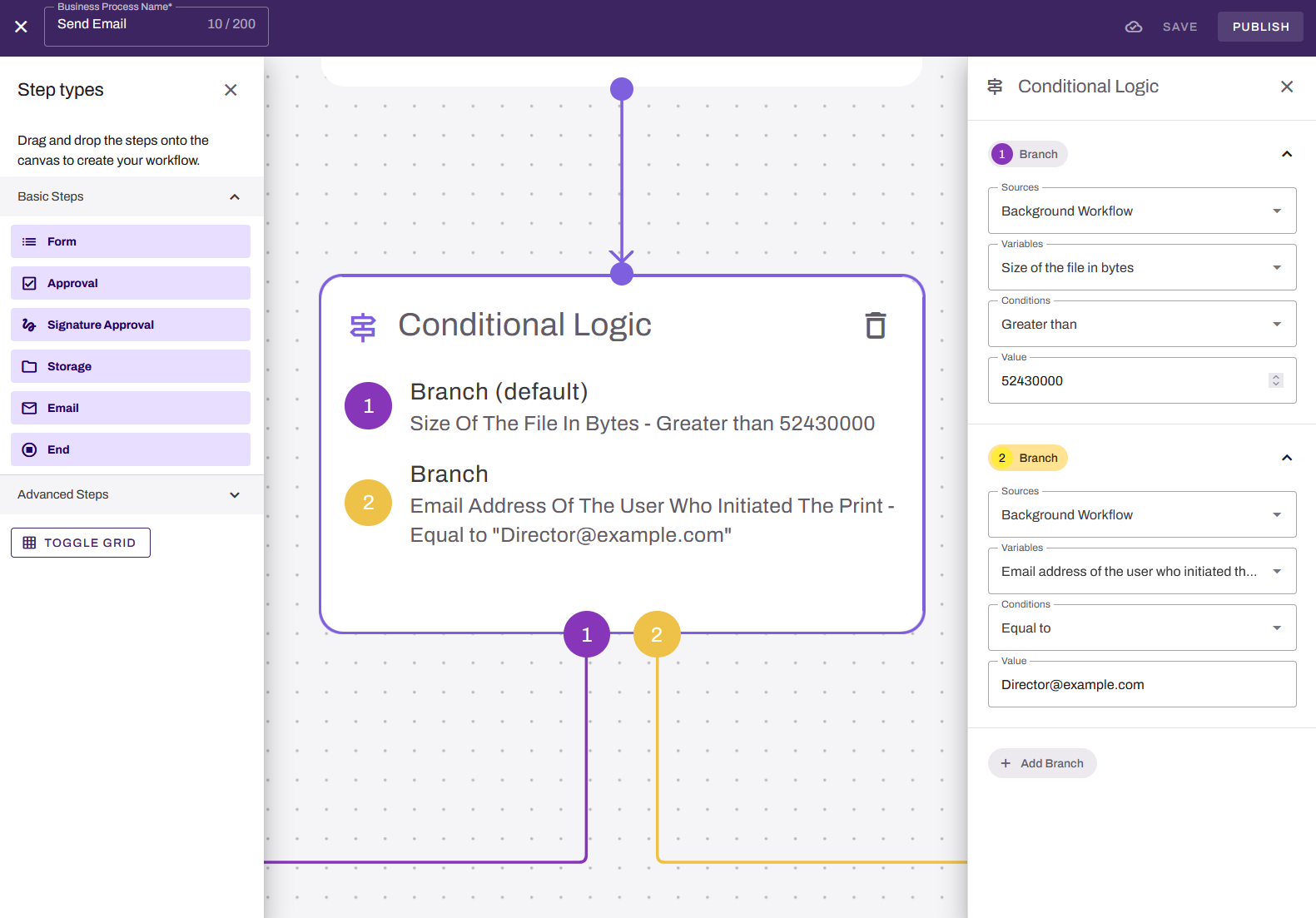
Configure a Branch
Follow these steps to define the routing condition for a branch. Repeat these steps for each branch you want to configure:
- In the side sheet, select the branch you want to configure.
- Select the Source dropdown and choose the upstream step that provides the data you want to evaluate.
- Select the Variable dropdown and choose the specific field or data point from that source.
- Select the Condition dropdown and choose the comparison operator.
- In the Value field, enter or select the value to compare against. The field accepts predefined options when available, or free-form text for open-ended variables.
To rename the branch, select the branch pill in the side sheet and enter a new name.
- Select + Add Branch and repeat steps to configure the new branch.
A maximum of five branches can be added to a conditional step.
Connect Branches to Downstream Steps
Follow these steps to connect each branch to the next step in its path:
- On the canvas card, locate the branch connection points at the bottom of the card. Each point is labeled with its branch number or "D" for the Default Branch.
- Drag each branch connection point to the relevant downstream step.
- After all branches are connected and configured, the Conditional Logic step is valid and the workflow is ready to publish.