Connect Storage Providers
Last Updated: September 14, 2026
Before you can route documents to Google Drive, OneDrive, or SharePoint, either with a workflow or from the Storage page, you need to connect your account for that third-party storage provider. Your admin must turn on the integration for your organization before you can complete this process.
Requirements
Review the following requirements:
- Admin-created integration with the third-party storage provider.
- Active account to connect with the third-party storage provider.
Connections
Storage Page
Follow these steps:
- In Vasion Automate select Storage in the left-side navigation.
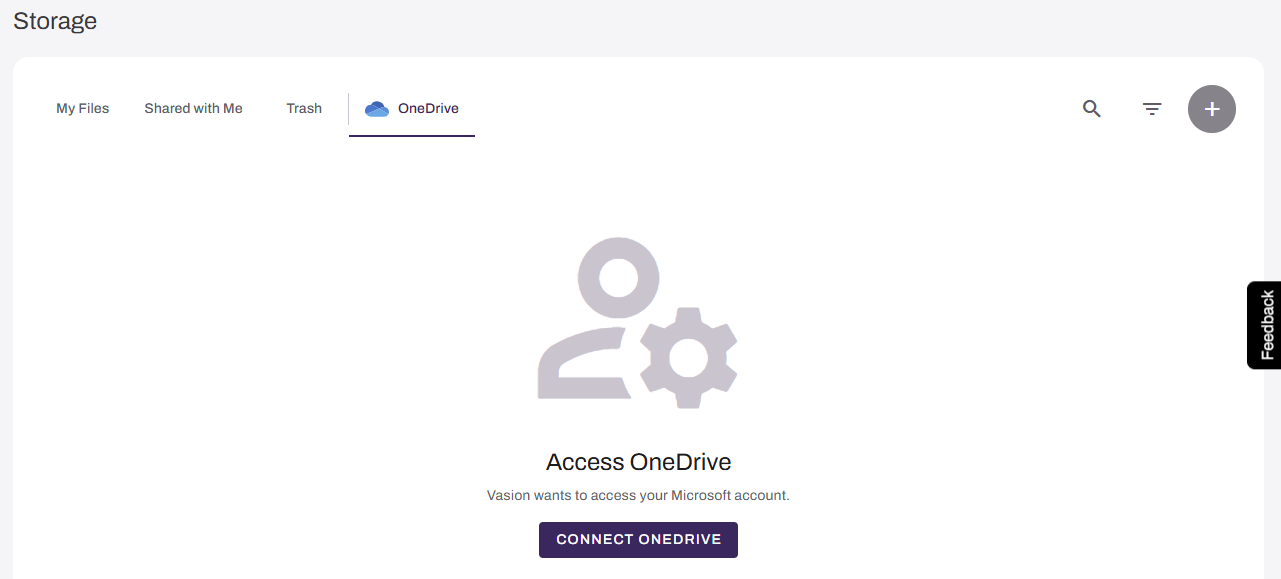
- Select the tab for the storage provider you want to connect to.
-
Select the connect button.
-
Sign in to the storage provider.
After authorization completes the tab shows your files and folders.
Workflow: Business Process Page
Follow these steps:
- In Vasion Automate select Workflow in the left-side navigation.
- Select Business Process.
- Select a draft workflow, or create a new workflow. For more details refer to Build a Workflow.
- Add or edit a Storage step. For more details refer to Configure Storage Step.
- In the Storage Destination section, select the Select Folder button.
-
In the modal select the third-party storage provider you want to connect to. If your account is not authorized, a configuration message appears.
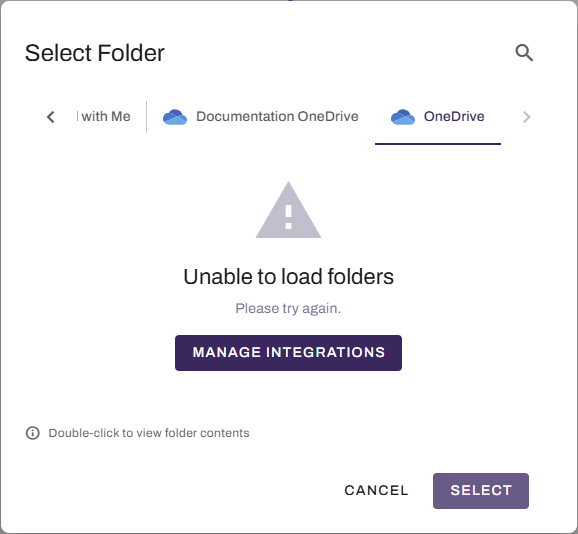
- Select the Manage Integrations button.
- On the Integrations tab, select the plus sign (+) button for the storage provider in the Available Integrations section.
-
Sign in to the storage provider.
If authorization fails or you cancel it, you return to your previous location and the storage provider remains unconnected.
-
Return to the workflow, and select the third-party storage provider as your storage destination.
If you have more than one account for the same storage provider, each account appears as a separate option. Select the account you want to use for that step.
Related Topics
Refer to the following:
In this topic: