Output Console: Print Job Actions
Last Updated: September 08, 2026
This topic outlines the available actions on the Output Console's Print Jobs and Batch Jobs tabs.
Actions
Retry
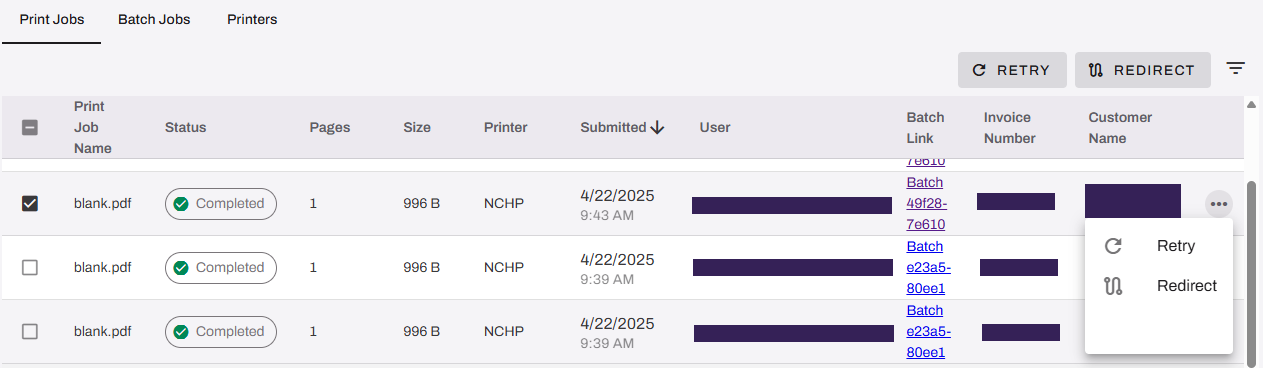
You can retry print jobs only with a Failed, Completed, or Canceled status.
To retry the print job:
- Select the box next to the print job name.
- Select the Retry button in the upper-right.
OR
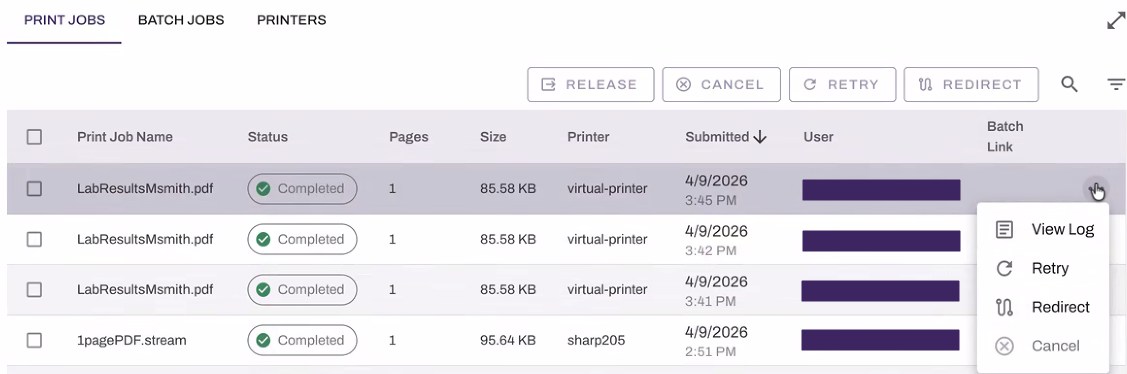
- Select the More button
 to the far-right of the print job.
 - Select Retry.
Cancel
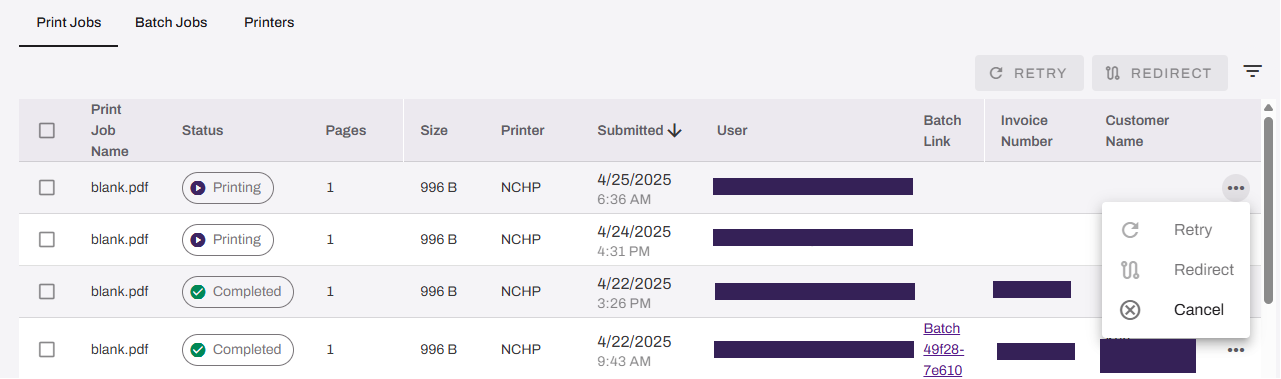
The Cancel option appears when the print job Status is Retrying, Redirect, Held, or Printing. To cancel the print job:
- Select the More button to the far-right of the print job.
- Select Cancel.
Redirect
You can redirect print jobs only with a Failed, Retry, or Canceled status.
To redirect the print job:
- Select the box next to the print job name.
- Select the Redirect button in the upper-right.
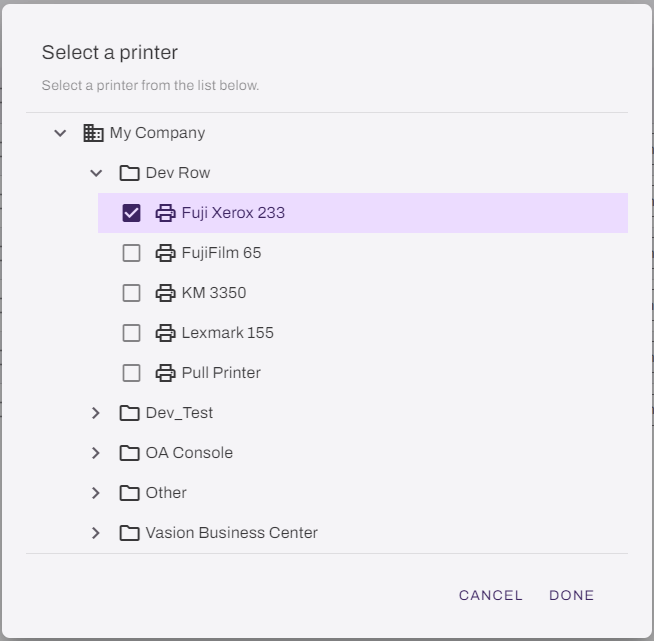
- In the Select a printer dialog box, browse to and select the desired printer.
- Select Done.
OR
- Select the More button to the far-right of the print job.
- Select Redirect.
- In the Select a printer dialog box, browse to and select the desired printer.
- Select Done.
Release
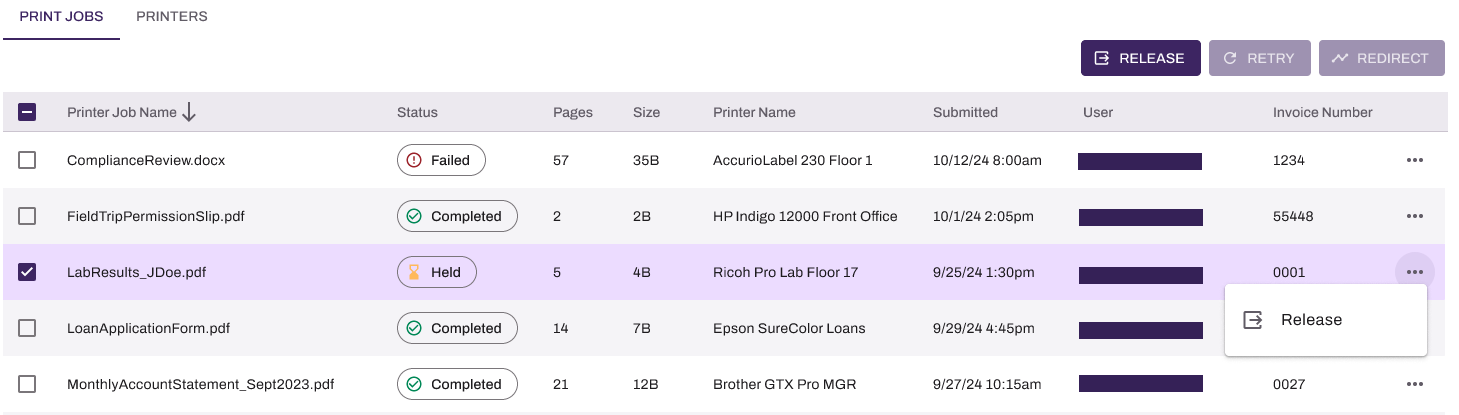
The Release option appears only when the print job Status is Held.
To release the print job:
- Select the box next to the print job name.
- Select the Release button in the upper-right.
OR
- Select the More button to the far-right of the print job.
- Select Release.
Job History
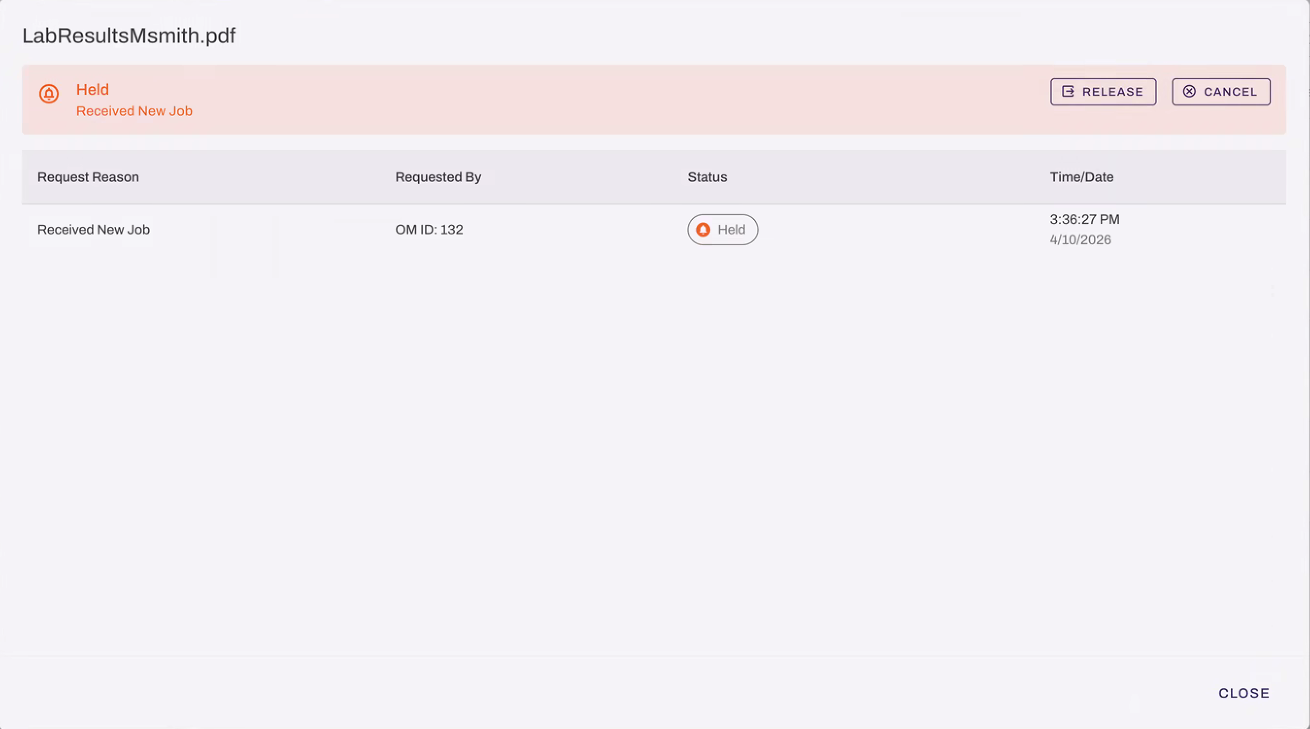
The Job History dialog box provides a detailed log of status events for an individual print job, allowing you to trace how the job was processed from receipt through completion.
To view job history:
- In the Output Console, locate the print job in the Print Jobs tab.
- Select the print job line item or the More button to the far right.
- Select View Log.
The Job History dialog box displays the following details for each status event:
- Request Reason: The action that triggered the event (for example, Received New Job, Requested Job Leases, Job Completed).
- Requested By: The Output Manager instance that processed the request.
- Status: The status associated with the event (for example, Printing, Completed).
- Time / Date: The time and date that the event occurred.
Job History Actions
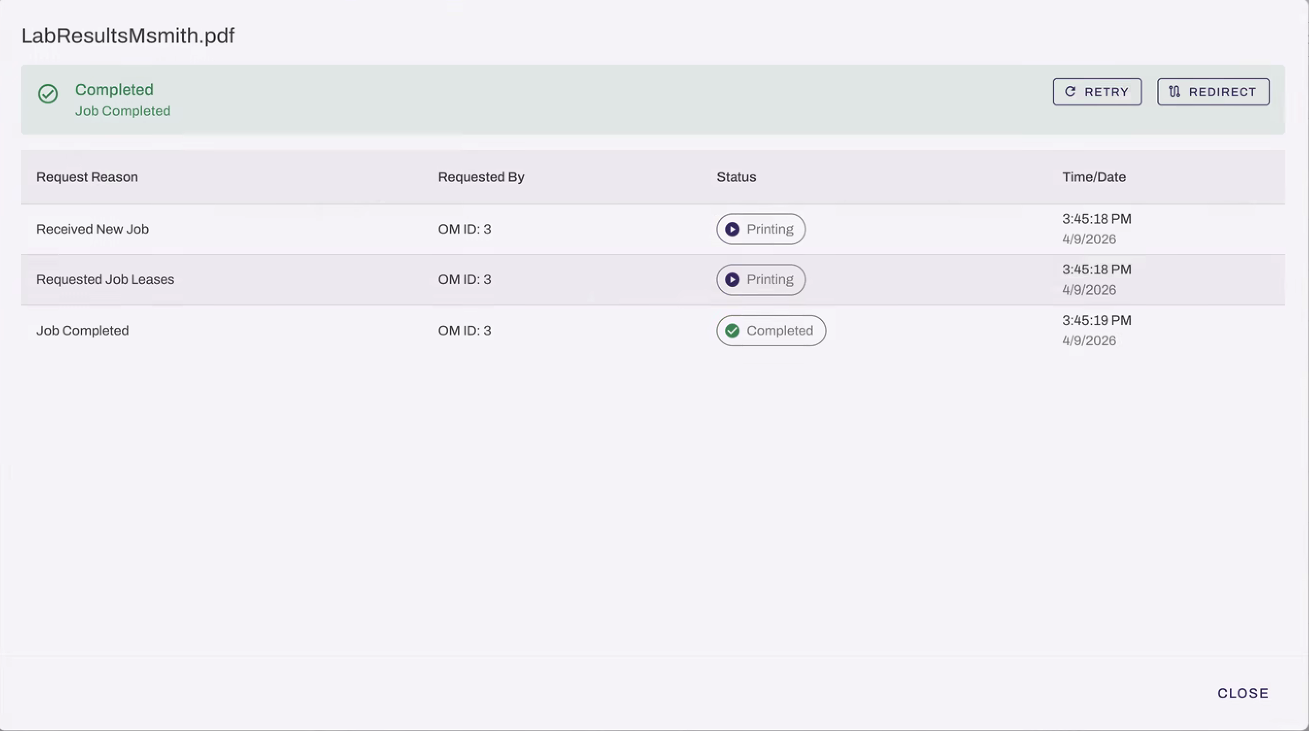
From the Job History dialog box, you can complete Status-related actions like:
- Retry:For jobs with a Failed, Completed, or Canceled status
- Redirect: For jobs with a Failed, Retry, or Canceled status.
- Release: For jobs with a Held status.
- Cancel: For jobs with a Retrying, Redirect, Held, or Printing status.
In this topic:
PrinterLogic Output modernizes traditional output management by automating critical document and print workflows, bridging back-end systems and end-user printing, and connecting seamlessly with existing EMR, EHR, and ERP systems. PrinterLogic Output automates document routing, conversion, and delivery, reducing manual effort and streamlining operations
- EMR/EHR/ERP Connectors
- API Service
- Output Rules
- Batch Printing
- Output Console
- Print Job Regionalization
- Document Conversions & Driverless Printing
- Confirmed Delivery
- Quick Configuration
- API Cloud Link
Check out our Solution Brief. for more about these features.
Yes, PrinterLogic Output easily connects your systems with Vasion to route and deliver documents to your desired destinations while offering you more granular control and visibility.
It seamlessly connects with ERP/EMR/CRM systems and other business-critical applications, enhancing your current document management without needing a complete overhaul. The API Service also supports on-prem and cloud-based systems, expanding your integration capabilities with ease and flexibility.
The Output Console offers complete control and oversight over your printing and document environment. This unified interface offers the ability to view printers, filter and sort print jobs, track processed jobs, redirect failed print jobs, and cancel or reprint past jobs. With robust reporting capabilities, you gain enhanced insights into queue statuses and printer performance, ensuring efficient, transparent print operations. Reduce downtime by quickly identifying and troubleshooting issues to protect your critical business processes.
PrinterLogic Output provides robust security features that protect sensitive documents during transmission and storage, ensuring that only authorized users can access critical information. It includes:
- Detailed Audit Trails: Track document access and delivery for compliance and security audits.
- Zero Trust Remote Printing: Allow secure print jobs from remote facilities without costly VPNs.
- Information Security: Document and print jobs are stored locally and encrypted when at rest on our services.
Vasion's Secure Release Print capabilities ensure that print jobs are accessible to only authorized users. Users must authenticate at the printer before releasing their documents, whether by badge swipe, entering credentials at the CPA, or scanning a QR code, preventing sensitive documents from falling into the wrong hands.
Additionally, Vasion's SaaS platform is ISO27001:2022 and SOC 2 Type 2-certified to mitigate risks to customer data and help manufacturing organizations better meet their business, legal, and regulatory requirements.
PrinterLogic Output is easy to implement. Tools like Network Scanner, the Data Manager, and Quick Config tool help you migrate queues and apply settings in bulk. You can also configure zones to route jobs by region and use the Output Console for real-time monitoring, job health, and automatic redirection.
PrinterLogic Output is licensed per print queue. You will need additional licensing to access additional features like Secure Release and Off-Network Printing.
As a PrinterLogic Output customer, you will already have a functional Service Agent and printer configured. From there, you must secure a digital certificate issued by a reputable Certificate Authority (CA), recognized and trusted by the system or application you are connecting to the Output Service.
For additional information on API Print Service prerequisites, refer to API Print Service.
The API Print Service runs on the PrinterLogic Output Service on a Windows or Debian Linux server either on-premise or in your cloud instance. This allows the API Print Service to reach your source application and printers unless Off-Network Print is utilized. This back-end configuration is flexible to your environment's requirements to function seamlessly with your existing systems and processes.